
Service Stages

Service stages are completely optional — many practices use Sodium day-to-day and never turn them on. But if you want to see exactly where every client's work stands, they're a powerful addition. Stages give you visual indicators on each service, showing whether it's at "Information Gathering", "In Progress", "Under Review", or "Filed" — at a glance, across your entire client base.

What Are Service Stages?

Service stages are visual indicators you define on each service. They represent the phases of delivery — like "Information Gathering", "In Progress", "Under Review", and "Filed". Each stage gets a name, icon, and colour for instant recognition.

When a client has a service, the current stage is shown as a coloured badge — making it immediately obvious where that piece of work stands without opening anything.
Defining Stages

Go to any service's Stages tab to set them up. Add as many stages as you need, drag to reorder, and pick an icon and colour for each one.

Stages are per-service — your accounts preparation stages might differ from your VAT return stages. A tax return service could have "Awaiting Records", "Return in Progress", "Awaiting Approval", and "Filed", while a bookkeeping service might just need "In Progress" and "Complete".

Setting Stages on Clients

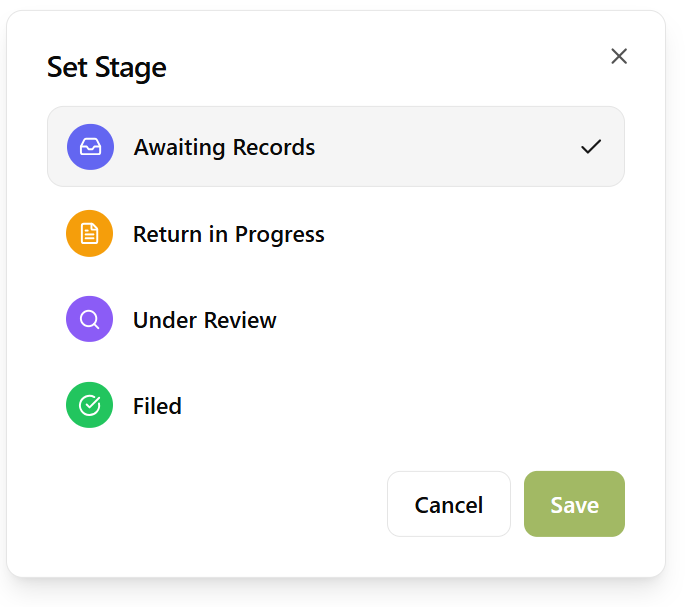
Each client's service shows its current stage as a coloured badge. Click the badge to change it manually, or set it from the client service edit dialog.

This gives you a quick way to update progress as work moves forward — but the real power comes from automating these transitions through workflows.

Setting a service stage on a client

Automatic Stage Transitions

The real power of service stages is automation. Add "Set Service Stage" workflow steps to your workflow templates. As the workflow progresses, stages advance automatically.

Your VAT Return workflow might set "Awaiting Records" at the start, "Return in Progress" when preparation begins, and "Filed" when submission is complete. As each recurring task moves through its workflow, the service stage updates to reflect exactly where the work is.

No one needs to remember to update the stage manually. The workflow handles it — so the stage is always accurate and up to date.

Library Templates

Services imported from the Sodium library come with pre-configured stages. The associated workflows include Set Service Stage steps that advance the stage automatically as work progresses.

Import a service, assign it to a client, and stage tracking works out of the box. As always, everything is fully editable — adjust the stages, rename them, change icons and colours, or add your own to match how your practice operates.

Filter Clients by Stage

Service stages work with saved views for clients. Create a saved view that filters by a specific service and stage to instantly see all clients at that point in delivery. For example, a view showing every client whose accounts preparation is at "Awaiting Records" gives you a ready-made list to chase.

Pin these views to your navigation menu and you have one-click access to the clients that need attention right now.

Kanban Boards

Want to see all your clients laid out by stage on a visual board? Enable kanban boards on any service with stages. Drag clients between columns, spot bottlenecks at a glance, and see how long each client has been at their current stage — all from a single view.

At a Glance

On the client page, every service shows its current stage badge. Across your client list, you can instantly see which clients are at which stage of service delivery, helping you prioritise work and spot bottlenecks.

Combined with recurring tasks and workflows, service stages give you a complete picture of delivery progress without anyone having to manually track or report it.

Want to learn about other capabilities?

Explore all features

Have questions or suggestions?

Get in touch