
Client Schedules

Every practice has one job that most clients want on the same day and a handful want on a different one. Payroll on the last working day, except the two clients who pay on the 25th. Bookkeeping monthly, except the one on a fortnightly cycle.

Client schedules let one recurring task run on different dates for different clients. One definition, one workflow, one set of instructions - and each client still gets their task when they actually need it.

At a glance

  • One recurring task, as many schedules as you need
  • Everyone runs on the default schedule until you say otherwise
  • A custom schedule is a full schedule, not a nudge to the default
  • Different driving date, cadence and holiday rule per schedule
  • Assign clients from the task, or pick a schedule from the client
  • Workflow, checklist and assignment stay shared across all of them
  • Name each schedule and it can appear in the generated task name
  • No forking your service list to model a date difference

The Problem With One Date For Everyone

Practice management systems tend to treat a recurring task as having exactly one schedule. That works right up until two clients on the same service want the work on different days, which in payroll and bookkeeping is most of the time.

The usual workaround is to fork the service: Payroll (22nd), Payroll (25th), Payroll (Last Working Day). Now the same job exists three times over. Your service list fills with near-duplicates, reporting splits three ways, fee reviews have to be done three times, and a change to the checklist has to be made three times and will eventually be made twice.

The date a client wants their payroll run is not a different service. It is the same service on a different day, and that is all client schedules make it.
A Default, Plus As Many Exceptions As You Need

Every recurring task has a default schedule. Unless you say otherwise, every client in scope runs on it, and a task with one cadence never has to think about this feature at all.

When a client needs something different, add a named schedule and put them on it. Everyone else carries on as they were. A client sits on exactly one schedule at a time, so there is never a question about which dates apply to them.

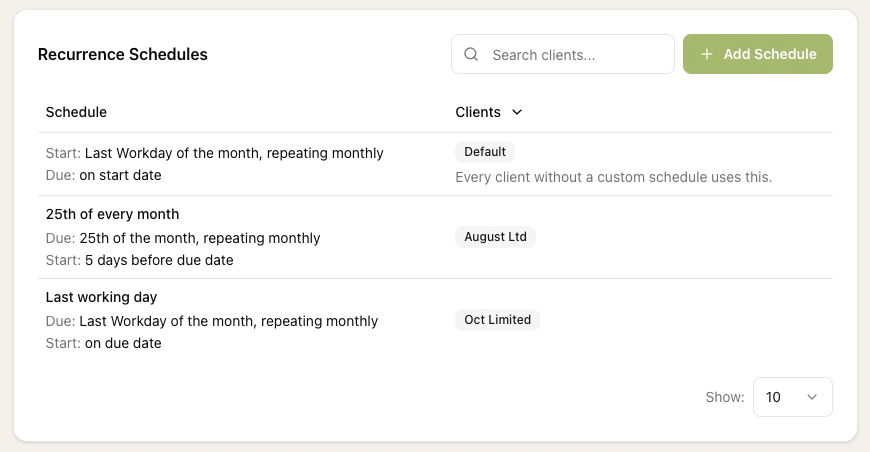
A Monthly Payroll recurring task with three schedules: a default running on the last workday of the month, a custom '25th of every month' schedule with one client, and a 'Last working day' schedule with another

Schedules read in plain English, so the whole picture fits on one screen: which cadence is the norm, which clients are the exceptions, and what they get instead.

A Full Schedule, Not A Small Adjustment

A custom schedule is not an offset applied to the default. It is a complete schedule in its own right, and it can differ in every respect:

  • Which date drives it - one schedule can be driven by its due date and another by its start date
  • The cadence - monthly for most, fortnightly for one, or a repeating pattern like 4-4-5 for the client who reports that way
  • The working window - how many days before the deadline the work opens
  • Non-working day handling - move before, move after, or skip, set per schedule

Anything you can express on a recurring task, you can express on any one of its schedules.

Set It From Whichever Side You Are Looking At

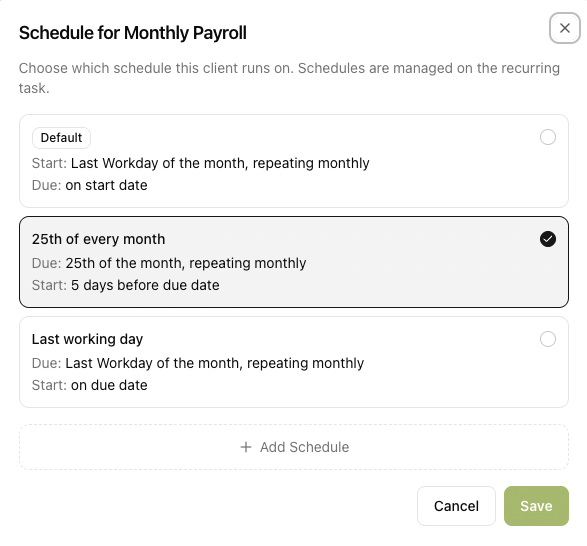
Choosing which schedule a client runs on for Monthly Payroll: the default last-workday schedule, a 25th of every month schedule, or a last working day schedule

Work arrives from both directions, so you can set a schedule from either.

From the task - when you are setting up Payroll for the practice, add the schedules you know you need and drop clients onto each one. This is the efficient way to handle a migration or an annual tidy-up, where you are thinking in cadences and working through the list.

From the client - when a client rings to say they are moving their payroll date, open their record, find the task and pick the schedule. You never have to remember which recurring task they belong to, or leave the client to go and find it.

Their record shows which schedule they are on at a glance, so the answer to "when does this client's payroll run?" is visible from the place you would naturally look.

Only The Dates Differ

This is the part that makes it worth doing. A schedule controls dates and nothing else. The task's workflow, checklist, assignment rules, service link and client association all stay shared.

Add a step to the payroll workflow and every client gets it, whichever schedule they are on. Change who the work is assigned to and it changes everywhere. There is still one Payroll task in your practice, and it is still the single place you go to change how payroll is done.

Telling The Generated Tasks Apart

Because schedules are named, the name can travel onto the work they generate. Recurring tasks build their names from a template, and {{ ScheduleName }} is one of the available tokens:

Payroll - {{ ClientName }} - {{ ScheduleName }}

Two payroll tasks landing in the same month for two clients on two cadences then read as what they are, rather than looking like a duplicate that somebody needs to investigate.

It Works With Everything Else

Schedules sit underneath the rest of the task engine rather than beside it, so nothing else has to be set up differently:

  • Service association - clients still come into scope by subscribing to the service. A new client starts on the default schedule and can be moved whenever you like.
  • Projected tasks - a saved view that includes projected work shows each client's upcoming tasks on their own dates, so capacity planning reflects reality.
  • Non-working days - move before, move after or skip is set per schedule, so one group can shift off a weekend while another is left where it lands.
  • The API - schedules and their client lists are part of the public API, so a bulk change across hundreds of clients is scriptable.

Common Use Cases

  • Payroll - pay dates are the client's decision, and they rarely agree with each other
  • Bookkeeping - weekly for the busy clients, monthly for the rest, one job either way
  • Management accounts - monthly for the clients who want them that often, quarterly for everyone else

Anywhere the work is identical and only the calendar differs is a candidate for a client schedule.

Want to learn about other capabilities?

Explore all features

Have questions or suggestions?

Get in touch