
Task Teams

Not every task needs to land on a specific person's desk. Sometimes work belongs to a group — a payroll team, a tax department, an admin pool. Task Teams let you assign work to a group and let members pick it up when they're ready.

Create teams, add members, and assign tasks to the team. Members see team tasks in their task list, pick the ones they'll handle, and the rest of the team can see what's been claimed.

How It Works

A firm has 50 payroll clients. They create a "Payroll Team" with 5 members. Monthly recurring payroll tasks are assigned to the Payroll Team. Each month, the 5 team members open their task list, filter by their teams, and pick tasks to work through.

When a team member sets a task to "In Progress," it automatically assigns to them — so everyone can see who picked it up. The team assignment stays on the task for context, but now there's also a named person responsible.
Team Assignment Is Independent

Team assignment works alongside existing user assignment, not instead of it. You can assign a task to both a specific user and a team. Or just a team. Or just a user. They're independent.

This flexibility supports different working styles:

  • Team only — work sits in a shared queue until someone picks it up
  • User and team — a specific person is responsible, but the team provides context and visibility
  • User only — traditional individual assignment, no team involvement

Setting Up Teams

Teams are managed in Settings under Users & Teams. Create a team, give it a name, and add members. A user can belong to multiple teams — someone might be in both the "Payroll Team" and the "Year End Team."

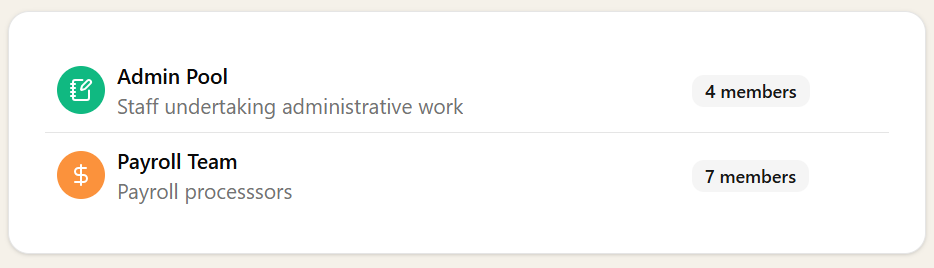
Teams settings showing team list with custom icons and colours for visual identification

Each team can have its own icon and colour, making it easy to visually identify teams at a glance across task lists, saved views, and the navigation menu.

Teams are available on the Pro plan. Admins can create and manage teams; other users have view access to see which teams exist and who's in them.

Assigning Tasks to Teams

Anywhere you can assign a task, you can also assign it to a team. This includes:

  • Individual tasks — pick a team in the task detail view
  • Recurring tasks — set a team on the template so every generated task is team-assigned
  • Workflow steps — assign specific steps to a team within a workflow template
  • Onboarding task templates — team-assign tasks that are created when a client takes on a new service

The team selector only appears if you have teams set up. If you don't use teams, nothing changes in your interface.

Filtering by Team

Saved views support team filters, so you can create views scoped to one team or a combination of teams. Create a "Payroll Queue" view filtered to the Payroll Team and NotStarted status, or a "Year End Overview" view that pulls in both the Year End Team and the Accounts Team — each accessible with a single click.

Pin your team views to the navigation menu so every team member can jump straight to their queue without setting up filters each time.

Dashboard Integration

The dashboard task count widget supports a "Team" mode alongside the existing "My Tasks," "Specific Users," and "All Users" options. Select one or more teams to see overdue counts, due today, this week, and in-progress stats for team-assigned work.

Auto-Assign on Pick Up

When a team member moves a team-assigned task from "Not Started" to "In Progress" and no specific user is assigned yet, the task automatically assigns to them. This mirrors how individual task pick-up already works — the team just provides the shared queue that feeds it.

The same applies to workflow steps — starting a team-assigned step claims it for you.

Want to learn about other capabilities?

Explore all features

Have questions or suggestions?

Get in touch