
Setting Up Kanban Boards
Service stages let you track where each client sits in the delivery of a service — from initial information gathering right through to filed and complete. This guide covers how to set them up, how to move clients between stages manually and automatically, and how stages power kanban boards.
What are service stages?
A service stage is a named milestone in the lifecycle of a service for a specific client. Think of the stages a VAT return goes through: information gathering, preparation, review, filing, complete. Each of those is a stage.
Stages are defined once on the service itself (e.g. "VAT Returns") and then applied per client. So client A might be at "Preparation" while client B is at "Filed" — both on the same service.
Each stage has a name, a colour, and an optional icon. The colour and icon appear everywhere the stage is shown — on the client page, on tasks, and on kanban boards.
Defining stages on a service
Stages are configured on the service template, not on individual clients. Every client who has that service will share the same set of available stages.
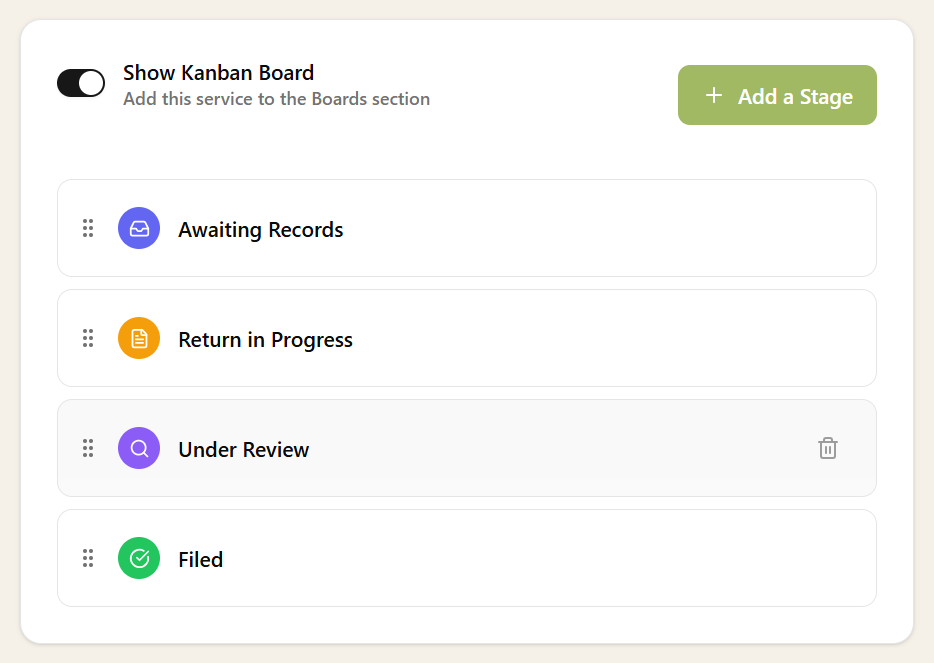
On the Stages tab you can add, reorder, and remove stages. For each stage you set:
- Name — a short label like "Information Gathering" or "Filed".
- Colour — used for the badge and the kanban column header.
- Icon — an optional Lucide icon shown alongside the name.
The order you set the stages in is the order they appear on the kanban board, so arrange them to match your typical workflow from left to right.
Setting a stage manually
Once a service has stages defined, you can set or change the stage for any client who has that service.
The stage picker shows all available stages with their colours and icons. Pick one and it's saved straight away. You can also clear the stage by selecting "No stage".
On a kanban board you can also drag a client card from one column to another — this updates the stage in the same way.
Stages on tasks
When a task is linked to a client and a service, the current stage is shown on the task detail page in the Related Service card on the right-hand side. You can click the stage badge there to change it, just like on the client page.
If the task has a workflow that includes Set Service Stage steps, the card will show a message letting you know that the workflow will update the stage automatically as it progresses. You can still change the stage manually if you need to.
Automating stages with workflows
Manually moving clients between stages works, but the real power comes from letting workflows do it for you.
When building a workflow, add a Set Service Stage step. You pick the service and the target stage. When the step executes, it moves the client's service to that stage automatically.
Set Service Stage steps are always auto-executing — they run as soon as their dependencies are met, with no manual action needed. This means you can weave stage transitions throughout a workflow to keep the kanban board up to date without anyone having to remember to move cards.
A typical pattern is to place a Set Service Stage step at the start of each logical phase:
- After the workflow starts → stage: "Information Gathering"
- After the client sends their documents → stage: "Preparation"
- After the review step is complete → stage: "Under Review"
- After the final step → stage: "Filed"
Kanban boards
Stages feed directly into kanban boards. Any service that has stages defined will automatically get a kanban board where each column represents a stage.
Client cards appear in the column matching their current stage. Drag a card to a different column to change the stage. Cards show the client name and service manager, so at a glance you can see who's responsible and where things stand.
As workflows move clients through stages, the board updates in real time. This gives the whole team a shared view of progress without anyone having to maintain it manually.
New to the moving parts behind these transitions? The Understanding Tasks, Recurring Tasks and Workflows guide explains how tasks, recurring tasks, and workflows fit together.
Tips for getting the most from stages
- Keep stages broad. Three to six stages per service is usually enough. If you need finer-grained tracking, that's what workflow steps are for.
- Use distinct colours. The kanban board is most useful when you can tell the columns apart at a glance.
- Match stage order to your process. The order you define stages in is the order they appear on the kanban board. Left-to-right should mirror your actual workflow.
- Pair with recurring tasks. When a recurring task generates a new task with a workflow, the workflow's Set Service Stage steps will move the client through the stages automatically each period.
- Check the board regularly. A quick look at the kanban board during a team meeting gives everyone an instant status update without digging through individual tasks.