Worst first
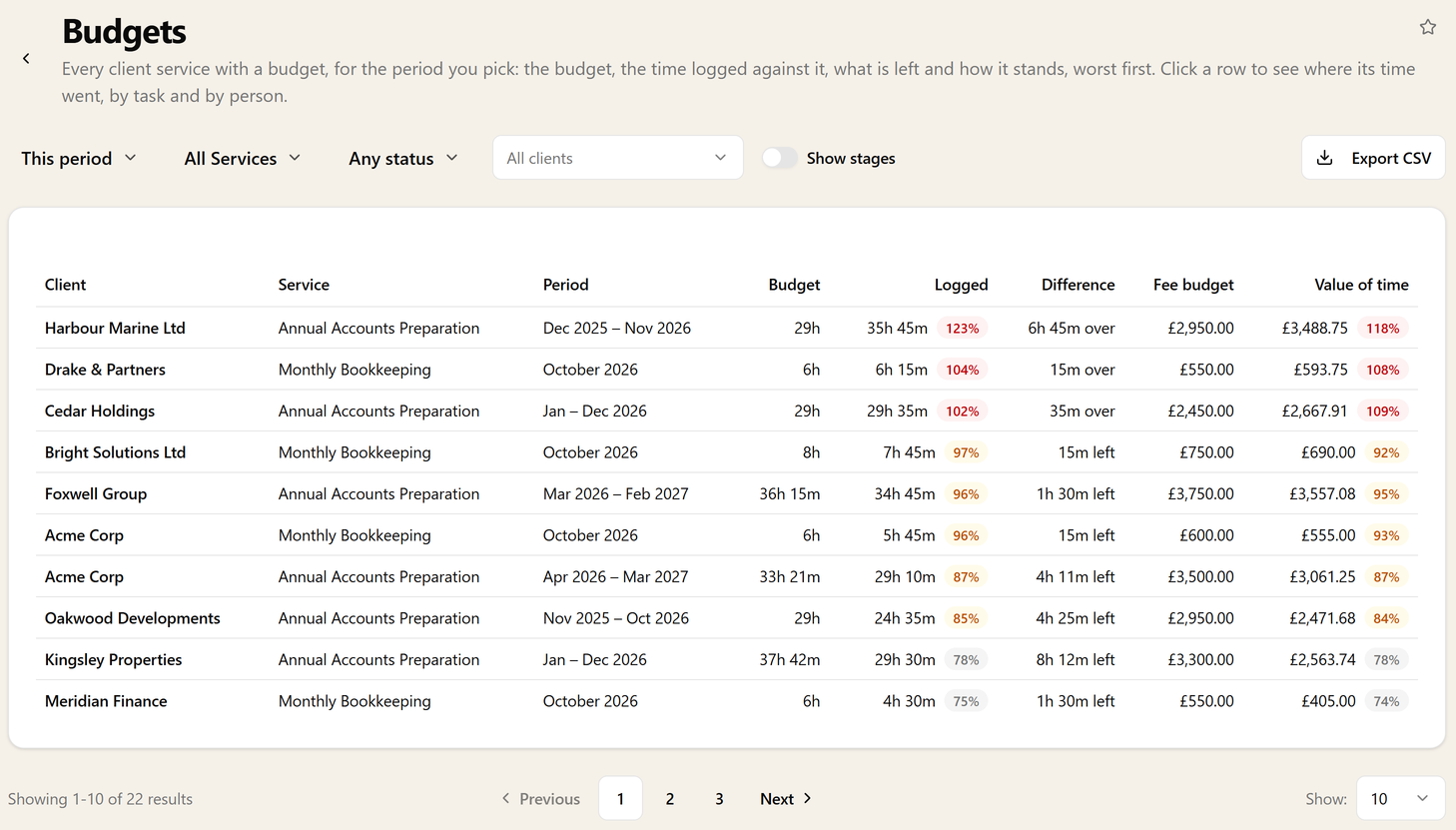
Jobs near their budget turn amber and jobs over it turn red, and the report sorts them to the top so the ones that need a conversation are the first thing you read. Narrow it to one service, one client, or only the jobs near or over, and the list gets short quickly.
Look at this period, the last one, any month, or a client's last 12 months, which is where the job that goes over every single year gives itself away.
Why it went over
Click a job and its time is laid out task by task and person by person. The task that ran long, or the partner's day on a job priced for a junior, is there in front of you rather than something to piece together from timesheets.
On a service with stages, each job also gets a bar in the stages' own colours with a tick at its budget, and only the stages that are over are named. You can see that it is always the review on this client that runs long, or the chasing that eats the first week.
Hours and fee
Hours are what you plan with. The fee budget shows whether the time spent, at the rates it was logged at, still fits the fee, so it also catches a job that is on track for hours but done by more senior people than planned.
Fee figures sit behind their own permission, so staff who can see the hours do not see what the work is worth unless you let them.
Filtering, drilling in, and getting it out
Every client links straight to its services, and every row opens the time behind it. Export the list to CSV for a fee review, or ask your AI assistant about it through the MCP server.
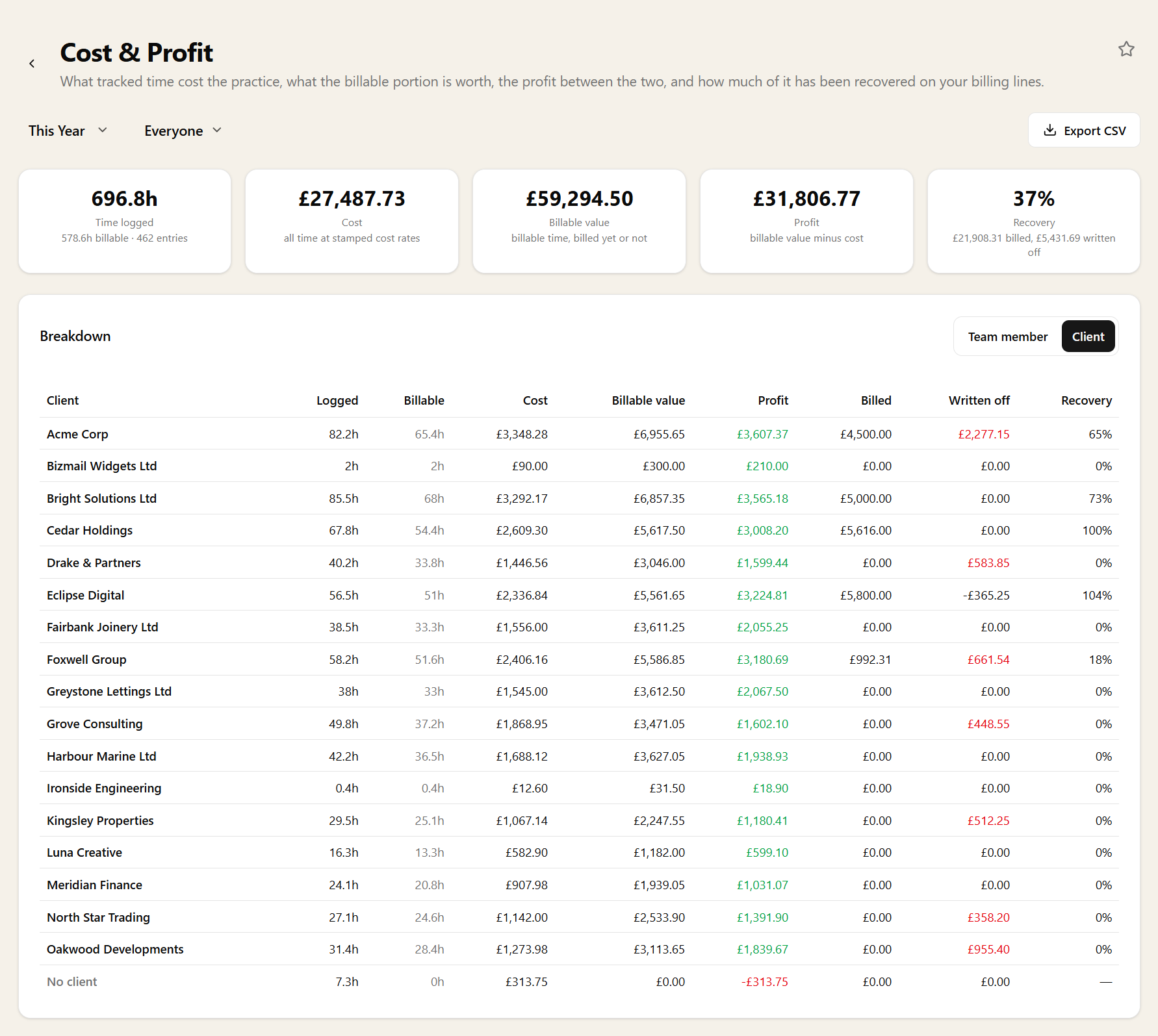
For what each job's time cost against its price over the year, take the same jobs into Cost & Profit.