Time Tracking

Record the time your team spends on client work — with a built-in timer, flexible manual entry, and links to the exact task and workflow step the time was spent on. Then turn unbilled hours into billing line items in one click.

All Your Time, In One Place

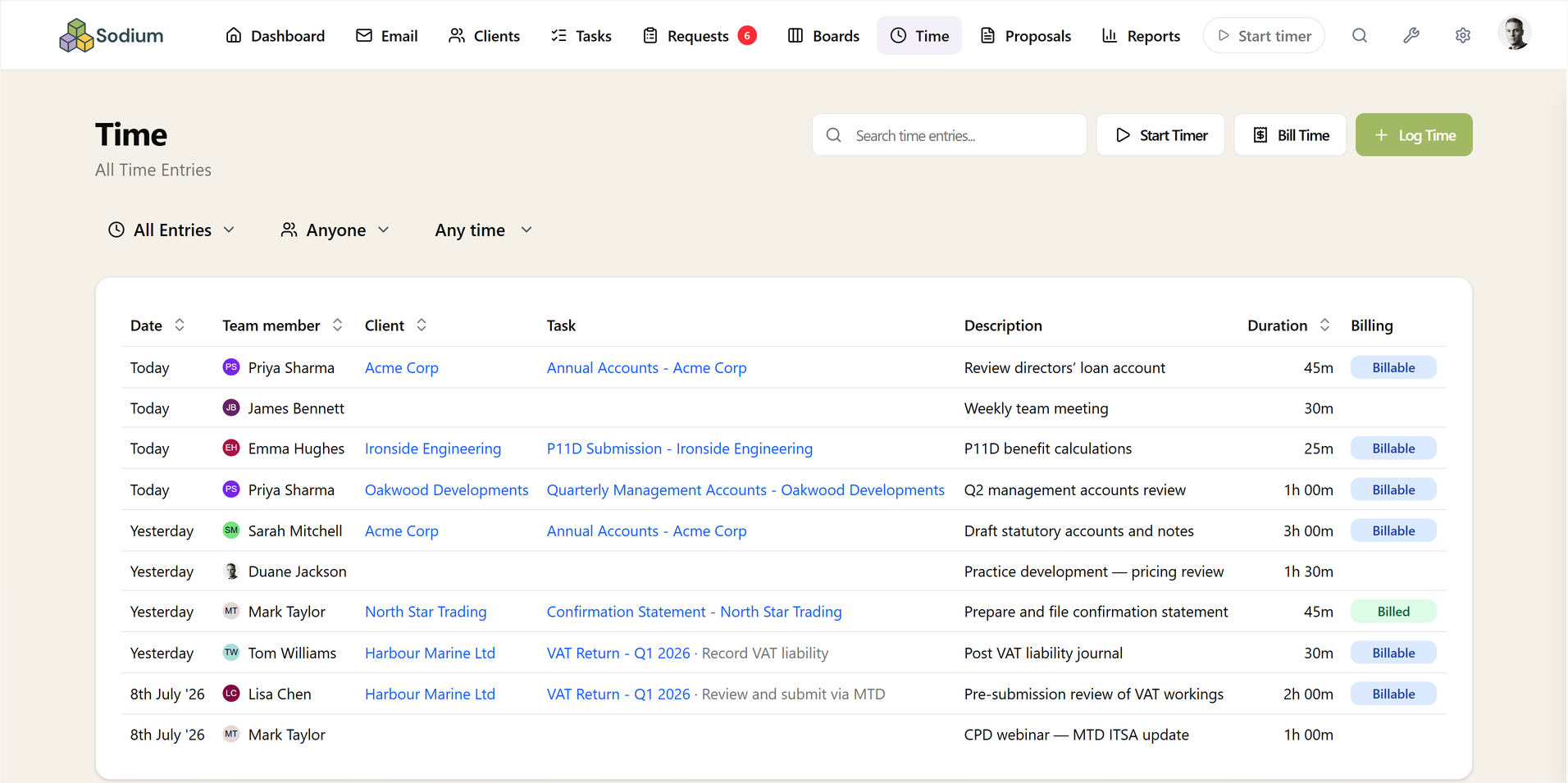
The Time page shows every entry across your practice — who logged it, for which client, on which task, and whether it's non-billable, billable, or already billed. Filter by team member, billing state, or date range, and search to find exactly what you need.

The same view appears as a Time tab on every client and every task, scoped to just that record — so when a client asks "what have you been doing for us?", the answer is one click away.

Time page listing time entries with billing state badges and filters

Log Time Your Way

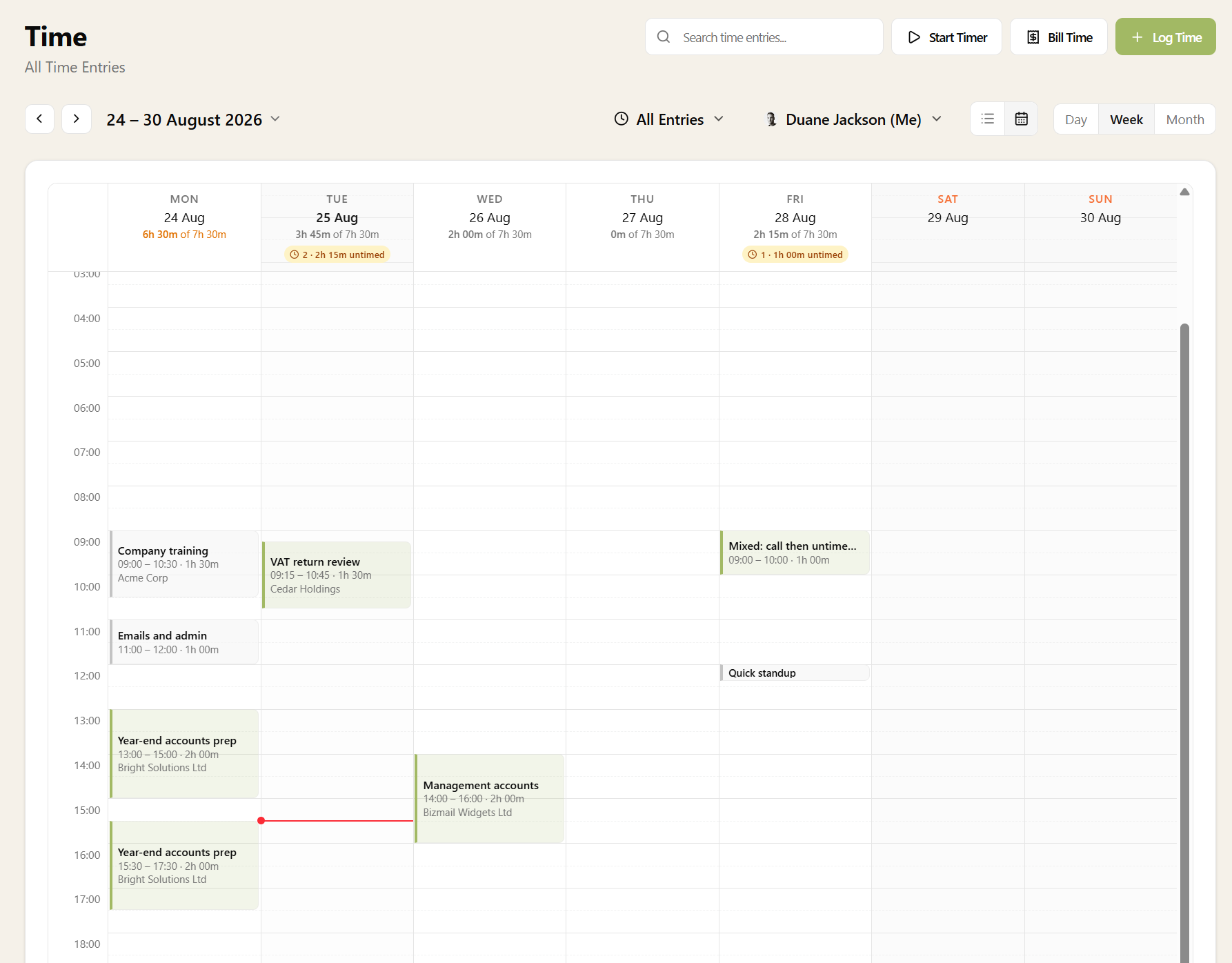
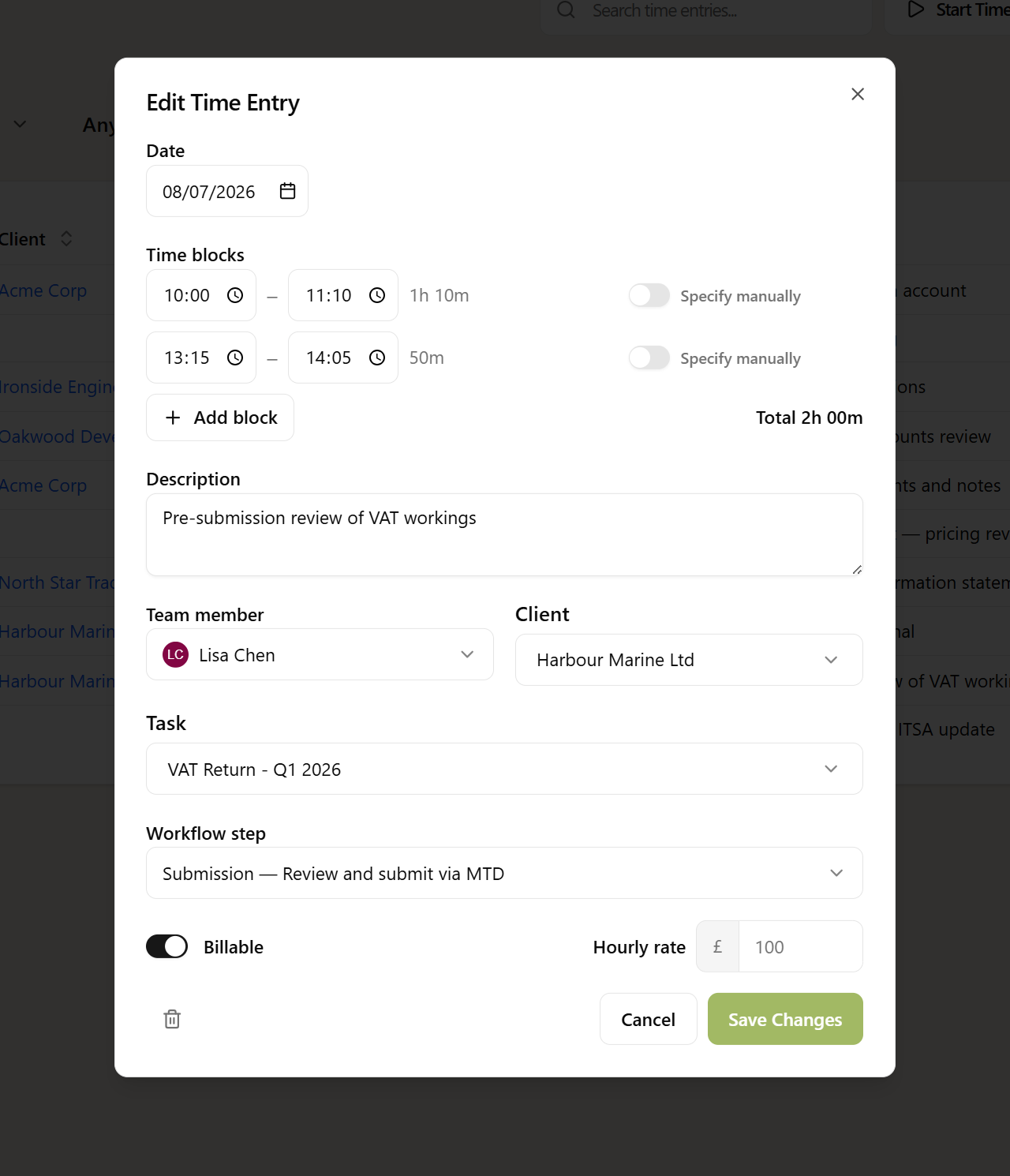
Every entry is built from work blocks. Enter a start and end time and Sodium works out the duration, or just type "1h 30m" if you don't remember the exact times. Add as many blocks as you like — a morning session and an afternoon session on the same job stay together as one entry.

Link entries to a client, a task, or even a specific workflow step — so you know the 45 minutes went on "Reconcile bank transactions", not just "VAT Return". Linking is optional by default, or flip a setting to require a client or task on every entry.
Time entry dialog with work blocks, client, task, and workflow step links

A Timer That Follows Your Work

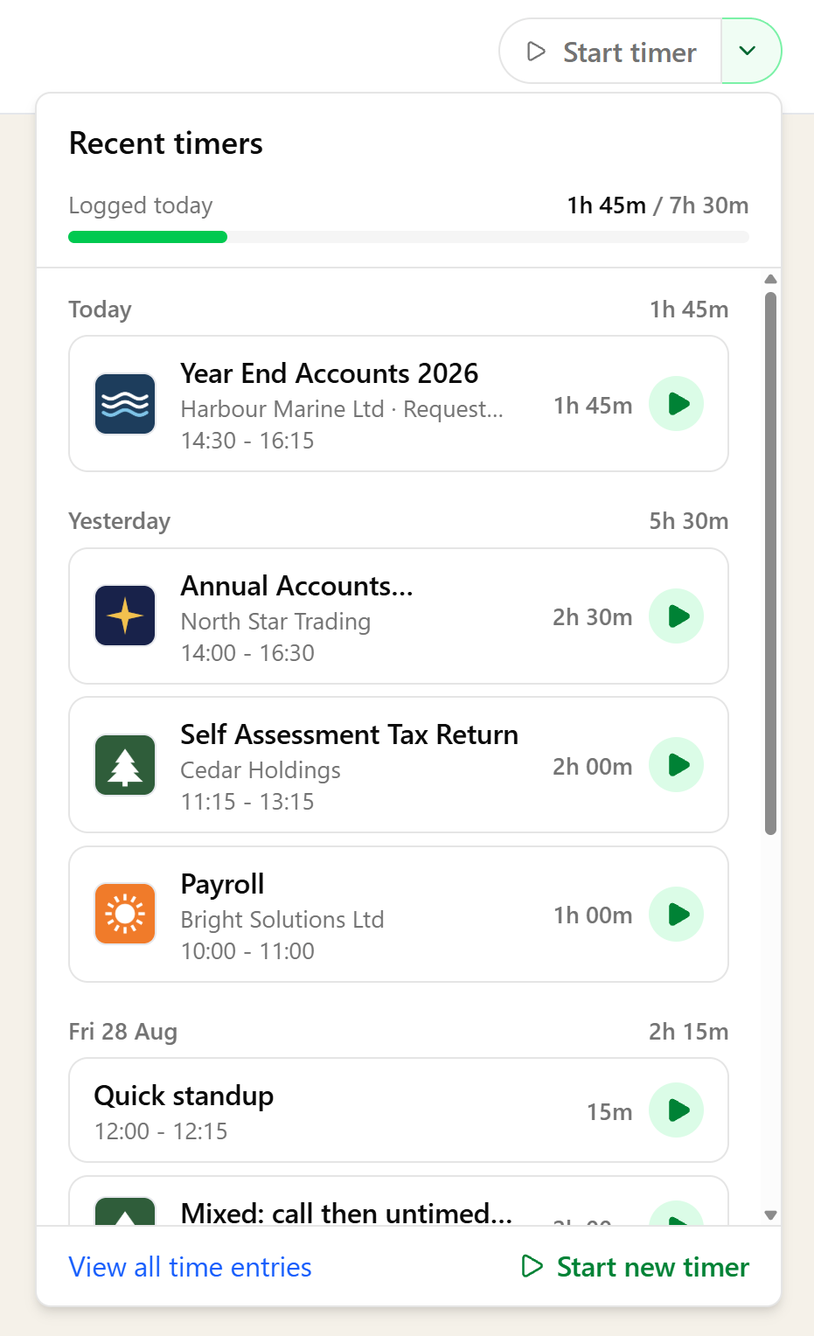
Start a timer from the Time page, from a client, from a task, or from the focus panel while you work — already linked to whatever you started it from, right down to the workflow step you had open. A pulsing indicator in the top bar shows it ticking wherever you are in the app.

Pause for lunch and resume after — the timer records each stretch of work as its own block, so interruptions never inflate your hours. When you're done, Stop & Log opens a pre-filled entry with the elapsed time, links, and work blocks already in place. And if you close the dialog without saving, the timer simply stays paused — your time is never lost.

Running timer indicator with pause, resume, and Stop & Log controls

From Hours to Invoices

Mark entries as billable and give each one an hourly rate — or let Sodium resolve it automatically, from the entry itself, to the team member's rate, to your practice default. Rates are captured when the time is logged, so later rate changes never rewrite history.

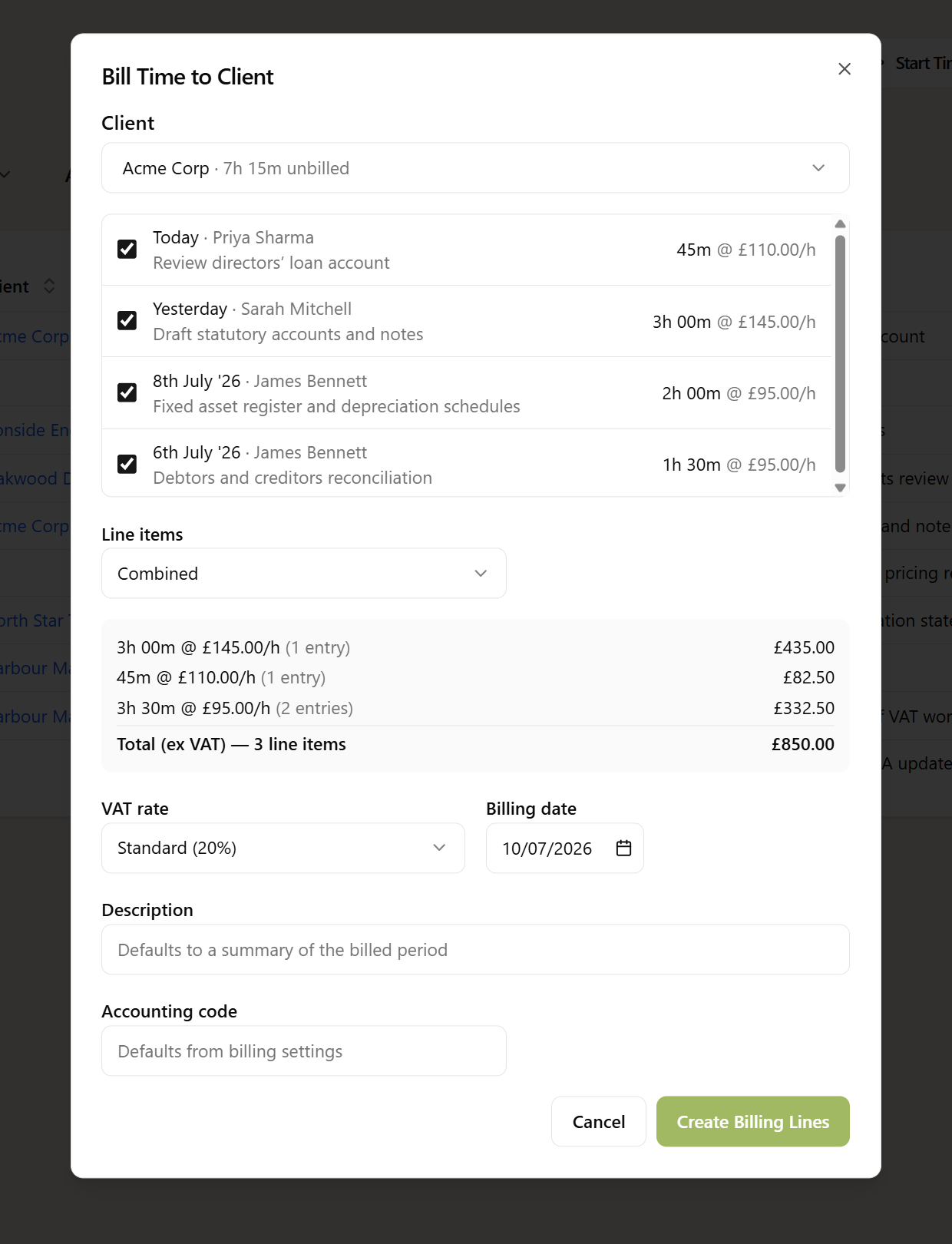
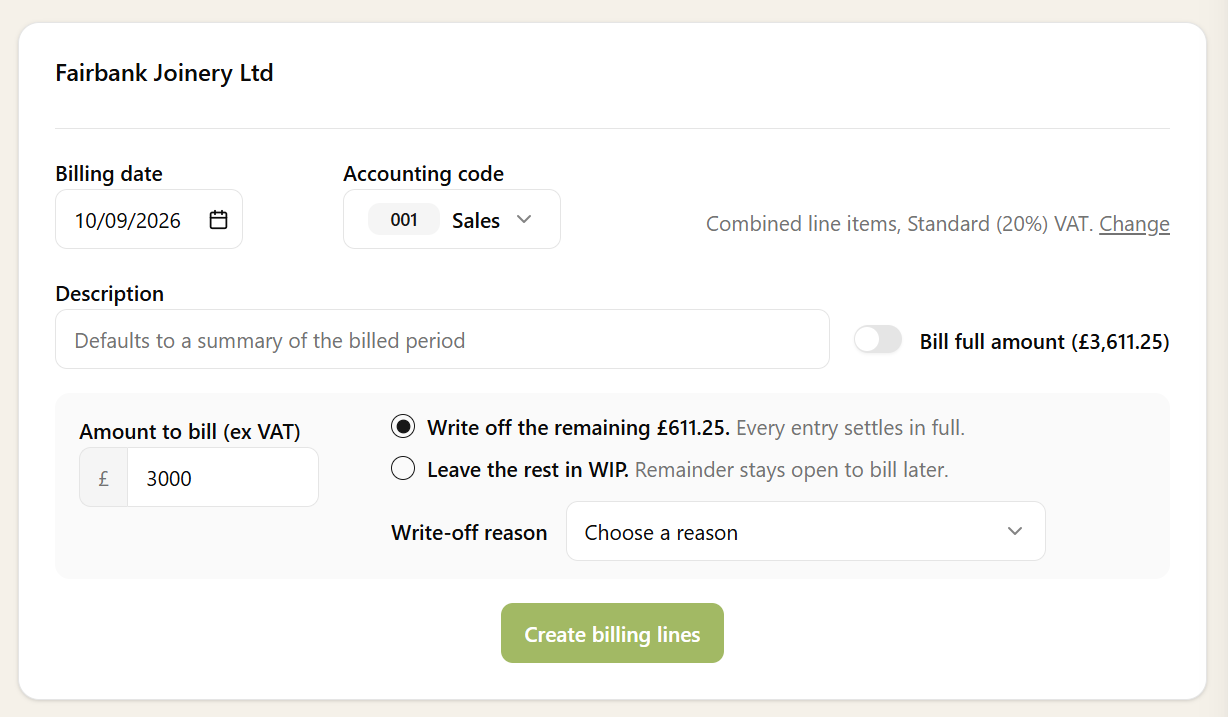
When it's time to bill, pick a client with unbilled time — Sodium shows you who has how much — and convert their entries into billing line items. Choose one combined line per hourly rate or an itemised line per entry, preview the amounts, and confirm. Billed entries lock automatically, and deleting a billing line releases its time back to unbilled — nothing falls through the cracks.

Bill Time dialog converting unbilled entries into billing line items with a preview

Estimated vs Actual

Set an estimated time on any service, and the Service Time report compares it with the hours your team actually logged — per service, with a per-client drill-down. If your £40-a-month bookkeeping client is quietly consuming six hours every month, this is where you find out.

It's the evidence you need for repricing conversations — backed by recorded time, not gut feel.

Team Oversight

Admins see every running timer across the practice — who's timing what, for how long, and whether it's paused. Spot the timer someone left running overnight and pause it for them, preserving the real time worked.

Each team member can have their own hourly rate, managed from a single settings screen — new billable entries pick up the right rate automatically.

Off Until You Want It

Not every practice tracks time — and if yours doesn't, Sodium doesn't nag you about it. Like many features in Sodium, time tracking is a single switch in settings, off by default. Leave it off and you won't see a mention of it anywhere in the app — no timers, no Time page, no Time tabs, no rate fields. We don't believe in cluttering your interface with things you don't use.

Turn it on and everything appears at once: the Time page, timers, client and task tabs, rates, billing, and reporting. Change your mind later and it all tucks away again — your recorded time is kept, just hidden.

Want to learn about other capabilities?

Explore all features

Have questions or suggestions?

Get in touch