
Setting Job Budgets per Client
Not every client's VAT return takes the same time, and a fee agreed up front only works if someone notices when the time spent starts to run past it. Job budgets let you set, per billing period, how many hours a job should take and the fee its time should fit within, then watch the figures as time is logged: on the client, on the task, and in the time entry itself before you save. On a service with stages you can build the budget stage by stage and see which stage the time went to. This guide covers switching budgets on, setting a service's budget, adjusting it for one client, reading progress and warnings, and how the fee budget relates to the price.
What a budget is, and what it is not
A budget is a figure a job is measured against: the hours it should take, the fee the time should fit within, or both. It sits on a client's service, one figure per billing period, so a monthly bookkeeping client has a monthly budget and a quarterly VAT client a quarterly one. The periods are the same ones you see on the client's billing schedule.
Three things a budget is not:
- It is not a second price. The fee budget starts at what the client pays, and you only change it when you want a margin or only part of the fee is for this work. See The fee budget starts at the price below.
- It is not the estimate on the task. Workflow step estimates still plan the work: they drive the Capacity report and the Service Time report exactly as before. A budget never changes them.
- It is not compulsory. Budgets are off until you switch them on, and even then nothing appears until a service has a budget. Set one on the services where it matters and leave the rest alone.
Budgets count the time that is linked to the client's service: time logged on its tasks, and time logged straight to the service. A task with no service has no budget.
Switch budgets on
Budgets are part of time tracking and start switched off. Turn on Enable Budgets on the Time Tracking settings, and three more settings appear beside it:
- Warn when a budget reaches: the share of a budget at which a job turns amber, 80% to begin with. A job turns red once it goes over.
- Show budget on tasks: a Budget card on every task linked to a service with a budget. Leave it on if the people doing the work should see how the job is going; switch it off if you would rather keep budgets to the client and the reports.
- Fee budgets: the fee each job's time should fit within, starting at each client's price. Off, budgets are hours only and nothing about money appears anywhere.
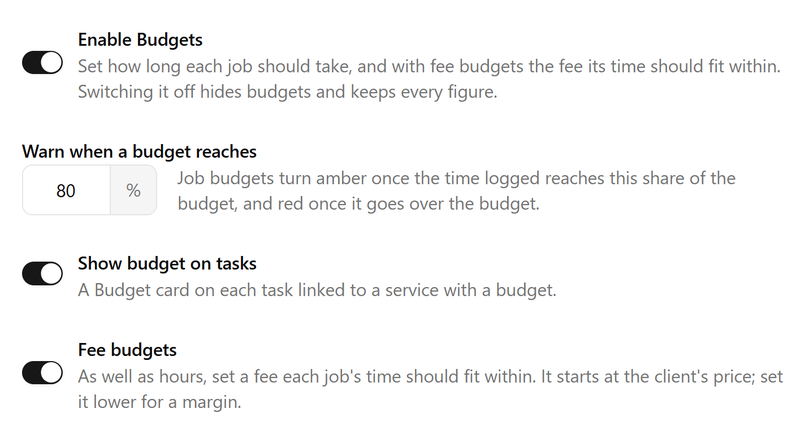
Switching budgets or fee budgets off later hides them but keeps every figure, so switching back on brings them back as they were.
Hours, a fee budget, or both
Start with hours: they drive planning and the alerts most jobs need. Add a fee budget to see whether the time spent fits the fee. Time is valued at the rate each entry was logged at, so where people have their own rates it also shows a job on track for hours but done by more senior people than planned.
That signal needs rates that differ by person. A rate set for the service or its task category beats a person's own rate, so where every hour on a service is charged at one rate, the fee only moves with the hours.
Set the service's budget
Most clients on a service take about the same effort, so start with one budget for the service and adjust only the clients that differ. It lives on the service, on its Budgets tab. Until there is one, the tab explains what budgets do; choose Set Budgets to start. Once there is one, click the Hours or Fee budget panel to change it.
Pick the Period the figures are for (monthly, quarterly, annual, weekly or one-off). A client billed over a different period gets them pro rata: 6 hours a month is 18 hours for a client billed quarterly and 72 for one billed annually. A one-off service is one period.
For Hours, choose one of:
- Use the workflow step estimates. The budget for a period is whatever the step estimates of the tasks in that period add up to, including tasks not yet created. Change the workflow template and the tasks it creates from then on carry the new estimates; a task already created keeps its own, so change those on the task. A service with a weekly task and a monthly one has a budget that is a little bigger in a five-week month, because there is a little more work in it. If the steps carry no estimates yet, the panel says so.
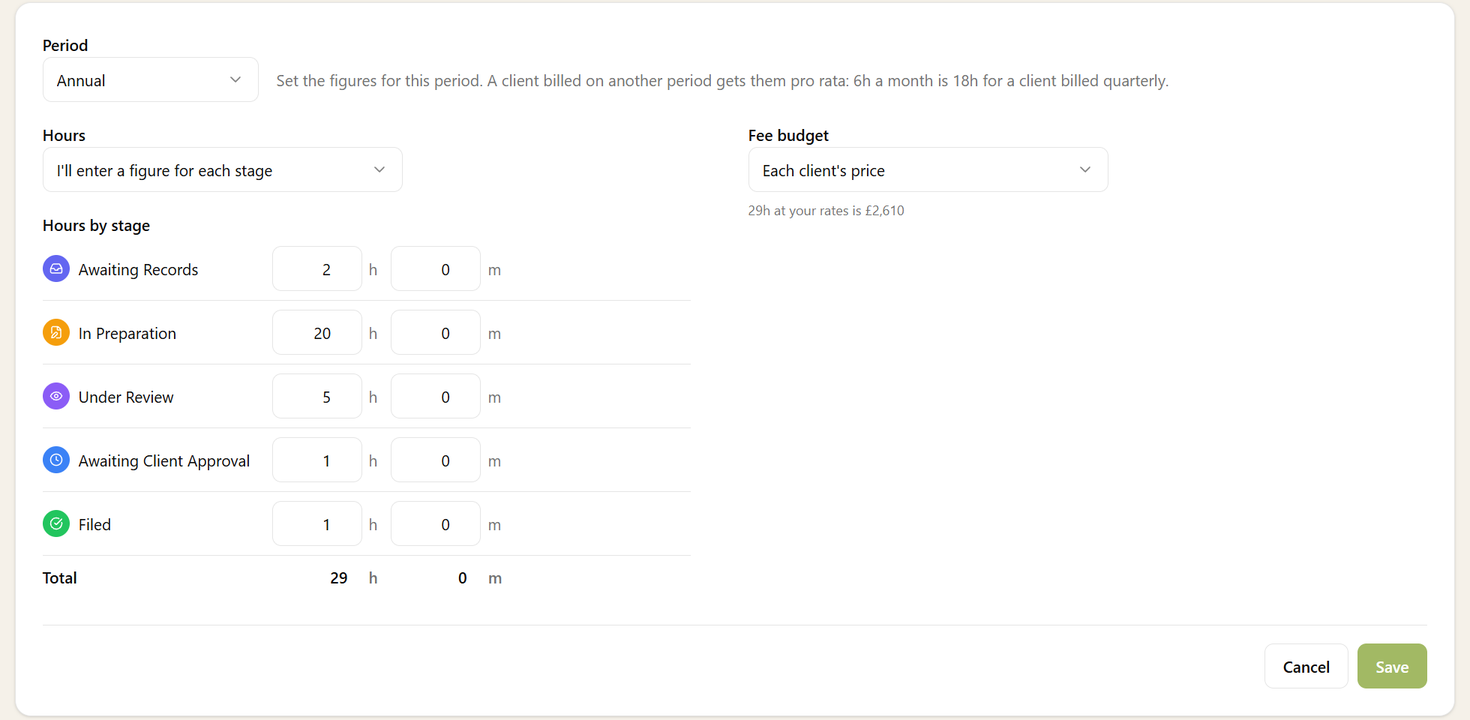
- I'll enter a figure here. Type the hours. The panel still shows what the step estimates add up to for a typical period, and how far above or below them your figure is, so the two never drift apart unnoticed.
- I'll enter a figure for each stage. On a service with stages, type the hours stage by stage and the total is their sum (see Budgets by stage below).
- I don't want to set a time budget. No hours for the service. A client can still be given hours of their own.
With fee budgets on, the Fee budget starts at Each client's price: every client's fee budget is their own price for the period, and follows it when the price changes. You can instead enter one figure for the period (I'll enter a figure here), a figure for each stage, or none. Clients with no single price need a figure of their own (see The fee budget starts at the price).
Beside the fee, one line shows what the hours come to at your charge-out rates: "29h at your rates is £2,610". Set against the price, that is the margin you planned. It is information only; nothing sets a fee budget from the hours.
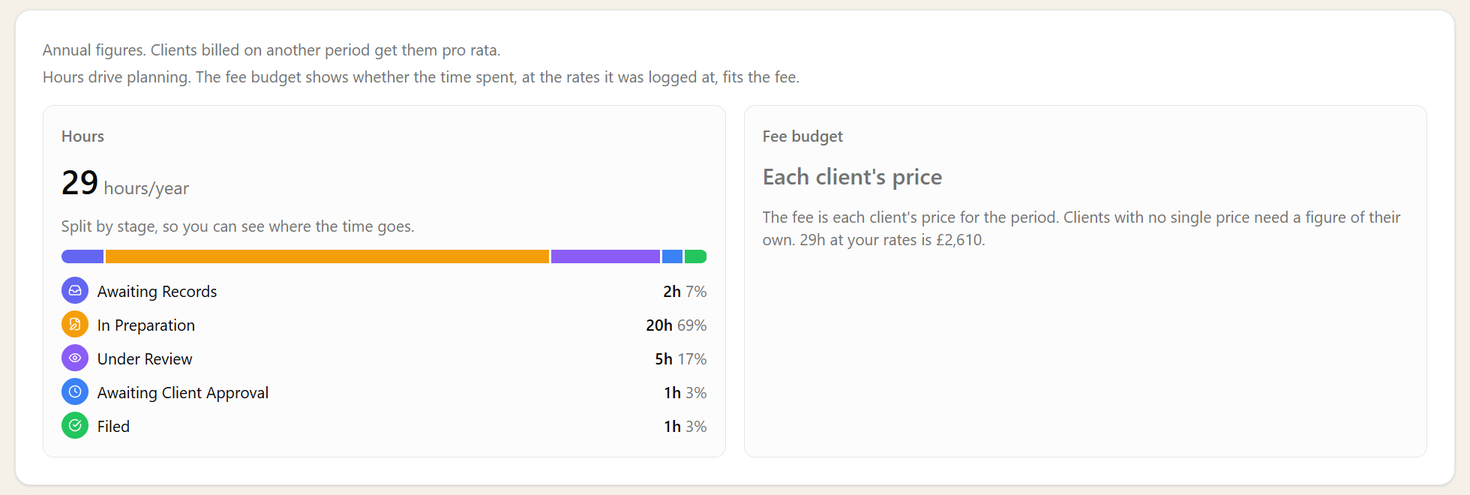
Saved, the tab shows the budget at a glance: the hours and fee for the period, how each is set, and for a budget by stage a bar in the stages' own colours showing how the figure splits.
See which clients have their own figures
Once any client on the service has figures of their own, the Budgets tab gains a second tab, Clients with custom budgets: the client, which figures they have, what they agreed and what the service's budget would have been, hours and fee side by side. It answers "who have we agreed something different with" in one look, and it is where you bring clients back into line: select them and choose Reset to service budget.
Sodium confirms how many clients' figures will be replaced before it does anything, and the earlier figures stay in the history. A percentage adjustment is not a figure of its own, so it survives a reset.
Adjust it for one client
A new client service takes the service's budget. There is nothing to do unless this client is different: the records are messier, the volume higher, the fee was agreed on fewer hours. Then open Budget Settings on the client's service. Hours and fee have a tab each, and each is one choice:
- Use the service's budget: the service's figure, scaled to this client's billing period. The option shows what that comes to.
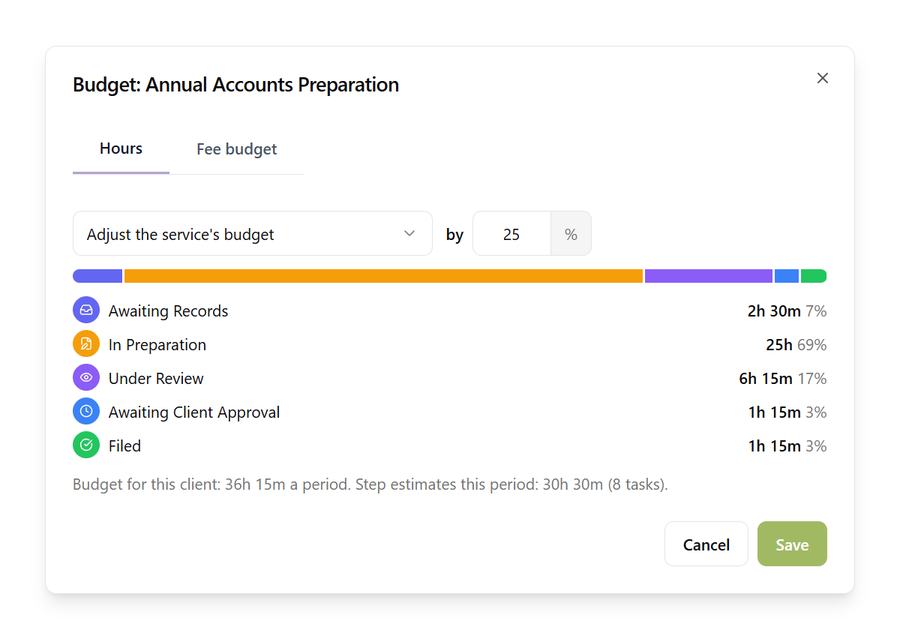
- Adjust the service's budget by a percentage: "this client takes 25% longer". It keeps following the service's budget, with the uplift on top.
- I'll enter this client's own figures: a figure of your own, or one per stage when the service's budget is by stage. Each starts from what it comes to now, so nothing moves until you change it, and a bar above the stages follows your figures as you type. Clear a stage and it goes back to following the service.
- No hours budget (or no fee budget): not measured for this client.
For the fee, when the service's fee budget is each client's price, the options read Use this client's price and Adjust this client's price: by -15% is the price less a 15% margin. A client with no single price (charged per unit, per hour or per day, priced as part of a package, or with no price set) needs I'll enter this client's own figures, and the dialog says so.
Under the hours you can see the client's budget for a period and what the step estimates for the current period add up to, so a figure is always set with the plan in view.
Read progress as time is logged
Once a budget exists, it shows wherever the work is:
- On the client's service card: "Budget 9h · 6h 20m logged (70%)", and for those who can see fees, "Fee budget £675 · £510 of time (76%)". Click it for the period in full.
- On a task linked to the service, a Budget card: the hours and fee against their budgets with a percentage that turns amber or red, where the time went by stage, and how many tasks share the period.
- In the time entry dialog and when you stop a timer, as soon as you pick the task or service: "Budget 9h, 6h 20m logged. This entry takes it to 7h 20m (81%)". You see the effect before you save.
- On the tasks list, as an optional Budget column.
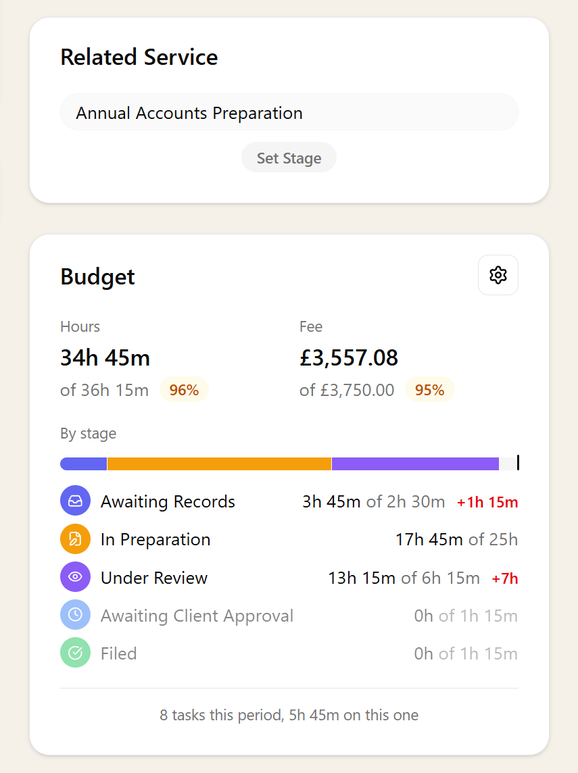
What the figures mean:
- Hours count every minute logged to the job in the period, billable or not. The job took that time either way.
- The value of time counts every minute logged to the job, billable or not, at the charge-out rate each entry was logged at. The fee is spent either way. Billing or writing time off later does not change it.
- Periods: time logged on a task counts in the period the task starts in, even if it is logged weeks later, so late work still lands on the job it was for. Time logged straight to the service counts in the period of its date.
A client's history
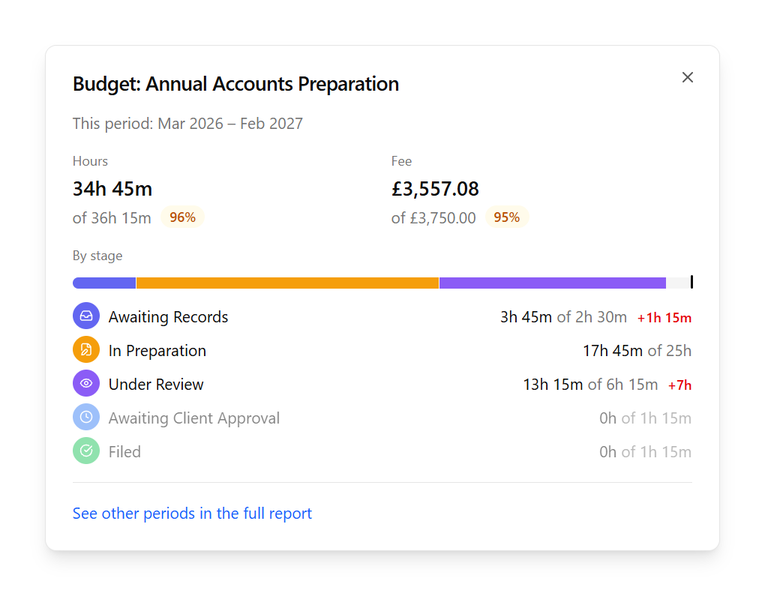
Budget History on the service card shows this period for the job: the hours and fee against their budgets and each stage's time against its figure. From there, See other periods in the full report opens the Budgets report over the last 12 months for this client and service, one row a period. That is where "we keep going over on this client" shows up, and where you decide whether to change their figure.
Warnings and alerts
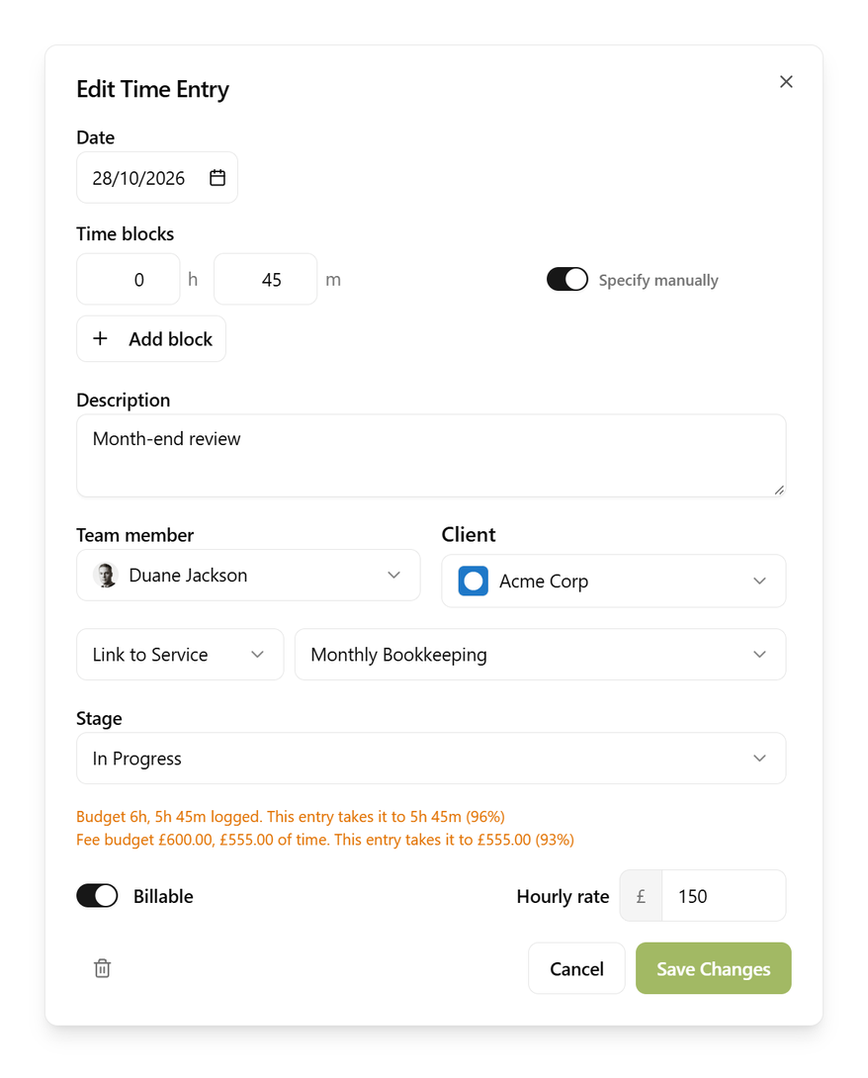
Every budget figure is coloured: plain while under, amber when it reaches your warning level, red when it is over. The warning level is one setting for the practice, 80% to begin with.
A warning never stops anyone logging time. It tells the person logging it, and it tells the service's manager: when a job first reaches the warning level, and again when it goes over, the manager (or the client's manager, when the service has none) gets a notification in Sodium, and by email if they have that channel on. One alert per period for the hours and one for the fee, however many entries come after it. Fee alerts only go to people who can see fees.
The Budgets report
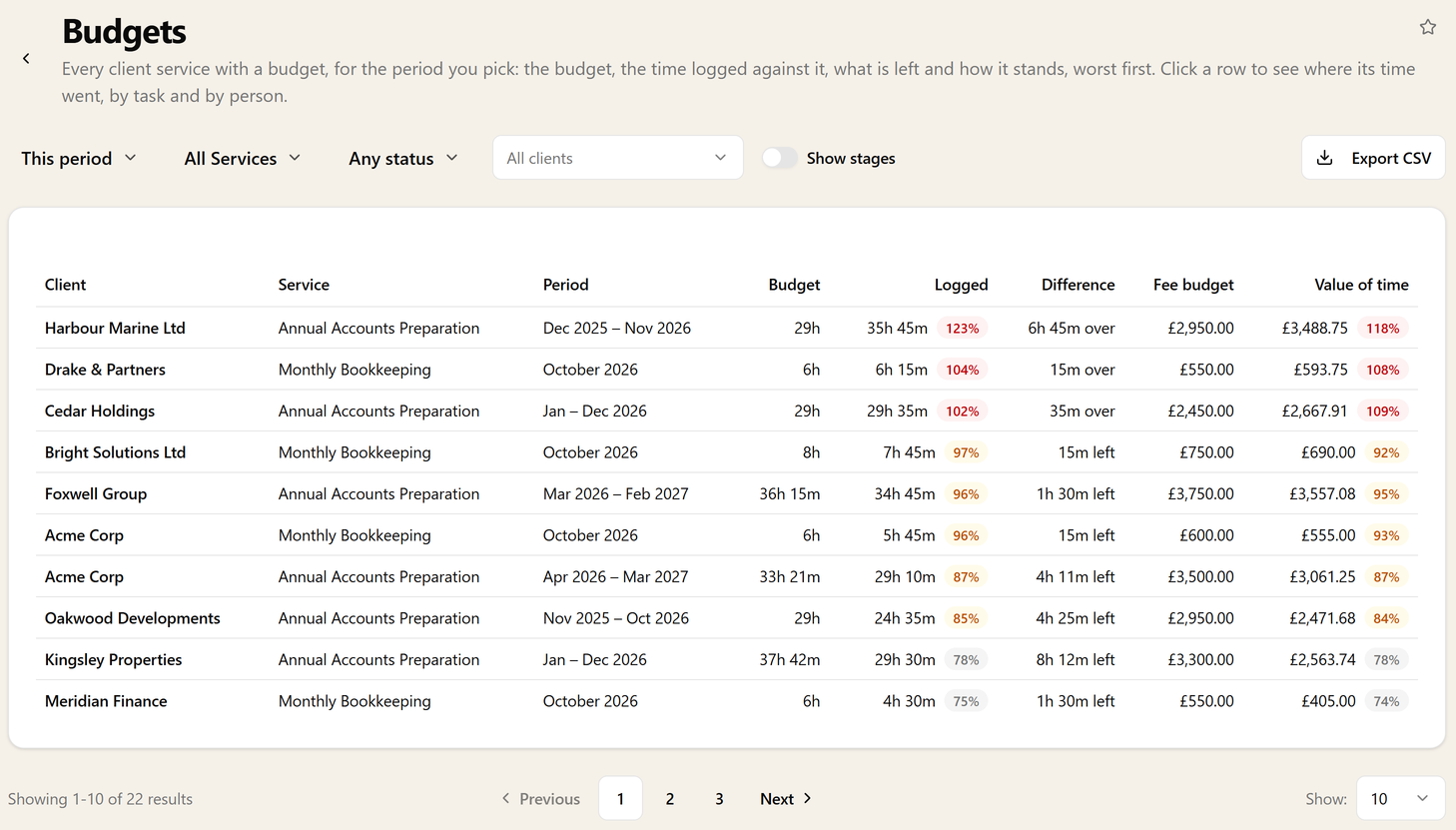
For the practice-wide view, the Budgets report lists every client service with a budget for a period, worst first: client, service, period, budget, logged, the difference and the status, with the fee columns for those who can see them.
Pick this period, the last one, a month, or the last 12 months (one row per job per period). Narrow it to one service, one client, or the jobs that are near or over; a column you have filtered to one value drops out. Export it as CSV, click a client's name to open the client, or click anywhere else on a row to see where that job's time went.
See where a job's time went
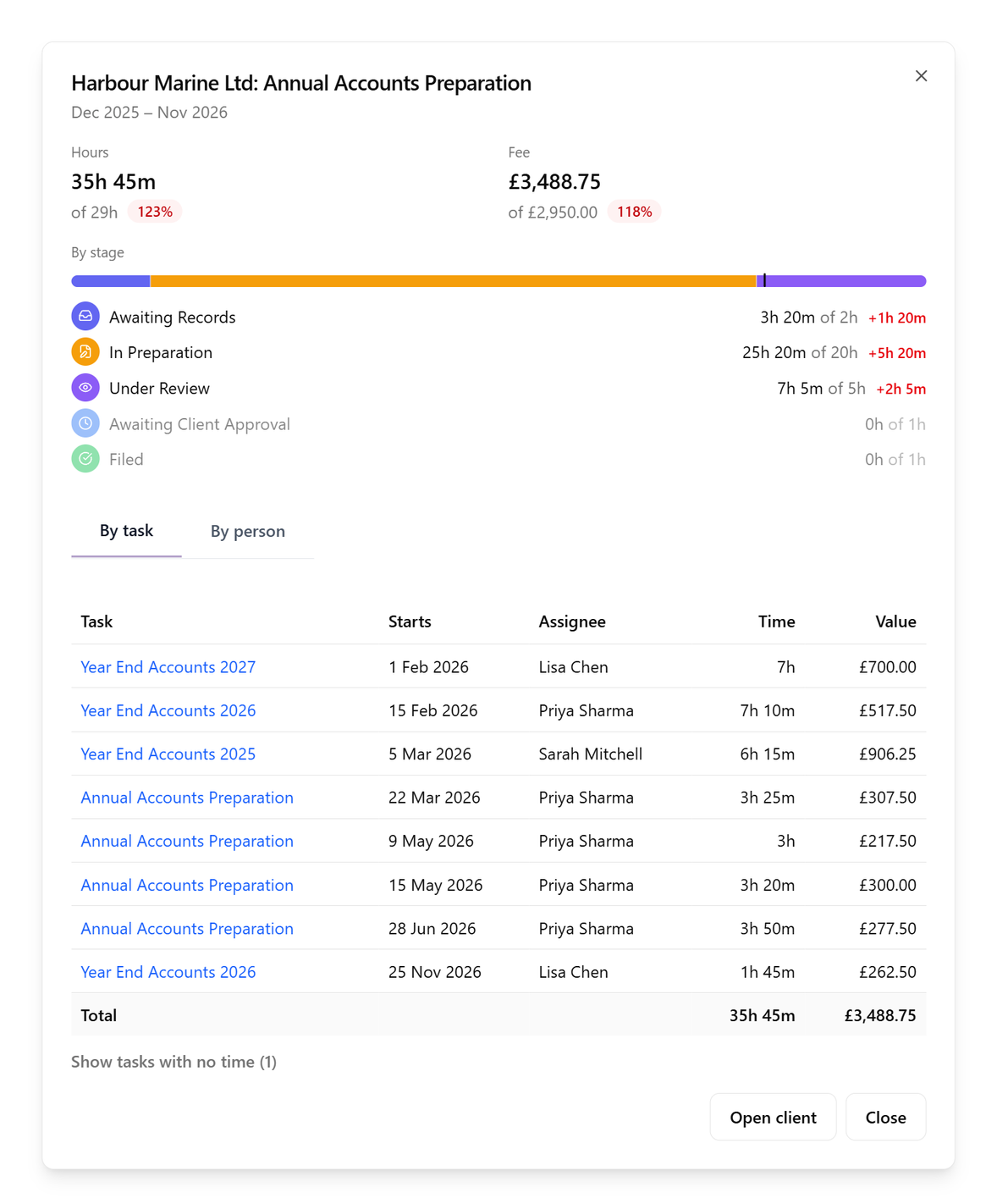
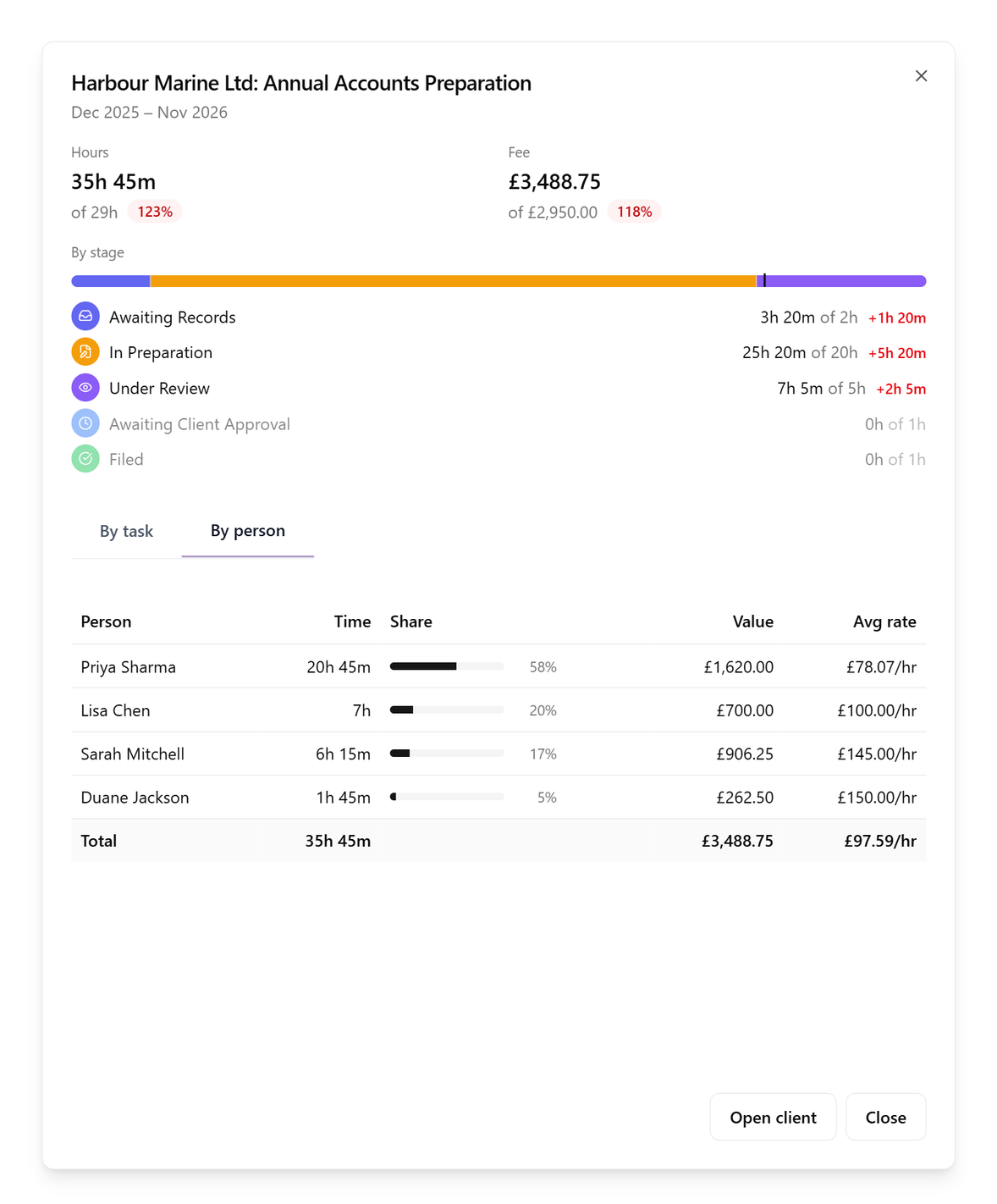
A row in the Budgets report tells you a job is over. Click it and a breakdown of that job for that period opens: the hours and fee against their budgets at the top, each stage's time against its figure, then two tabs that show where the time went.
By task lists every task in the period with its start date, who it is assigned to, the time logged on it and, for those who can see fees, the value of that time. Time logged straight to the service, not to a task, has a row of its own. Tasks with no time yet are folded away; choose Show tasks with no time to see them too. This is where you find the one task that ran over, or the month that took twice as long as the rest. Click a task to open it.
By person lists everyone who logged time to the job, most first: their time, their share of the job, and with fees the value of their time and their average rate. This is where a job on track for hours but over its fee explains itself: a partner spent a day on a job budgeted for a junior, and the average rate shows it.
Open client at the bottom takes you to the client's services, where you can change their budget if the breakdown says it is wrong. The value of time and the average rates follow the same rule as every other fee figure: they need fee budgets switched on and the Fee Budgets permission.
The fee budget starts at the price
The fee budget is the fee the job's time should fit within, so it starts where the fee does: at each client's price for the period. Most of the time that is the right figure: save the service's budget and every client's job is measured against its own price.
- For a margin, lower it on the client: adjust this client's price by -15% and the time has to fit within 85% of the price.
- When only part of the fee is for this work, enter this client's own figure.
- Where there is no single price (a service charged per unit, per hour or per day, one priced as part of a package, or a client with no price set), enter the figure yourself.
When the value of time passes the fee budget, the excess is what you will be writing off when you bill, and the Budgets report shows it before invoice day rather than after. Billing, billing the time by the fee, and write-offs all work exactly as the Tracking and Billing Time guide describes.
Who can see and change budgets
Job Budgets covers hours: everyone can see them, and changing a service's budget or a client's needs its Update permission, which admins have out of the box. Without it, the settings, the panels to click and the cog on a task simply do not appear.
Fee Budgets covers money: while fee budgets are switched on, the fee budget and the value of time appear only to people who hold it, admins to begin with, and never to someone restricted to their own time. Someone restricted to their own time sees each budget and the hours they have logged against it themselves, not the team's total. The Budgets report also needs access to reports.
Time by stage
When a service has stages (the columns of its board), each time entry records the stage the service was in when the time was logged, filled in for you from the task you pick and changeable before you save.
A task's Budget card, Budget History and the Service Time report (By stage, once a service is picked) then show how a period's time splits across stages, each in its own colour: how much of a VAT return goes on gathering information, how much on preparation, how much on review. Existing entries are not back-filled, so the split builds up from the day it was switched on.
Budgets by stage
Once time carries a stage, a budget can be built from the stages too. On a service with stages, the hours or the fee can be entered stage by stage: 2 hours waiting on records, 20 to prepare, 5 to review, and the total is what the job is measured against.
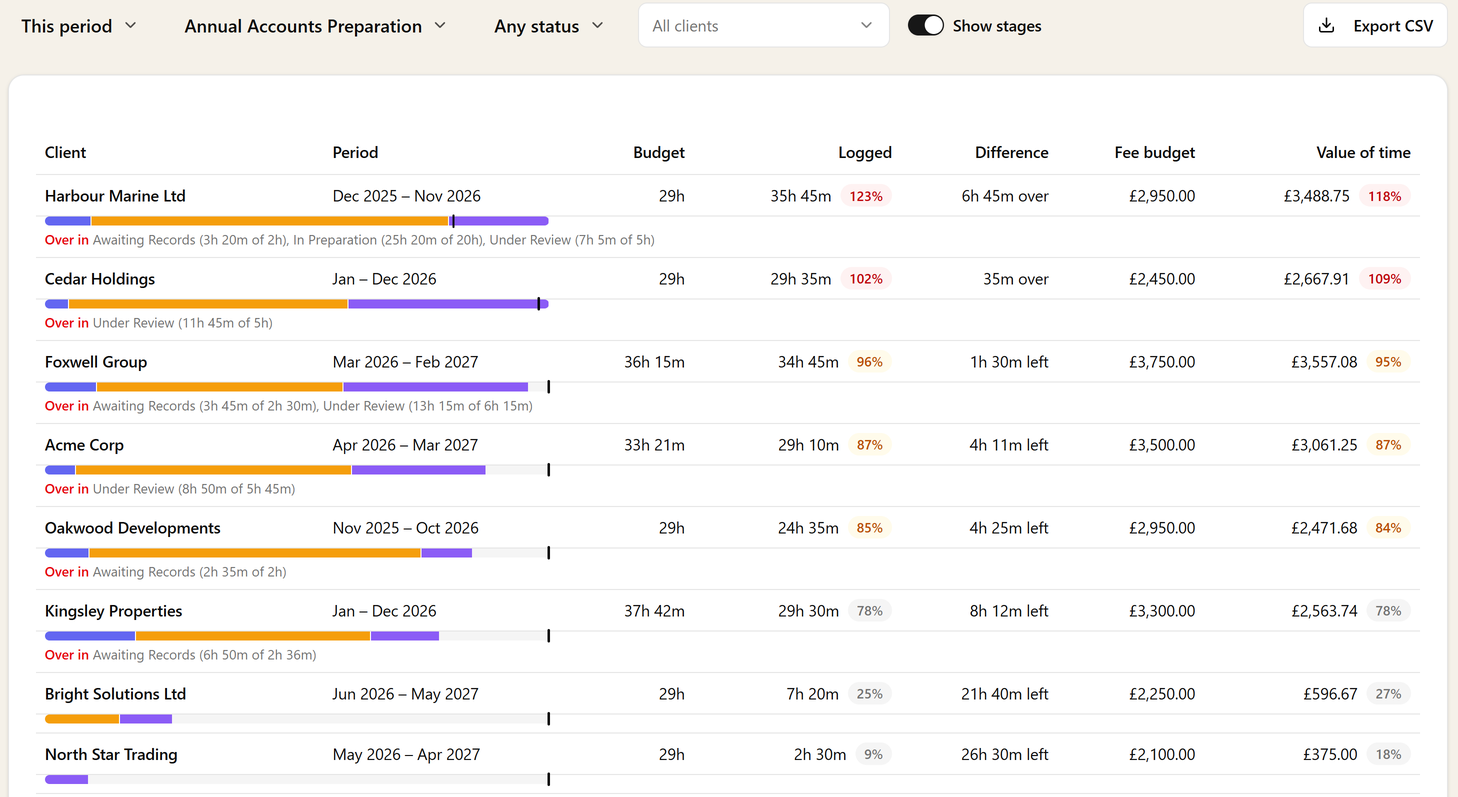
Each stage then has its own figure on the task's Budget card and in Budget History, with the time over it marked in red. In the Budgets report, Show stages adds a bar under each job in the stages' colours, with a tick at the job's budget, and names only the stages that are over, so you can see that the review is where this client's hours go, not just that they go.
A few things fall out of that:
- Every client on the service keeps the split. A client using the service's budget, or the service's budget plus 25%, gets each stage figure scaled the same way. A client with their own figures gets one per stage: a client whose records always need an extra hour of preparation gets 2 / 21 / 5, while a client following the service picks up any change you later make to it.
- Hours and fee choose on their own. You can build the hours by stage and keep the fee as the one figure you agreed with the client. A budget set as one total stays one total for every client on it.
- Hours that use the step estimates have no stage split; the stages show the time only.
- Stages you add later appear with no figure until you give the service one, and then every client follows it. Remove a stage and its figure goes with it, the service's and clients' alike, so the totals drop; time logged to it shows as "No stage".
- Changing the shape of the service's budget (from one total to stages, or back) waits until no client has their own figures for it. Sodium tells you how many do and sends you to the Budgets tab to reset them, so an agreed figure is never quietly rearranged.
- Alerts stay on the job. A stage can be over on its own, but notifications go out when the job's total reaches the line, not for each stage.
Price, fee budget and what was billed, job by job
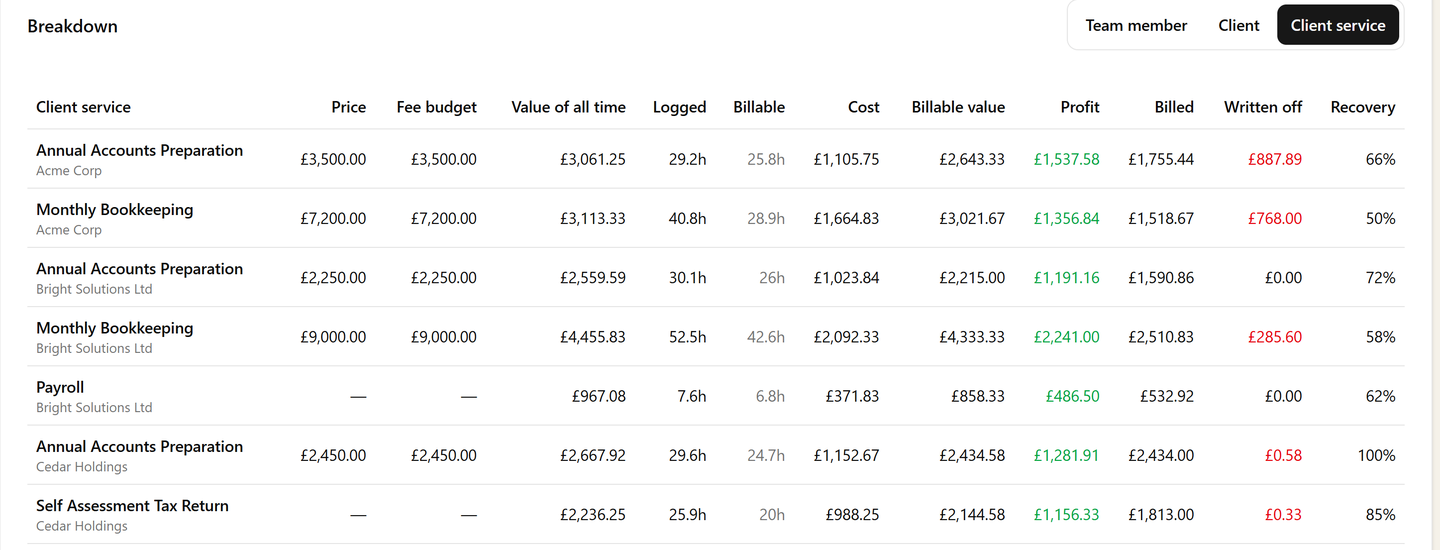
The Cost & Profit report's Client service breakdown puts each job on one row: its price for the periods that start in the window you pick, its fee budget for the same periods, the value of all the time logged (what the fee budget is measured against), the billable value, what was billed and the recovery between those two.
A service charged as part of a package has no price of its own, so its price is left blank. The price, fee budget and value of all time columns need fee budgets switched on and the Fee Budgets permission; the cost columns need Cost Rates, as the rest of the report does.
Tips
- Start with the workflow step estimates. It costs nothing to set, it is right for most clients, and the clients that take longer show themselves in the Budgets report within a month or two. Adjust those by a percentage rather than entering their own figures, so a change to the service's budget still reaches them.
- Leave the fee budget at the price unless you want a margin. Lower it by a percentage on the client rather than typing a figure, so a price change still reaches it.
- Watch the Budgets report at the warning level, not at over. Near is when there is still a conversation to have with the client or the team.
- Link time to the task. A budget only sees time linked to the service, through a task or directly. Time logged against the client alone is invisible to it.
- Start services on the first of the month if you think in calendar months. Periods run from the service's start date, as the billing schedule does.
- Name your stages for the questions you ask. If "how long does review take on this client" is the question, a Review stage is the answer, and a stage figure gives it a line of its own.
Where to go next
- Job Budgets: what budgets do for a practice, in brief.
- Tracking and Billing Time: logging the hours, billing them by the hour or by the fee, and writing off the rest.
- Setting Charge-out and Cost Rates: the rates behind the value of time and the hours at your rates.
- Understanding Tasks, Recurring Tasks and Workflows: the step estimates a budget can follow.
Questions about setting up job budgets? Get in touch and we'll walk you through it.