

Digital Signing with FuseSign

Some documents need more than a tick in a box. Connect FuseSign and any PDF you'd normally send for client approval can go for a proper e-signature instead — from the same place, in the same two clicks. FuseSign emails the client, collects the signature and does the reminding; the signed copy comes back and files itself onto the document.

FuseSign

At a glance

  • Seamlessly integrated: use FuseSign's features without ever leaving Sodium
  • Send any PDF for signature from the client's document list, a workflow step or a scheduled send
  • Simple signing: the client signs the document as a whole, nothing to lay out
  • Or place the signature fields yourself in FuseSign before it goes out
  • Several signers on one document — it's approved once everyone has signed

Tick Box or Signature: Your Call

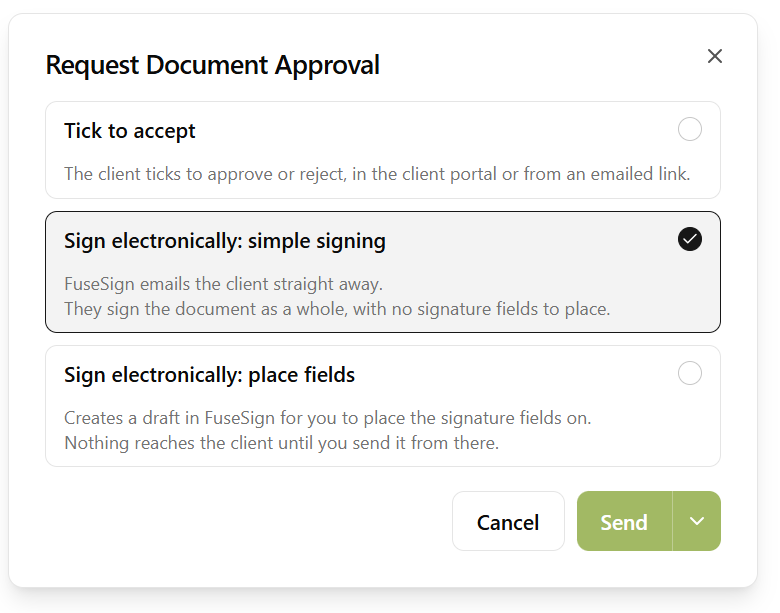
The approval method choice when requesting client approval: Tick to accept, Sign electronically: simple signing, or Sign electronically: place fields

Sodium's document approvals already give you a fast, auditable sign-off: the client ticks to accept from an emailed link or in the portal. For most management accounts and VAT returns that is exactly right. But for the documents where you want a real signature on the page — signed accounts, a tax return declaration, a letter of authority — you can now choose Sign electronically instead.

Connect to your FuseSign account and the choice appears everywhere you request approval: on a document in the client's list, on a Document Approval step in a workflow, and on scheduled sends. Nothing about the rest of the process changes: same recipients, same batching, same audit trail.

Two Ways to Sign

Most of the time you just want the document signed, and simple signing does that. Send it and FuseSign emails the client straight away; they read the document and sign it as a whole. There are no signature fields to position and nothing for you to set up.

When the signature has to go in a particular place — a set of accounts with a director's signature block on the balance sheet, say — choose place fields. Sodium creates the document as a draft in FuseSign, you open it there, drop the signature and date fields where they belong, and send it from FuseSign when you're happy. Nothing reaches the client until you do.

Either way, the request is tied to the document in Sodium, so the outcome lands in the same place regardless of which route it took.

Watch It Happen, Then Forget About It

You don't need to open FuseSign to know where things stand. As the client opens the document and signs it, the status updates in Sodium in real time — on the document itself and in the client's document list — so a glance tells you whether the accounts have been looked at yet or are still sitting unopened. FuseSign sends the reminders in the meantime, so there's nothing for you to chase.

When the last signature goes on, the approval comes back into Sodium automatically. The document flips to Client Approved, any workflow step waiting on it completes, and your team is notified. If the client declines, or you retract the request from FuseSign, that comes back too.

Then the part that usually means a download and a re-upload: Sodium fetches the signed PDF, with FuseSign's audit trail burnt into it, and makes it the document's file. Same title, same category, same portal folder, same links — the client sees the signed copy in the portal without anyone lifting a finger.

Keep your documents in your own Google Drive, OneDrive, SharePoint, Dropbox or Box and the unsigned original is still there as the previous version — see document storage.

Several Signers, Several Documents

Two directors need to sign the accounts? Select both as recipients and FuseSign collects a signature from each; the document is only approved once everyone has signed. Sending a pack of documents works the way approvals always have: together, as one signing request the client completes in one sitting, or separately, so each document is signed and tracked on its own.

Documents you generate from templates are always PDFs, so they can go for signature the moment they're created. Anything else you upload just needs to be a PDF — Sodium only offers the signing options when the document supports them.

Your FuseSign Account

Signatures are collected under your own FuseSign account, so the emails carry your practice's name, the signed documents sit in your FuseSign history and you keep whatever FuseSign plan suits you. Sodium just connects to it — sign in to FuseSign once from Settings and you're done.

Don't have FuseSign yet? It's an e-signature platform built around accountants and their clients, with plans that suit a practice of any size — and a free trial, so you can try it on a real document before committing. Head over to fusesign.com to start one, then come back and connect it to Sodium.