Every Sodium account includes document storage. Upload files, attach them to clients, and manage them through document management — all without connecting anything. It works from day one, and for many practices it's all you need.
Document Storage
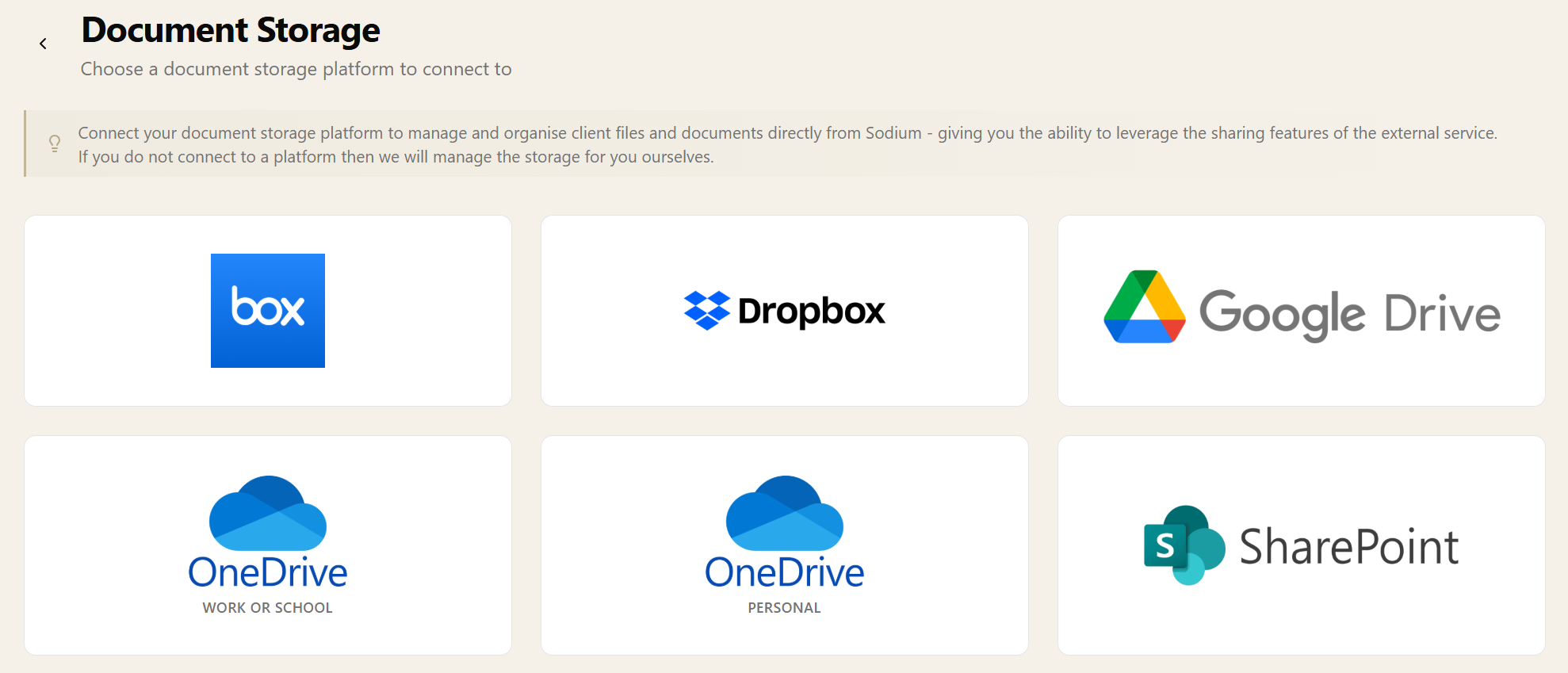
We believe the data you put into Sodium is yours, not ours. We hope you never leave — but if you ever do, getting your data out should be simple. That philosophy extends to the files you upload and create, which is why you can keep your documents in your own Google Drive, OneDrive, SharePoint, Dropbox, or Box.



At a glance
- Built-in storage included with every account - nothing to connect
- Or connect your own Google Drive, OneDrive, SharePoint, Dropbox or Box
- Files sit in your account under your access policies - leave with everything
- A folder per client created automatically in your provider
- Or keep your existing structure and pick each client's folder yourself
- Folders created and files moved in Sodium move in your provider too
- Upload a new version in place and see the earlier ones from your provider's history
- Choose which files the client portal shows, and preview it as the client sees it
- Document request uploads and generated template documents file themselves
- Requests, approvals and audit trails work the same wherever the files live
Built-In by Default
Like Plugging In Your Own USB Drive
Prefer your files to live somewhere you control? Connect your own Google Drive, OneDrive, SharePoint, Dropbox, or Box account, and every document that flows through Sodium is stored there instead.
Using an external provider is like plugging your own USB drive into our computer. Your files sit in your storage account, under your access policies and backup arrangements — and if you ever want to go, you just unplug it and walk away with everything. No export requests, no waiting, no lock-in.
It also means you keep everything your storage platform already does well — sharing folders with colleagues, desktop sync, search, version history — alongside everything Sodium adds on top.
Your Folders, Your Structure
When you connect an external provider, Sodium creates a dedicated folder for each client automatically. Documents uploaded through Sodium are filed into the right place, so your team doesn't need to navigate folder hierarchies manually.
Or, if you're already storing client files and have a folder structure that works, keep it. Turn off automatic folder creation and pick the folder each client's documents should live in yourself — Sodium fits around how you already work, not the other way round.
Either way, you can build out the structure from inside Sodium. Create a new folder on a client's documents tab and it's created in your provider — the folder is there in Google Drive, OneDrive, SharePoint, Dropbox or Box the next time anyone looks, because it's a real folder in your storage, not a label we've invented on top of it.
Moving files works the same way. Drag a document onto a folder to file it, or onto a breadcrumb to move it back up a level, and the file moves in your provider too. Tidying up in Sodium and tidying up in your storage account are the same job.
New Versions, Same Document
Accounts get revised. Rather than uploading “Accounts v2 FINAL.pdf” alongside the original, upload the new file as a new version of the document you already have.
Because it's the same file at a new revision, your provider keeps the earlier versions. Sodium shows that history on the document, so you can see who saved each version and when, and download an older one if you need to check what changed.
Version history is one of the things you get by bringing your own storage. Sodium keeps no copies of superseded files of its own: the history is your provider's, read live, so it goes back as far as your storage plan keeps it.
See it in action
Document Storage in Sodium · Watch on YouTube
You Decide What Clients See
Connecting a folder to Sodium doesn't make its contents visible to your client. You choose exactly which files appear in the client portal — everything else stays private to your team.
And for peace of mind, a built-in portal view shows you a client's documents exactly as they see them, so there's never any doubt about what's been shared.
Everything Files Itself
Documents don't just come from uploads. Files your clients send in through document requests and documents you generate from templates are saved into the same storage automatically, in the right client's folder — whether that's Sodium's built-in storage or your own provider.
Same Features, Either Way
Regardless of where files are stored, all of Sodium's document management features work the same: document requests, approvals, categories, pinning, and audit trails all behave identically whether you're using built-in storage or your own provider.