
Sending Documents for Digital Signature
This guide walks you through connecting FuseSign to Sodium and sending your first document for e-signature — from the settings page to the signed PDF landing back on the document. Connecting takes a couple of minutes; after that, sending for signature is the same two clicks as a normal approval request.
Before you start
You'll need two things in place first:
- A FuseSign account. Signatures are collected under your own account, on whatever plan you have. If you don't have one, FuseSign offers a free trial — sign up there, then come back to step 1.
- A PDF to send. FuseSign signs PDFs only. Documents generated from templates are always PDFs; for an upload, save it as PDF first.
Everything else — recipients, portal visibility, sending several documents at once — works the same as an ordinary document approval.
1Connect FuseSign
Go to Settings → E-Signature and click the FuseSign card. You're sent to FuseSign to sign in and allow Sodium access, then brought straight back. The page now says you're connected.
That's it for setup. The connection is for the whole practice — there is nothing to turn on per user or per client.
2Send a document for signature
Open the document and click Request Client Approval. The document needs to be visible in the client portal — if the button isn't there, switch on Visible in Client Portal first.
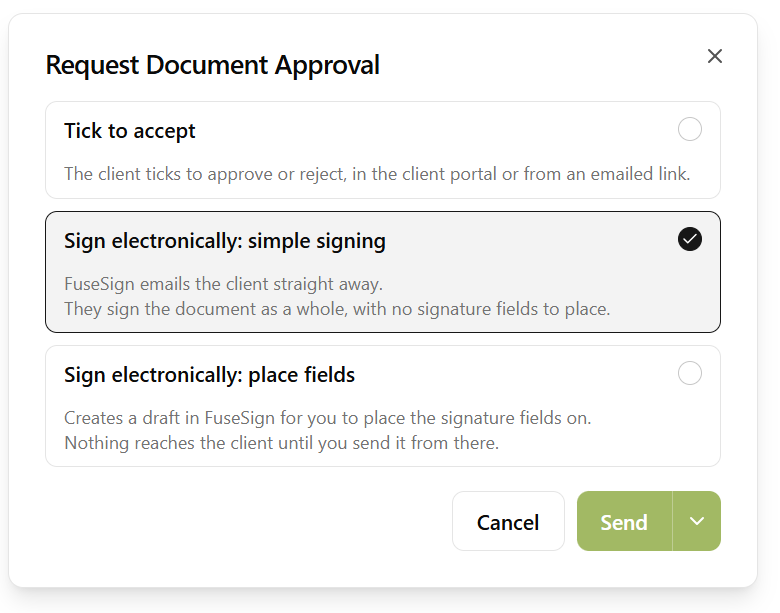
The dialog now asks how the client should sign off. Pick one of:
- Tick to accept — the normal portal approval. No signature.
- Sign electronically: simple signing — FuseSign emails the client straight away and they sign the document as a whole. Use this unless the signature has to go in a particular spot.
- Sign electronically: place fields — creates a draft in FuseSign for you to lay out the signature fields first (step 3). Nothing goes to the client yet.
Choose the recipients under Send approval request to, then click Send.
3Place the signature fields (optional)
Only for place fields requests. When you click Create, FuseSign opens in a new tab with the document as a draft. Drop the signature, initial and date fields where they belong, then send it from FuseSign.
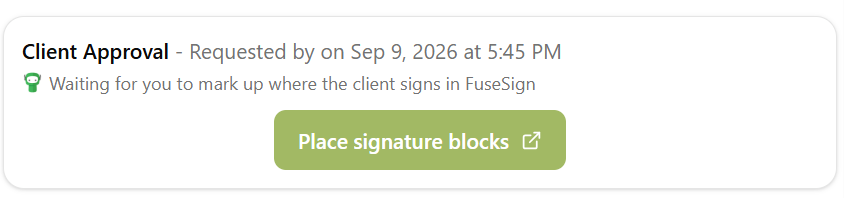
Until you do, the document in Sodium reads Waiting for you to mark up where the client signs in FuseSign, with a Place signature blocks button that takes you back to the draft. Use that if your browser blocked the tab from opening.
4Track progress
Once the request is out, you don't need to open FuseSign to see where it's got to:
- On the document, the status line reads Sent for signature via FuseSign followed by not opened yet or viewed, with an Open signing page link.
- In the client's document list, the Client Approval column shows Awaiting Signature.
FuseSign sends its own reminders to anyone who hasn't signed, so the Chase setting in the request dialog starts off for signing requests. Turn it on if you want Sodium chasing as well — its chases link to the FuseSign signing page.
5When the client signs
Nothing to do. When the last signature goes on:
- The document becomes Client Approved and the status line changes to Signed via FuseSign. Any workflow step waiting on the approval completes, and you get the usual approval notification.
- A few minutes later, the signed PDF — with FuseSign's audit trail burnt in — replaces the document's file. Same title, category and portal folder, so the client sees the signed copy in the portal under the document they already know.
- If you use document storage to keep your documents in your own Google Drive, OneDrive, SharePoint, Dropbox or Box, the unsigned original is kept as the previous version in the document's Version History.
If the client declines, the document is marked Client Rejected. If you retract the request in FuseSign, Sodium cancels the approval request to match.
Signing from a workflow
A Document Approval step in a workflow has an Approval Method setting with the same three options. Set it to Sign electronically: simple signing and every task running that workflow sends its documents for signature without anyone stepping in. Place fields works too, but the step then waits for someone to mark the draft up in FuseSign.
Scheduled sends work as well: choose a signing option in the dialog, then use the schedule option on the Send button.
Tips
- Default to simple signing. It needs no setup and the client is emailed immediately. Save place fields for documents with a signature block in a fixed position, such as statutory accounts.
- Generate from a template where you can. Template documents are always PDFs, so they can go for signature the moment they're created.
- Leave chasing off. FuseSign reminds non-signers itself; a second set of reminders from Sodium is usually just noise.
- Keep your own storage connected. On a connected provider the unsigned original survives as a version; on Sodium's built-in storage the signed PDF simply replaces it.
Where to go next
- Digital Signing with FuseSign — what the integration does and why
- Document Approvals — tick-box approvals, batching and chasing
- Document Storage — connect your own provider and keep version history
- Workflow Steps — the Document Approval step and its friends