
Client Books

Answering "how is this client doing?" usually means logging into their accounting software and hunting for the right organisation. Connect a client's books to Sodium and the answer sits on the Books tab of their client record, next to their services, tasks and documents.

Xero
QuickBooks
FreeAgent
Sage

Connect a Client's Accounting Software

On the Books tab, Sodium asks where the client does their accounting and offers the accounting platforms it supports - Xero, QuickBooks, FreeAgent and Sage. Pick one and you connect through secure OAuth; no API keys and no shared logins.

If your practice already has a connection to that platform, Sodium lists the organisations it can see and you simply choose the client's. If they sit under a different login, sign in with those credentials instead.

Overview, Invoices and Chart of Accounts

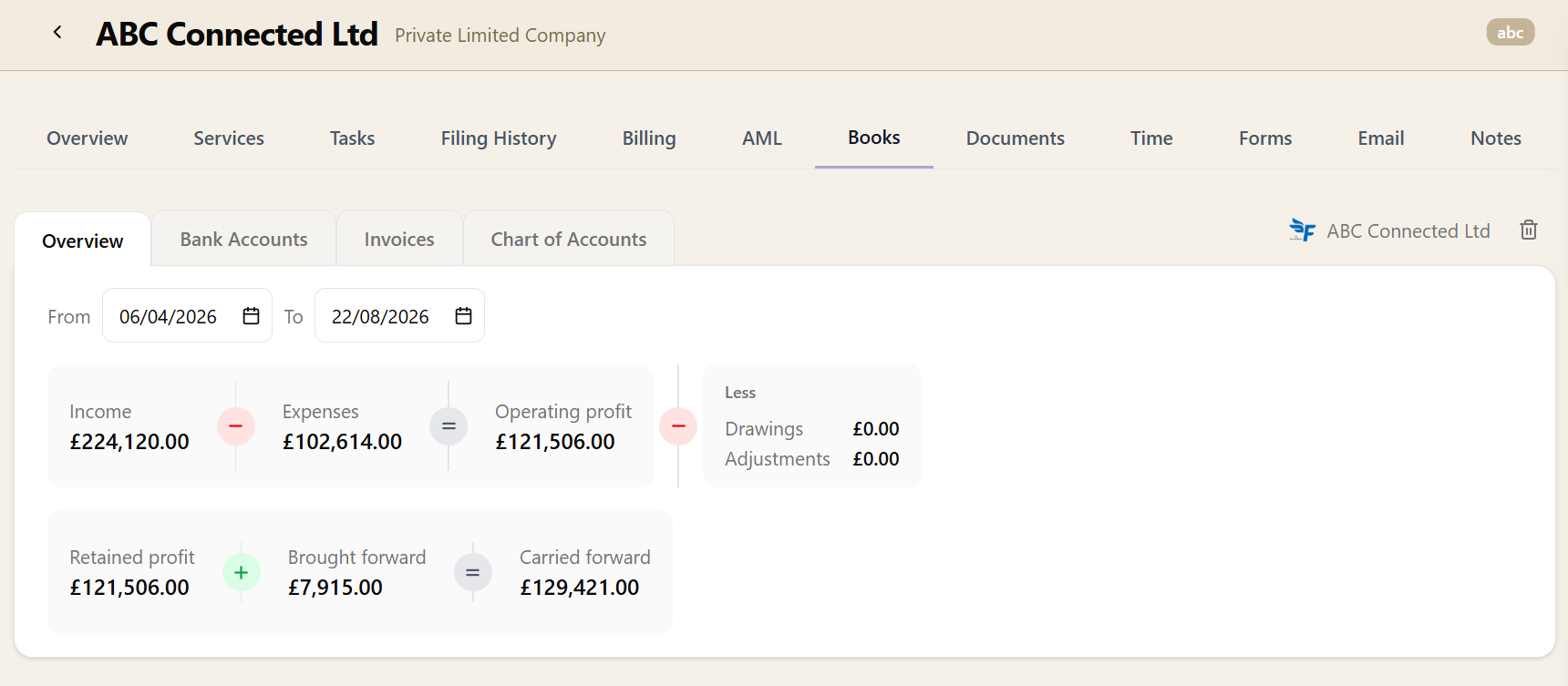
Once connected, the Books tab reads directly from the client's accounting software:

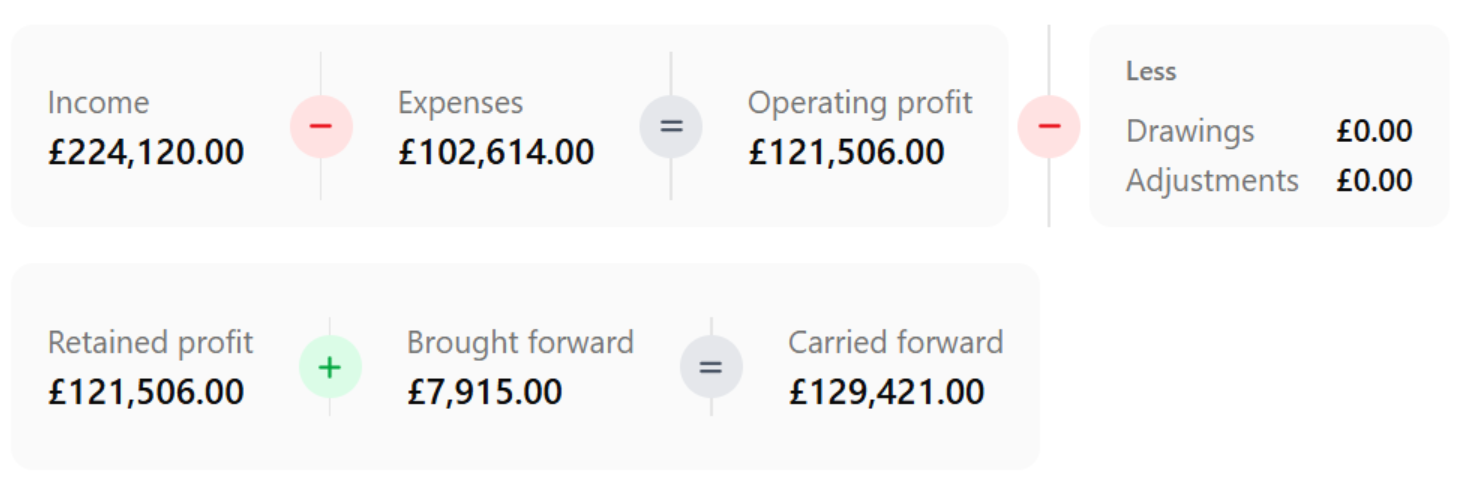
  • Overview - a profit and loss report for any date range you choose, so you can see how the client is trading before a meeting or a piece of work. Available on platforms that provide the report, which today means Xero and QuickBooks.
  • Bank Accounts - each account with its name, account number, currency and balance.
  • Invoices - number, customer, date, due date, status, total and outstanding amount, so you can see what has been raised and what is still owed to them.
  • Chart of Accounts - the full nominal ledger with code, name and account type, searchable by code or name.
The Books tab on a client record showing Overview, Bank Accounts, Invoices and Chart of Accounts sub-tabs, with the chart of accounts listed from a connected Xero organisation

Read-Only, and Always Current

Nothing is copied into Sodium and kept in a stale cache - each tab queries the client's accounting software when you open it, so what you see is what is in their books right now. Client Books is read-only: Sodium never writes to or changes the client's accounting records.

It is a different job from client billing, which is about the invoices your practice raises for your own fees. Client Books is about their numbers, not yours.

Where It Helps

Having the books one click from the client record removes a lot of small interruptions:

  • Check trading before a year-end meeting or a planning call, without opening another application.
  • Look up a nominal code while preparing a task rather than asking the client for it.
  • See whether an invoice the client has queried is still outstanding on their side.
  • Give a team member the financial context for a client they have not worked on before, without handing out logins to the accounting platform.

Want to learn about other capabilities?

Explore all features

Have questions or suggestions?

Get in touch