Client Teams

Teams aren't just for tasks. You can also assign teams to clients, giving your practice another way to organise its client base — by department, service line, office location, or however your firm is structured.

A client's team assignment sits alongside the existing manager, partner, and associate fields. It's optional, configurable, and works with the same filtering, sorting, and saved views you already use.

Teams for Tasks, Clients, or Both

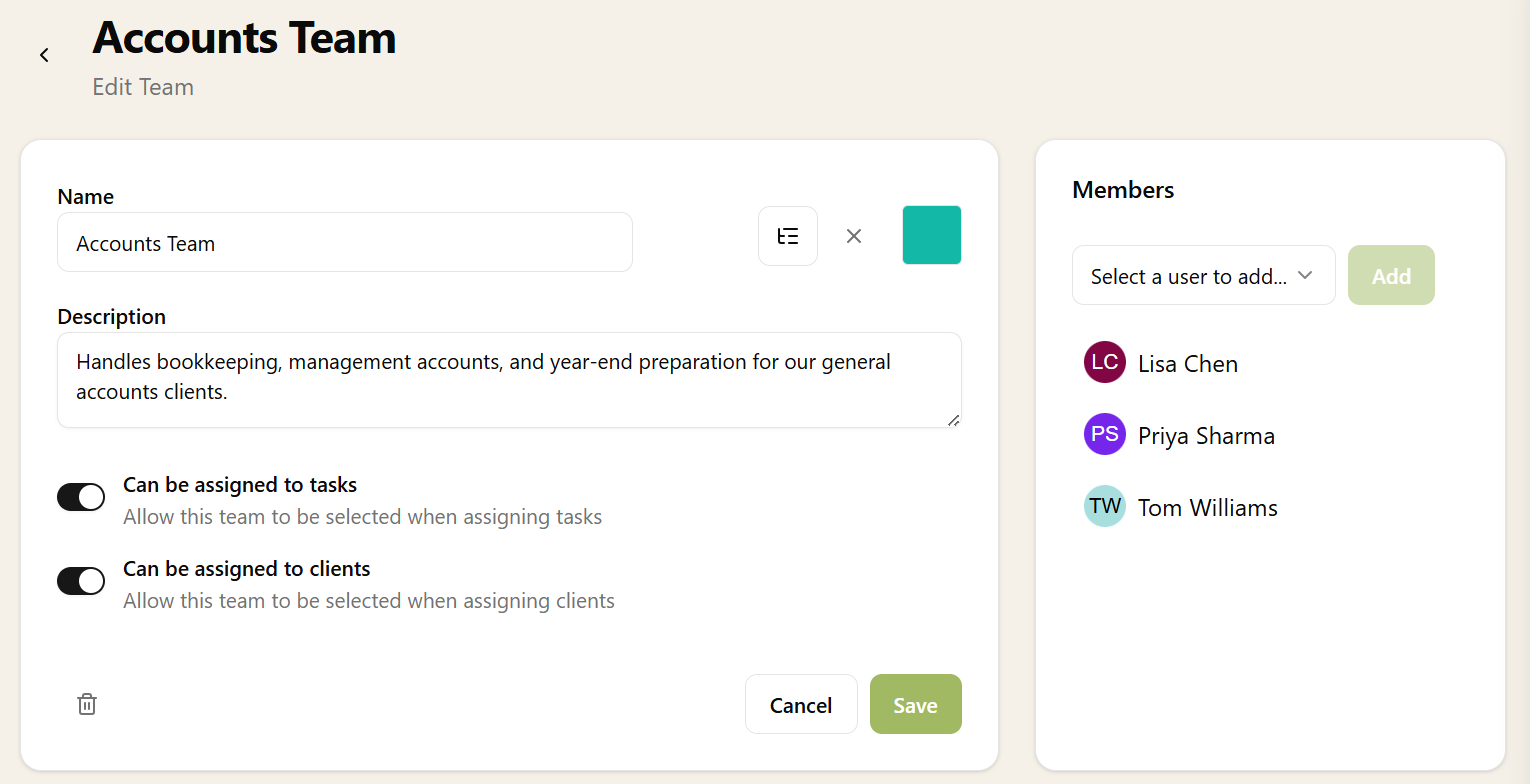
When you create a team in Settings, you choose what it can be assigned to. Each team has two independent toggles:

  • Can be assigned to tasks — the team appears in task assignment dropdowns (see Task Teams)
  • Can be assigned to clients — the team appears in client assignment dropdowns

A team can have both toggles on, so the same "Payroll Team" can be assigned to both payroll tasks and payroll clients. Or you might have separate teams for each — a "Tax Department" for tasks and a "Tax Clients" team for organising the client list. It's flexible.

Enabling Teams on Clients

Team assignment on clients is controlled through Client Settings — the same place you configure the manager, partner, and associate fields. There are two settings:

  • Enabled — turns on the team field on client forms and detail pages
  • Show in list — adds a team column to the client list view

If your practice doesn't need teams on clients, leave it off — there's no clutter. You can still use teams purely for task assignment without it affecting the client interface at all.

Assigning Teams to Clients

Once enabled, the team field appears in three places:

  • The add client dialog — set a team when creating a new client
  • The client detail page — view and change the team inline alongside manager, partner, and associate
  • Bulk actions — select multiple clients and assign or clear teams in one go

The team dropdown only shows teams that have the "can be assigned to clients" toggle enabled, so task-only teams won't clutter the list.

Filtering and Sorting by Team

The client list gains a team filter in the filter bar — a dropdown showing all client-assignable teams. Select a team to narrow the list to just that team's clients.

You can also sort the client list by team name, grouping clients by their assigned team in alphabetical order.

Both the filter and sort work alongside the existing partner, manager, associate, status, and service filters — combine them however you need.

Saved Views with Team Filters

Saved views for clients support team filters. Create a "Payroll Clients" view filtered to the Payroll Team, or a "Year End Active" view combining the Year End Team with an Active status filter.

Pin views to the navigation menu so team members can jump straight to their clients without setting up filters each time. Current filter selections — including team — are carried through when creating a new saved view from the client list.

How It Differs from Task Teams

Task Teams are about work distribution — assigning tasks to a group so members can pick up work from a shared queue. Client Teams are about organisation — categorising clients by the team that looks after them.

The two features use the same underlying teams, and a single team can serve both purposes. The distinction is simply which toggles you enable. A small firm might have one "Payroll" team used for both tasks and clients. A larger firm might create separate teams for each context.

Want to learn about other capabilities?

Explore all features

Have questions or suggestions?

Get in touch