
Your practice's email, texts and notifications, in your pocket
The Sodium app for iPhone and Android lets your team triage the shared inbox, answer clients by email or text, and pick up the work that needs them, wherever they are. Same clients, same views and same permissions as the web app, so nothing waits until someone is back at their desk.
At a glance
- iPhone and Android
- Every shared mailbox, or all of them at once
- The triage views, filters and counts from the web
- Swipe to assign, change status or move
- A summary of each conversation above the thread
- Reply, reply all, forward and new email, with your signature
- Attach photos, files or the client's documents
- Save drafts, or schedule an email to send later
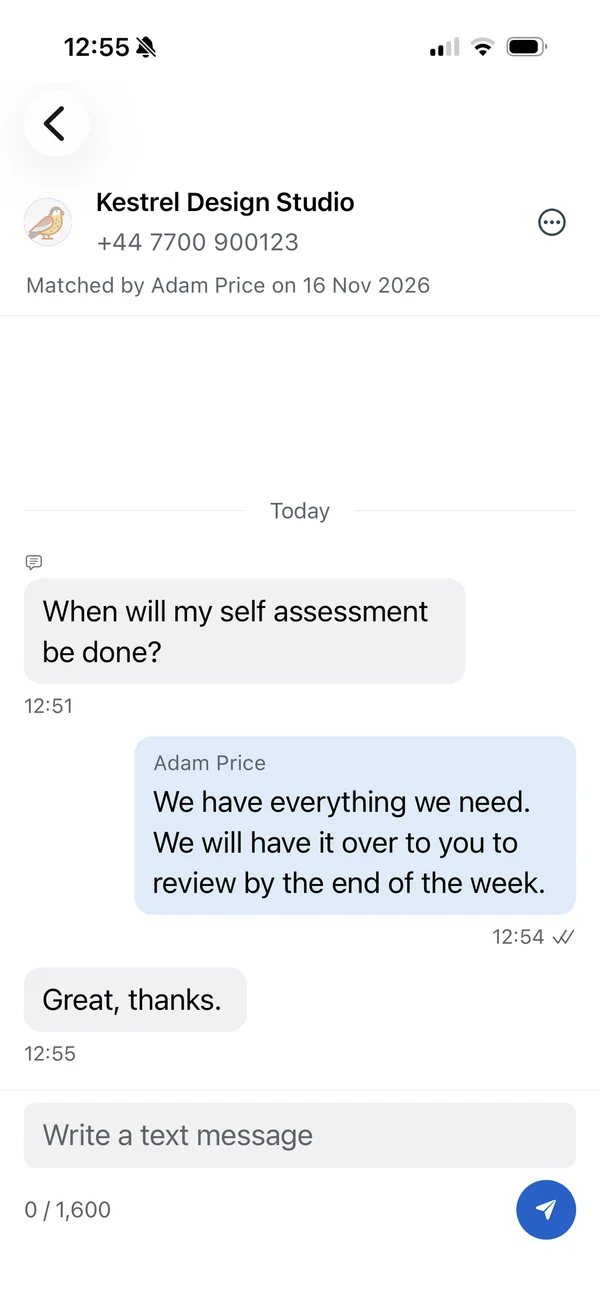
- Client SMS and WhatsApp, from the practice's number
- Text templates and approved WhatsApp templates
- Texts from unknown numbers sorted onto a client
- Link emails to clients and tasks
- Turn an email or a text conversation into a task
- Save attachments to the client's documents or a request
- Comments and @mentions on conversations
- Push notifications that open in the right practice
- Switch between the practices you work for
- Your practice's two-factor sign-in applies
The problem
Clients don't wait until you're back at your desk
A client emails at the end of the day, texts on a Saturday, or needs a quick answer while you're out at another client. Without the practice system on your phone, it waits, or it gets answered somewhere the rest of the team can't see.
- “I'll deal with it in the morning”A two-line answer waits a day because it means opening a laptop.
- Read on a phone, then forgottenOpened in a mail app with no owner or status, and nobody knows it's been seen.
- Texts on personal mobilesA client's WhatsApp lands on someone's own phone, off the client's record.
Triage
Clear the shared inbox from wherever you are
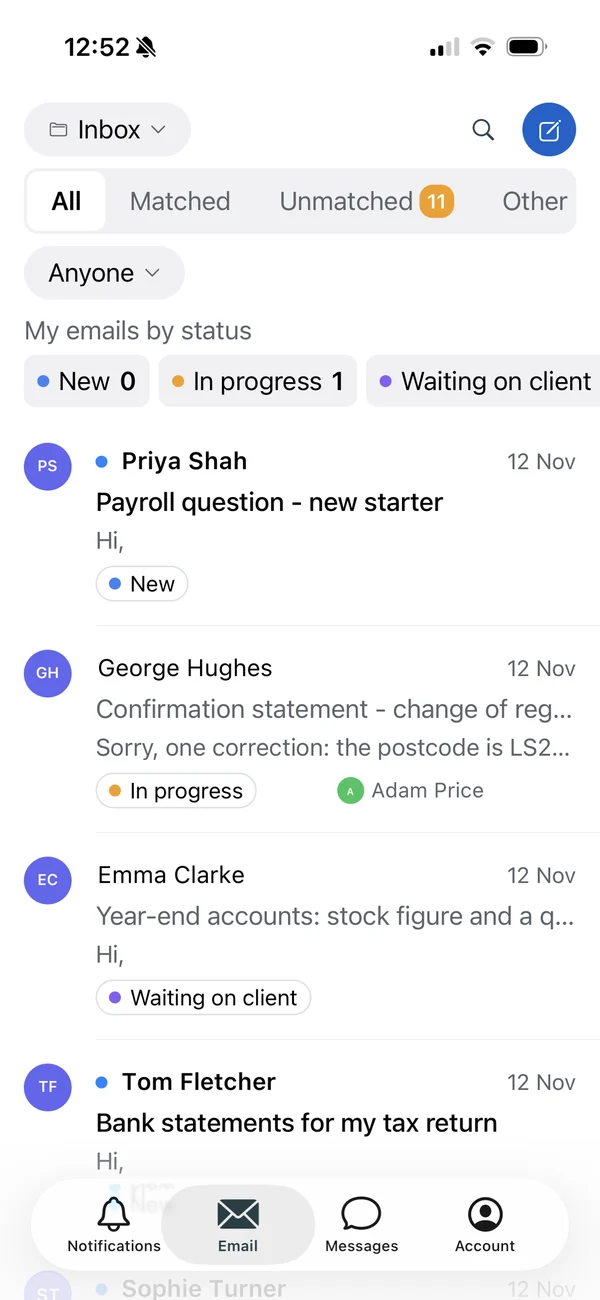
The practice inbox works on the phone exactly as it does on the web: the same views, the same owners and the same statuses. Ten spare minutes between meetings is enough to assign what came in and move on what's yours.
- Every mailbox you can see, or all of them at once
- Matched, Unmatched and Other, as your team sees them on the web
- The status counts at the top: tap one to see just those
- Filter to your own emails, a colleague's, or anyone's
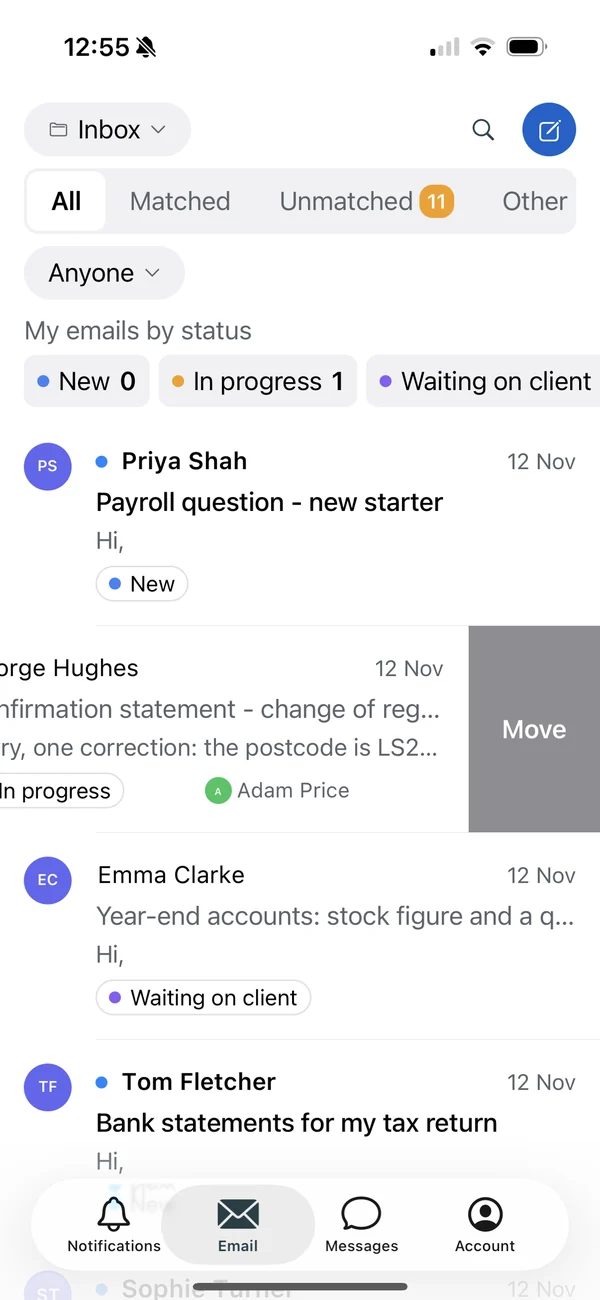
- Swipe to assign, change status or move
- Mailboxes without triage work as a plain inbox
Read
Know where a conversation stands before you scroll
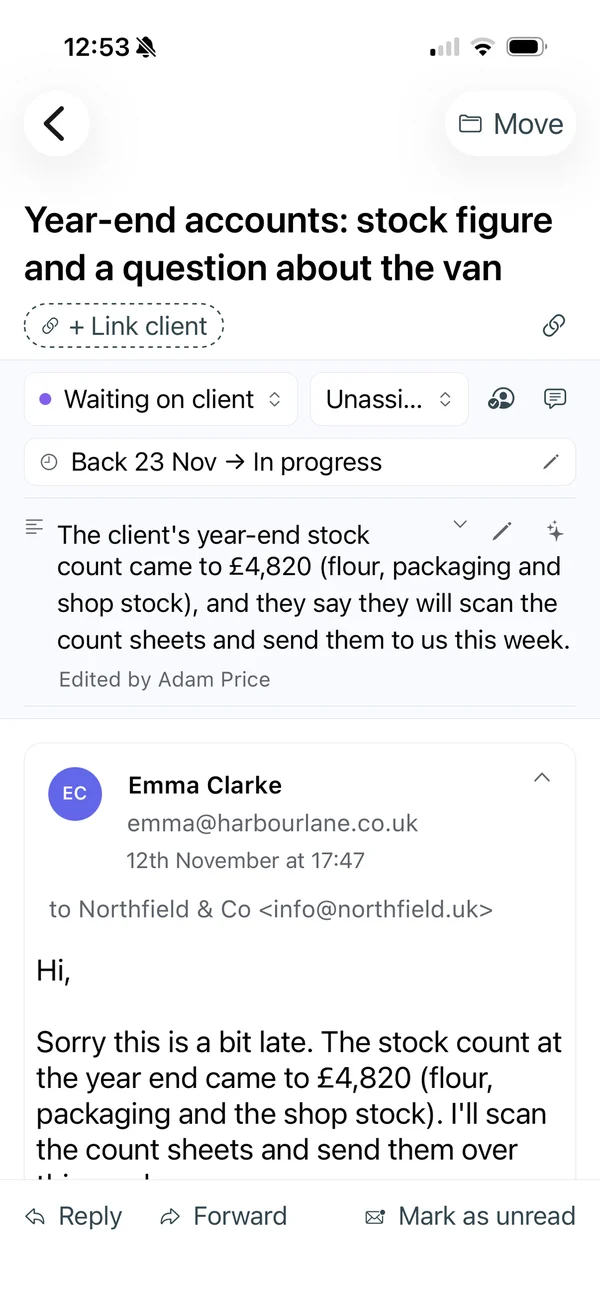
A conversation opens with its status, its owner and a short summary of what the client wants, so you can act on it without reading every message from the top. Anything the team needs to know goes in a comment, not a forwarded email.
- A summary of the conversation above the messages
- Status, assignee and bring-back date in one bar
- Comment and @mention colleagues on the conversation
- Open attachments on the phone, or share them
- Move, mark as unread, junk or delete
Reply
Answer the client now, not when you're back at your desk
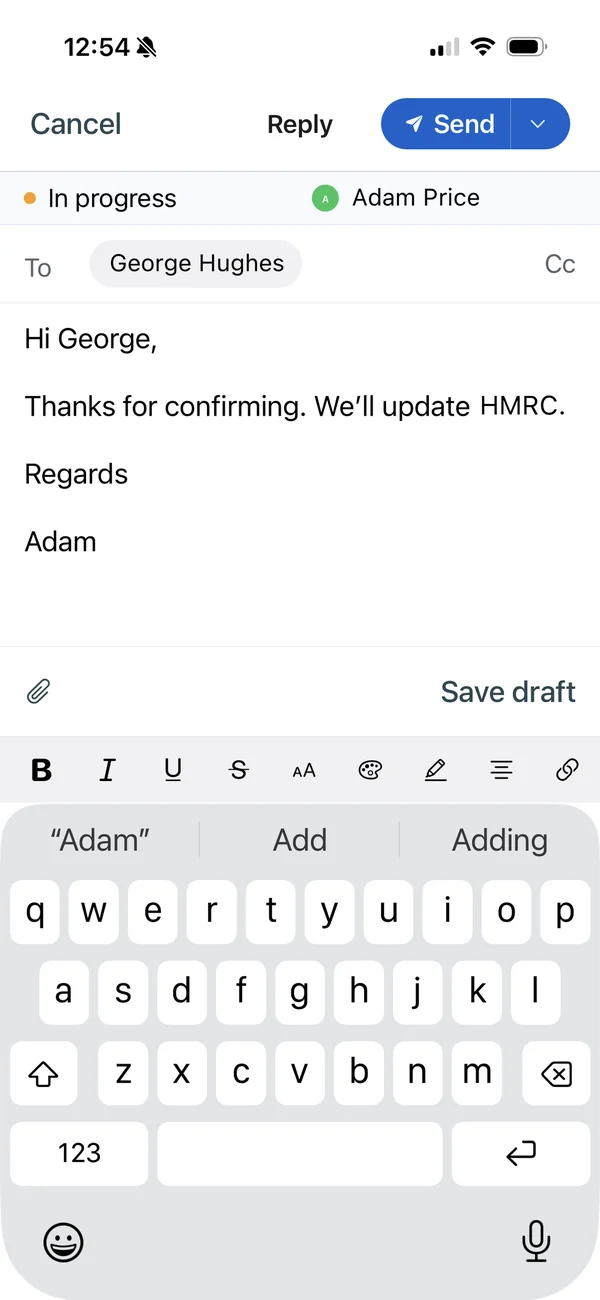
Write a proper reply from the phone, from the practice's mailbox, with your signature and the formatting your clients are used to. Change the status as you send, so the inbox is right the moment you're done.
- Reply, reply all, forward or start a new email
- Your signature, as it will be sent
- Bold, lists and links, as on the web
- Attach photos, files, or documents already on the client's record
- Save a draft and finish it on the web, or schedule it to send later
- Set the status and assignee while you reply
Client texts
Reply to client texts from the practice's number
Clients text when it suits them. The app puts their SMS and WhatsApp messages in front of the person who looks after them, and the reply goes from the practice's own number, never a personal mobile, so the conversation stays on the client's record.
- Read and reply to SMS and WhatsApp in one conversation
- Sent from the practice's number, with delivered and read ticks
- Your practice's text templates and approved WhatsApp templates
- Start a new message to any of a client's numbers
- Texts from unknown numbers sorted onto the right client or contact
- Turn a conversation into a task, or link it to one
Joined up
Everything you do on the phone lands on the client's record
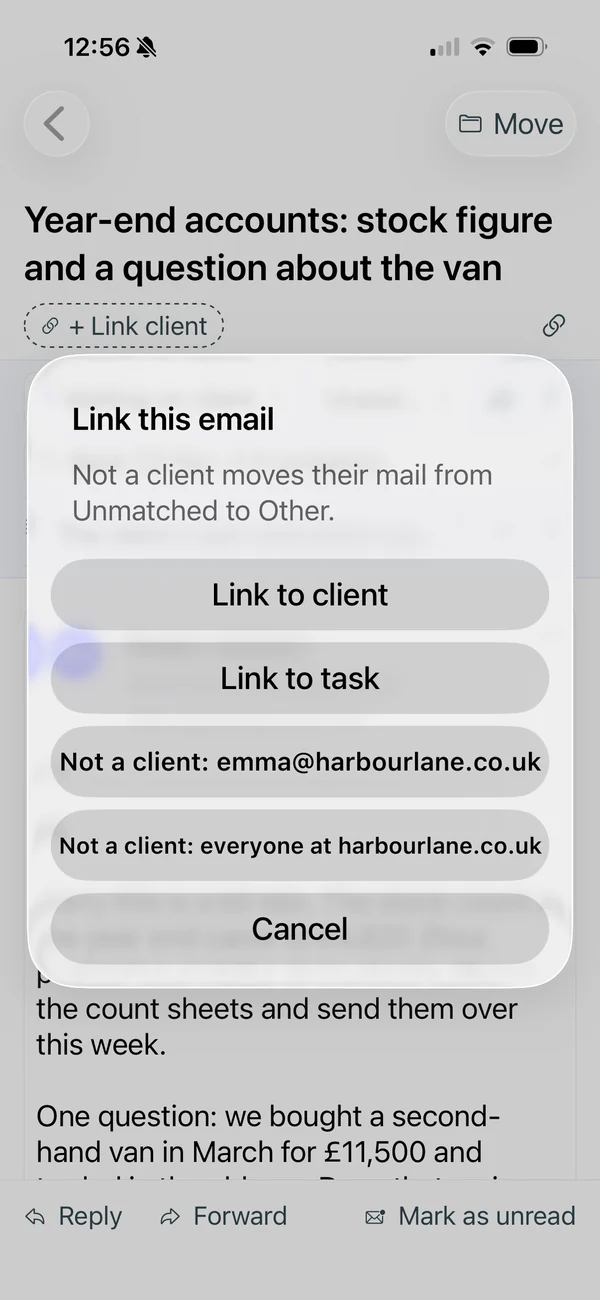
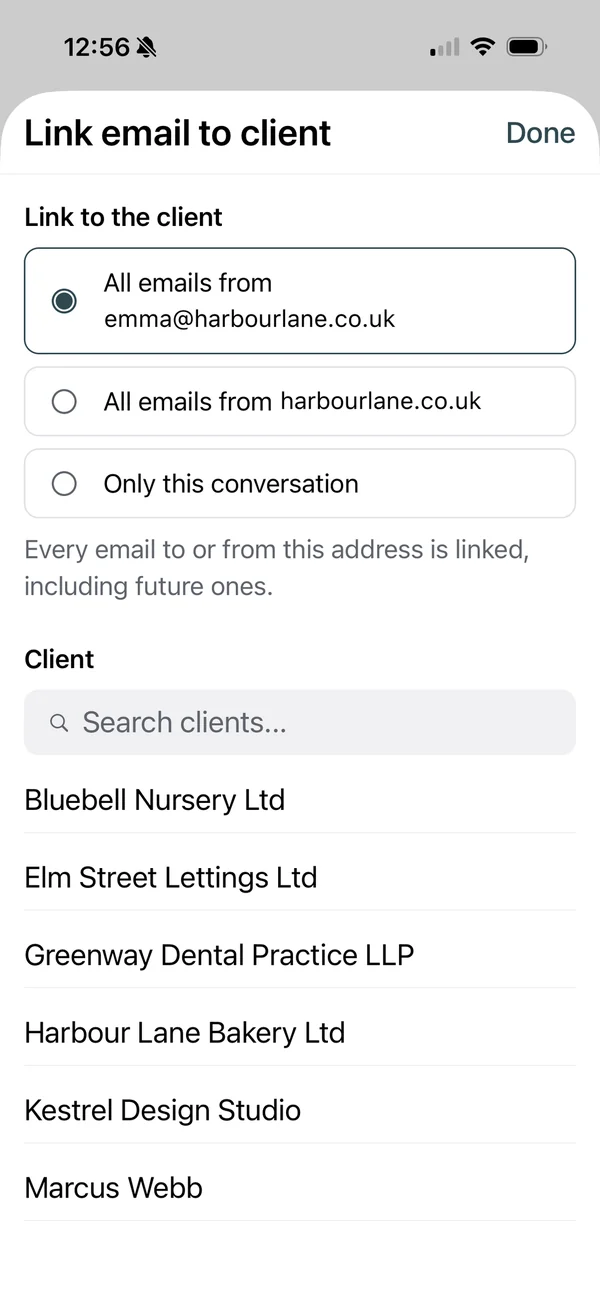
An email dealt with on a phone is still the practice's record. Link it to its client, turn it into a task, or file what the client sent, in a tap or two, so nobody back at the office has to ask what happened.
- Link an email to its client: one address, the whole domain or just this conversation
- Mark a sender as not a client, and their mail leaves Unmatched
- Turn an email into a task, or link it to one that already exists
- Save attachments to the client's documents or to an open information request
Notifications
A push when something needs you, and one tap to it
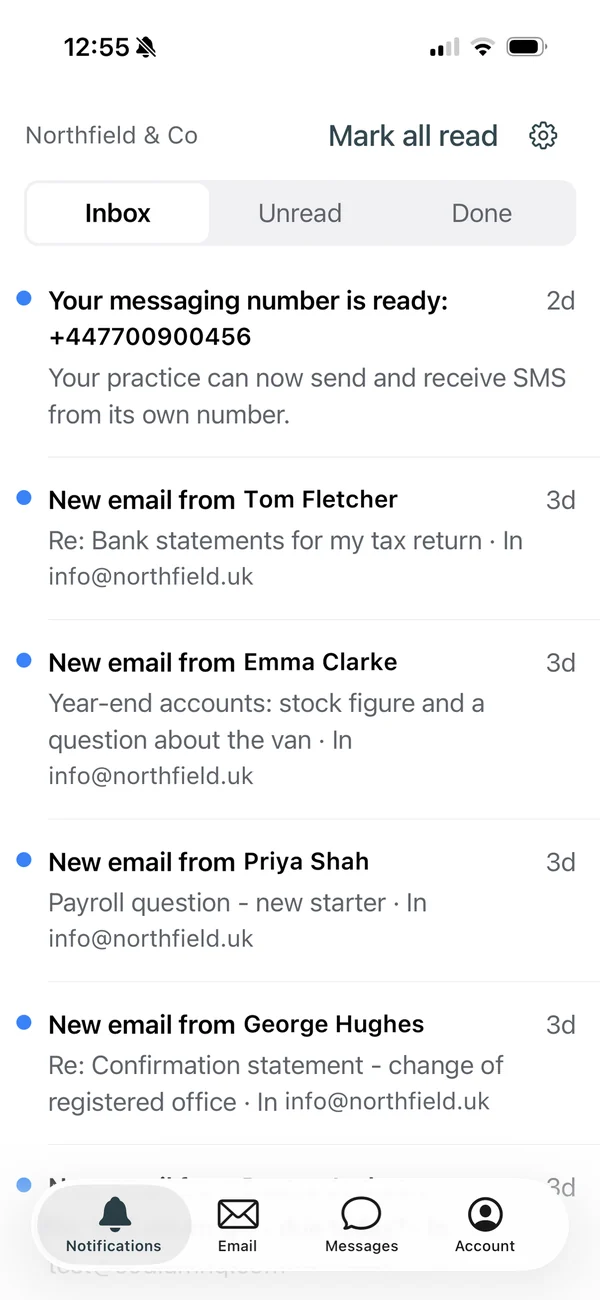
Your Sodium notifications come to your phone: a task assigned to you, a mention, a client's email or text. Tap one and it opens straight to the work, in the right practice if you belong to more than one.
- Push for tasks and emails assigned to you, mentions and client texts
- You choose which notifications reach your phone
- A tap opens the task, email or conversation, switching practice if needed
- Inbox, Unread and Done, with mark all read
Works like the web
The same Sodium, not a cut-down copy
Nothing to set up for the app: it uses the mailboxes, clients, templates and settings your practice already has.
Your Sodium sign-in
Staff sign in with the account they already use, and the two-factor sign-in your practice requires applies in the app too.
The same permissions
People see the mailboxes, clients and texts they can see on the web, and nothing more.
Every practice you work for
Switch practice from the account menu. A notification from another practice switches for you.
The rest of Sodium a tap away
Anything without its own screen in the app opens the web app inside it, already signed in.
Your notification choices
Push sits beside email and desktop alerts in your notification settings, set for each kind of notification.
Picks up where you left off
The app reopens on the tab you used last: notifications, email or messages.
Get the Sodium app
For everyone at a practice that uses Sodium. Sign in with your Sodium account.
Not using Sodium yet? Book a demo or get started.
Client texts need your practice's own number for SMS & WhatsApp.