
Nothing slips through the shared inbox
Email triage turns your practice mailboxes into one shared list of work. Every client email has an owner and a status, what is still waiting is counted at the top of the inbox, and the team can talk about an email without forwarding it round.


The problem
The shared inbox is where client emails go missing
Everyone can see the email, so everyone assumes someone else has it. It gets forwarded round for an opinion, read on a phone and forgotten, or buried under newsletters and supplier invoices. Then the client chases.
- “Who's got this one?”No owner, so it waits for whoever notices it first.
- Read, but not dealt withOpened once, then lost below the next fifty emails.
- Lost in the noiseClient emails mixed in with suppliers, alerts and marketing.
How it works
From a busy inbox to a list the team can work through
- 1
Connect your mailboxes
Outlook, Microsoft 365 or Gmail, shared inboxes included. Emails already waiting become the first queue.
- 2
Every email gets an owner
Each conversation arrives with a status and the right person, without anyone sorting the post.
- 3
Client emails come first
Emails from clients are linked to the client. Everything else is kept to one side.
- 4
Work it through to done
Reply and close it in one click. If the client writes back, it comes straight back. If they go quiet, it comes back on the day you chose.
Ownership
Everyone knows who owns what
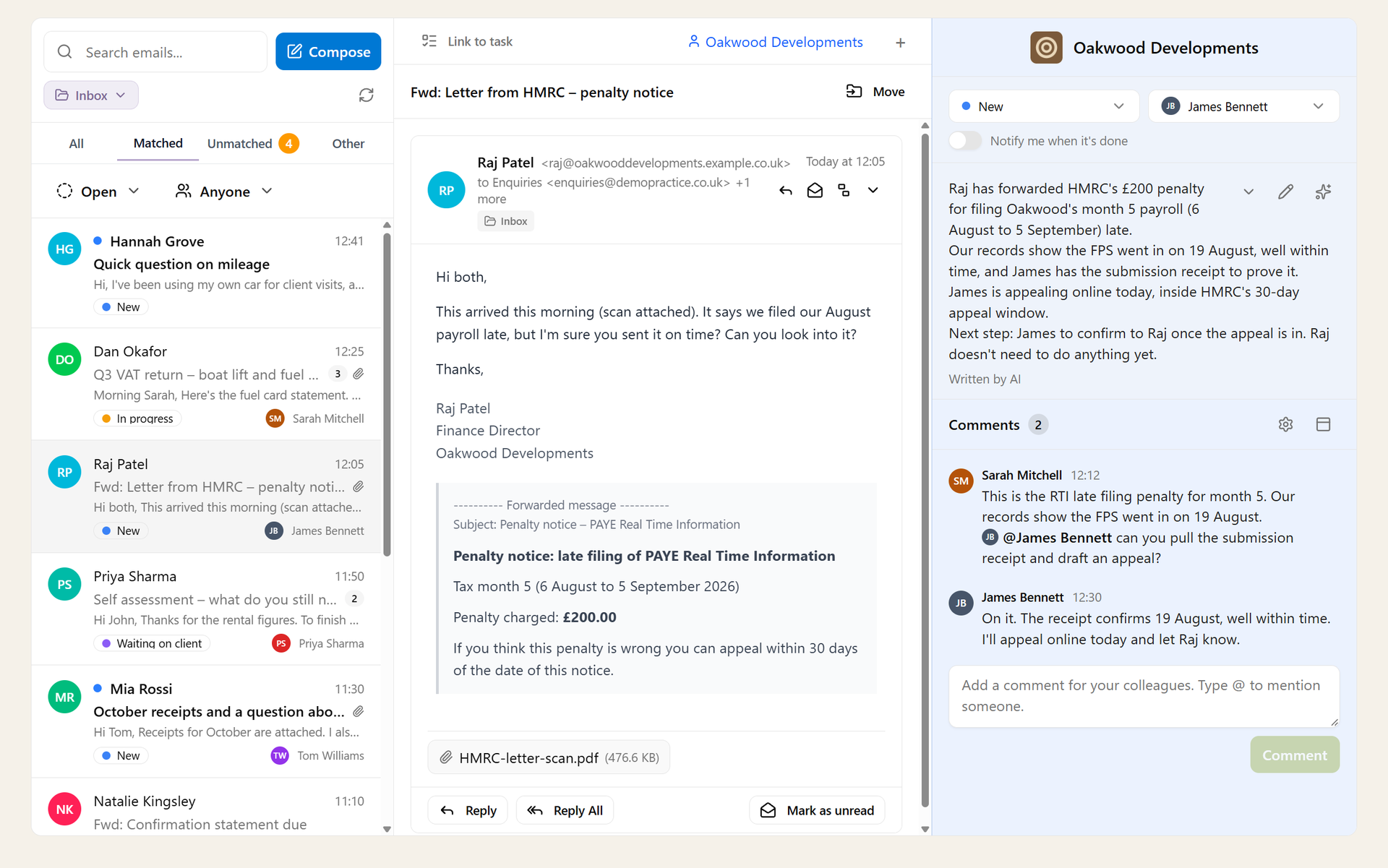
Every client conversation has an owner and a status, so nobody has to ask who is dealing with it. Hand one to a colleague and you get an email when it is done.
- An owner and a status on every conversation
- Hand it over and hear back when it is finished
- Know straight away when a client reopens one of yours
At a glance
See what's waiting the moment you open the inbox
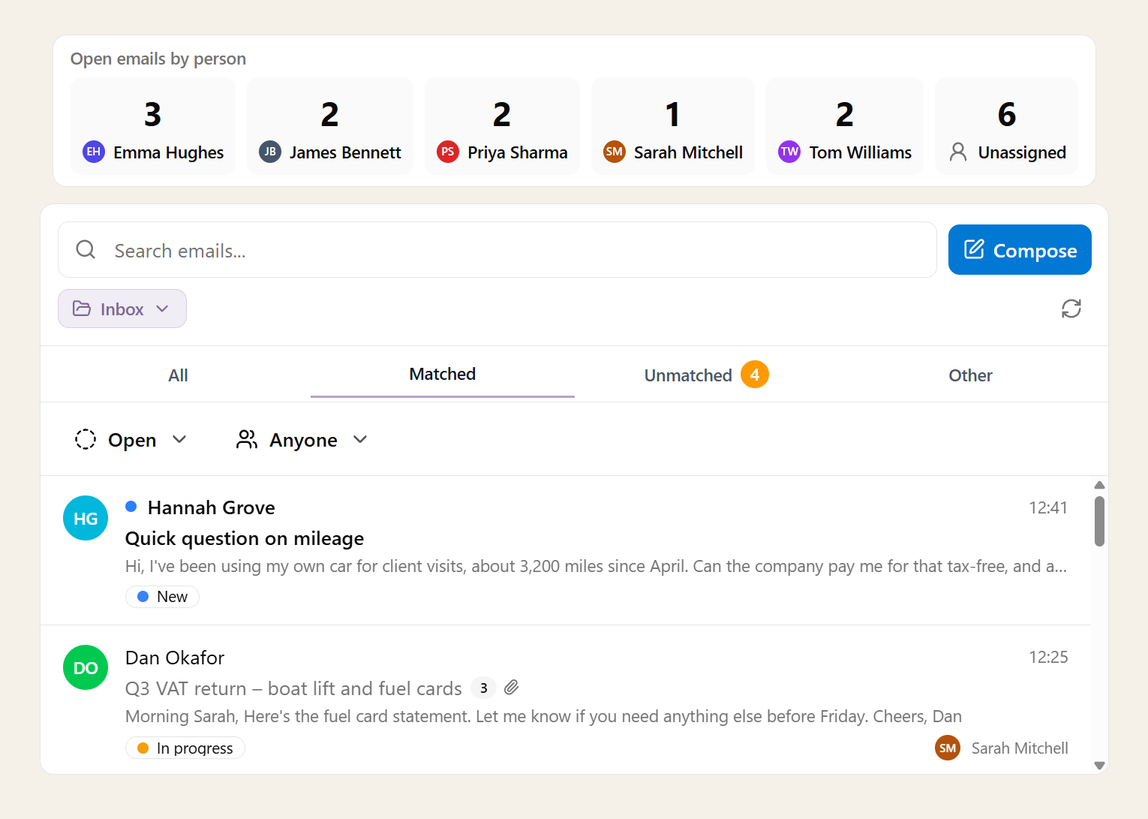
The numbers your practice cares about sit across the top of every inbox, by person or by status. Click one and you are looking at just those emails.
- Counts that show where the work is piling up
- One click to the emails behind a number
- Your filters by status and person, still there when you come back
Client emails first
Client emails, sorted from the noise
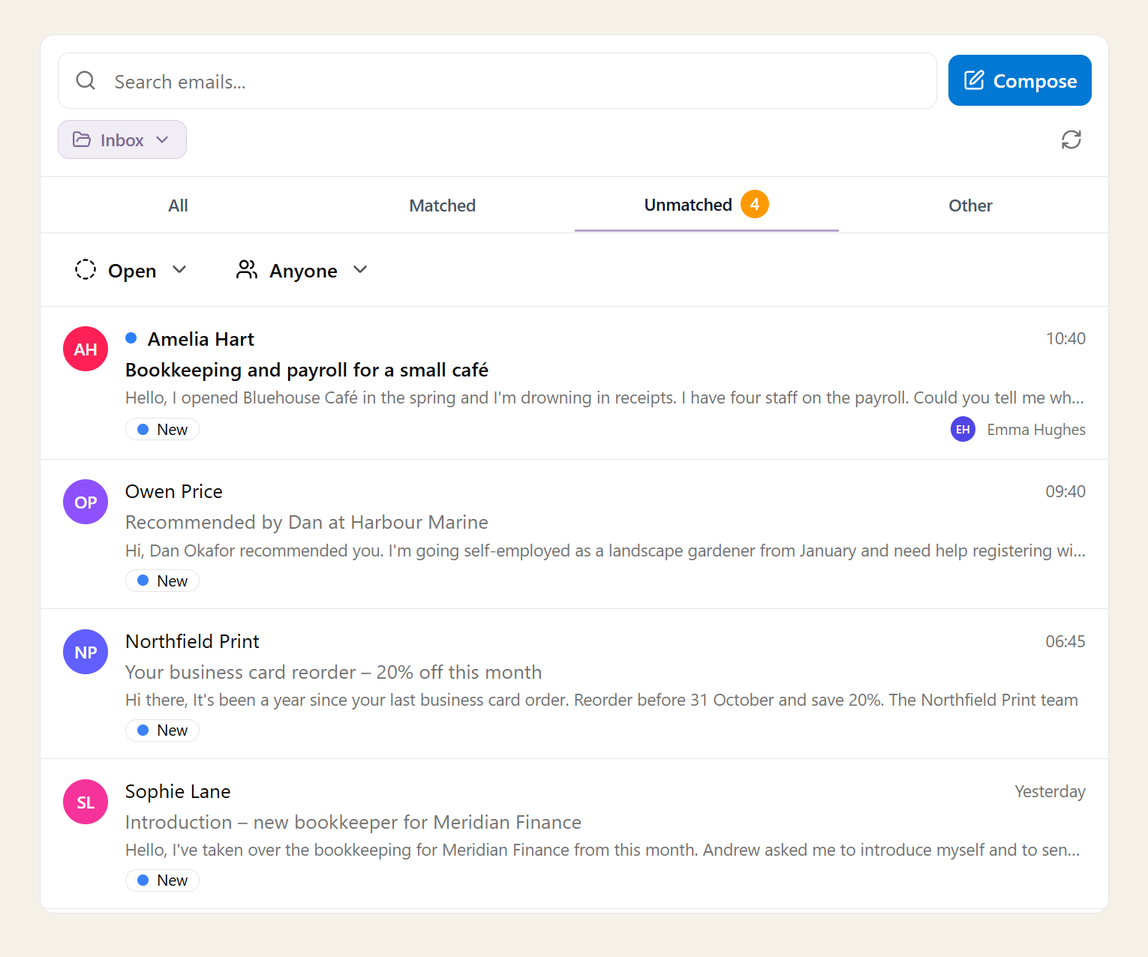
Emails from clients sit together, linked to the right client. Suppliers and newsletters are kept apart, so the team spends its time on the emails that matter.
- Client emails linked to the client
- New senders flagged so someone can categorise them: client or not?
- Suppliers and newsletters out of the way
Summaries
Pick up any conversation in seconds
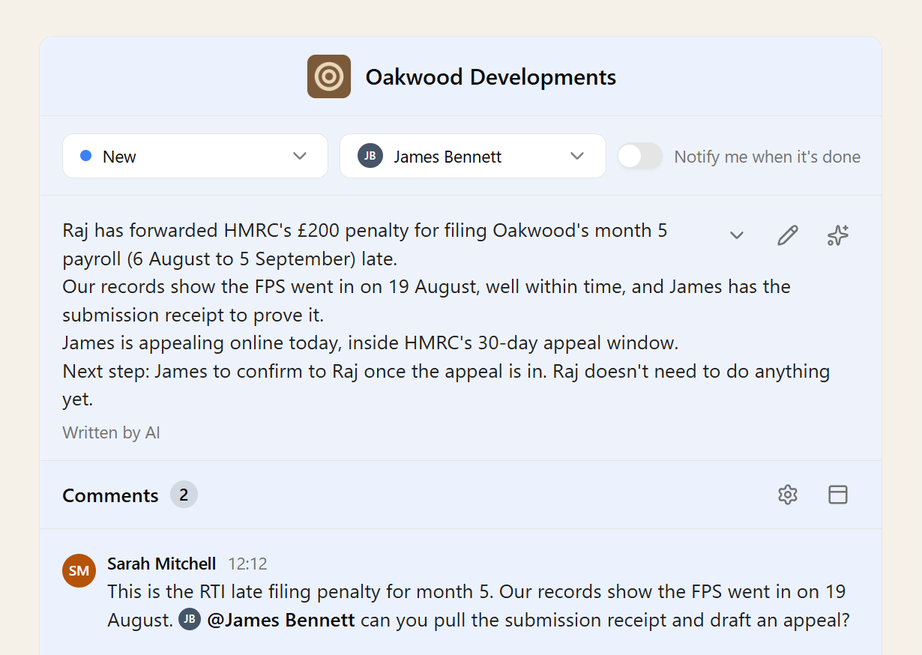
A short summary sits above the comments: what the client wants, what has been agreed and who owes the next step. Write it yourself, or let AI read the thread and write it for you, so a colleague covering the inbox does not have to read every email.
- Where things stand, above the comments on every conversation
- Written in one click by AI, from the emails themselves
- Asks before AI replaces a summary someone wrote by hand
- Written by a model set never to keep your emails or train on them
Reply and close
Answer it and close it in one click
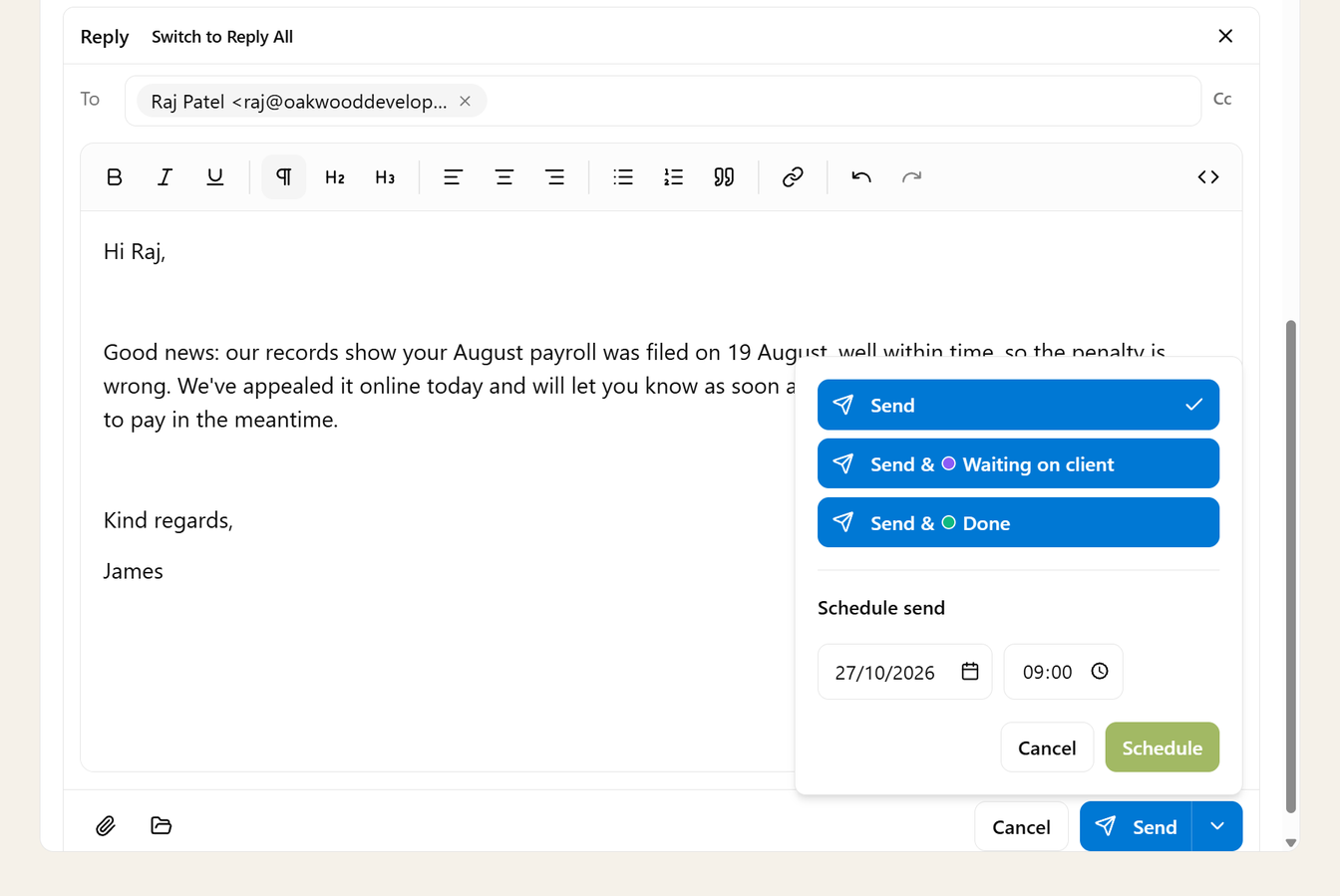
Send your reply and mark the conversation done at the same time, so answered emails leave the list the moment they are answered.
- Reply and close in a single click
- Or send and move it straight to waiting on the client
- No answered emails left sitting in the queue
Bring back
Waiting on a client? It comes back to you
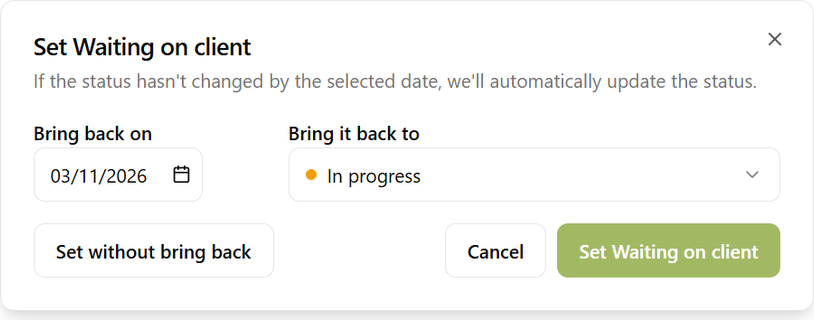
Set an email to waiting on the client and choose when it should come back. If they still haven't replied by then, it is back on your list, so no email conversation manages to go off the radar.
- Back on your list on the day you choose
- A reply from the client cancels it, so you only chase the ones still waiting
- Set it as you send your reply
Visibility
A clear view of what's outstanding
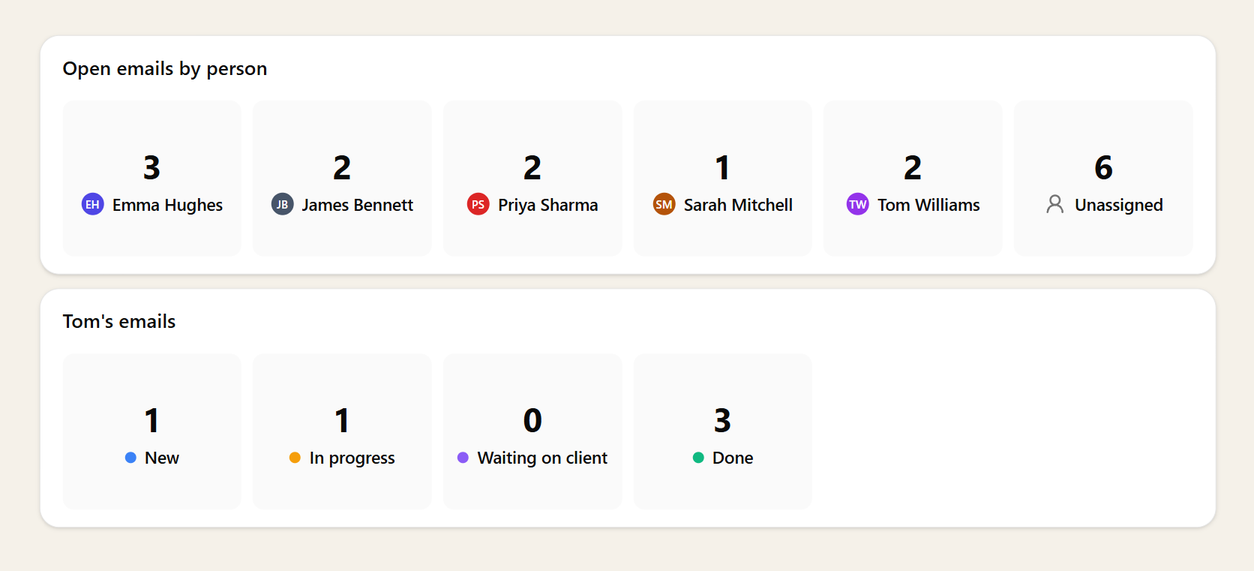
Put the same counts on your dashboard and see where the work is building up before a client has to chase. One click takes you to the emails behind the number.
- Open emails by person or by status
- On the dashboard, next to the rest of your practice's work
- Straight through to the emails behind them
Done means done
A tidy inbox, and nothing closed too early
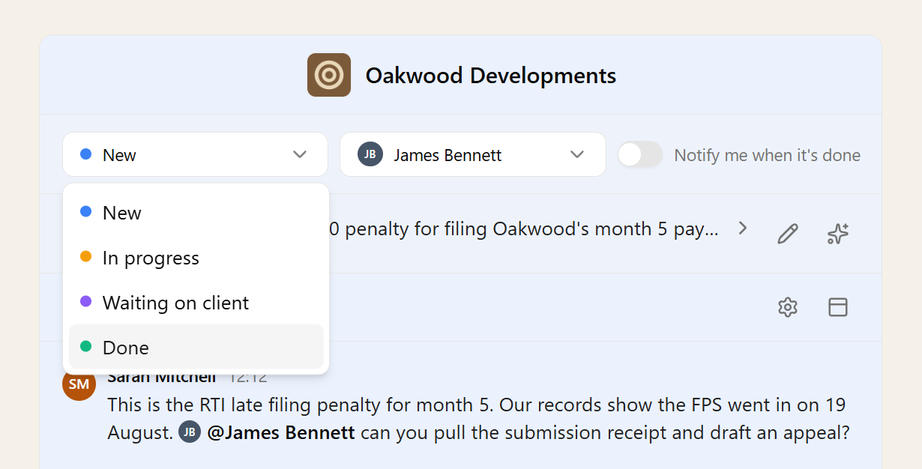
Finished conversations can leave your Outlook or Gmail inbox too. If the client writes back, it is straight back on the list.
- Finished work clears from the mailbox
- A client reply reopens the conversation
Part of Sodium
Works with the email you already have in Sodium
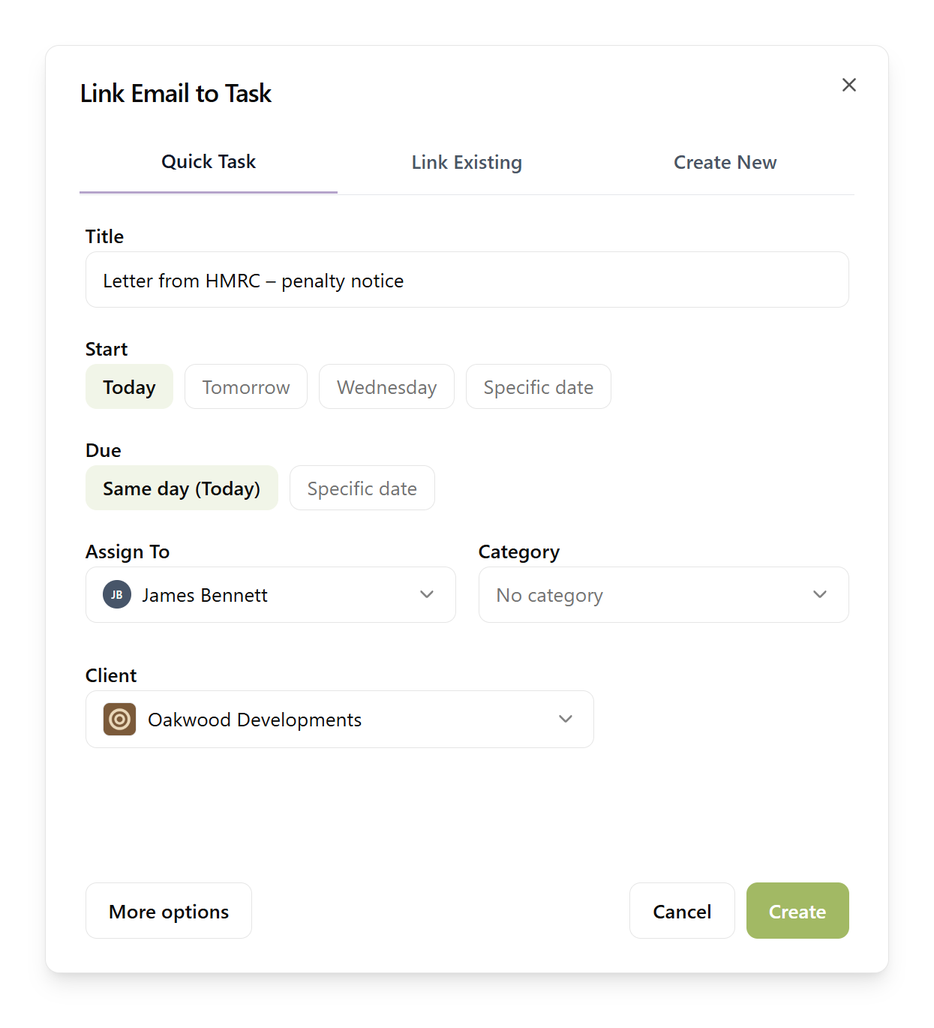
Triage sits alongside the email on your client and task records. Turn an email into a task, or link it to one, without leaving the conversation.
- The same emails on the client and task tabs
- A task from an email in a couple of clicks
- Link a conversation to the job it belongs to
Make it yours
Triage that fits the way your practice works
Every practice handles its email differently, so the parts that matter are yours to shape.
Your own statuses
Name them, colour them and put them in your order. You decide which ones count as done.
The counts you care about
Across the top of the inbox and on the dashboard, by person or by status. As many as you like, compact or large.
Comments where you want them
Above the email or in a column beside it, and as wide as you want it.
Summaries if you want them
Turn the summary box on for each inbox, and choose whether AI can write it.
A colour for every inbox
Tint each mailbox so triage stands apart from the email, and you always know which inbox you are in.
The right people on each inbox
Choose who handles each mailbox, so the accounts inbox stays with the accounts team.
A Send button that moves things on
Choose which statuses sit on the Send button, so replying and moving the email on is one click.
Filters that remember
Come back later and your filters are where you left them.
And lots of the subtle touches you've come to expect from us that just make it a pleasure to use.
- A mention takes you straight to the comment, highlighted and ready to reply
- Replying to a mention starts by mentioning them back
- Mention Sarah and it asks: assign to Sarah?
- The email you were sent to scrolls into view
- Reply and close in one click
- Forward an email, attachments and all, without leaving Sodium
Built for practices
Not a help desk. Built for accountants.
Generic shared-inbox tools know nothing about who your clients are or who looks after them. Triage does.
Knows your clients
Client emails are linked to the client records you already keep in Sodium, so the context is one click away.
Knows your team
A client's email can go straight to their manager or partner, and each inbox is only handed to the people who work it, so the accounts inbox stays with the accounts team.
Shared mailboxes included
The practice inboxes everyone watches get the same treatment as personal ones, in Outlook, Microsoft 365 or Gmail.
Team conversation
Talk about an email without forwarding it
Mention a colleague in a note on the conversation and it reaches them, in Sodium and by email. One click takes them straight to the note, ready to reply. The client never sees a word of it.