Connected Mailbox

The email about a client belongs with the client, not in whichever inbox it happened to land in. Connect Outlook or Gmail for receiving and Sodium brings the mailbox in: every conversation filed against the right client, linked to the task it's about, its attachments a click from the request they answer. Your inbox stays yours. You decide, email by email, what the rest of the practice can see.

Microsoft 365 / Outlook
Google Workspace / Gmail

You may want the other direction

Sending email from Sodium

This page is about receiving. If you want proposals, requests and workflow emails going out from your own Microsoft 365, Google Workspace or SMTP address, in the right person's name, that is Email.

At a glance

  • Outlook and Gmail, synced within seconds of a message arriving
  • Every folder and label, not just the inbox
  • All your mailboxes in one combined view, or one at a time
  • Share nothing, share everything, or share only the emails you choose
  • Keep any thread private with one click, even in a shared mailbox
  • Every client's received mail on their record, whichever folder it was filed in
  • Link a thread to a task, or create the task from the email
  • Attachments straight into an open document request or the client's documents

Your Mailbox, Without Leaving Sodium

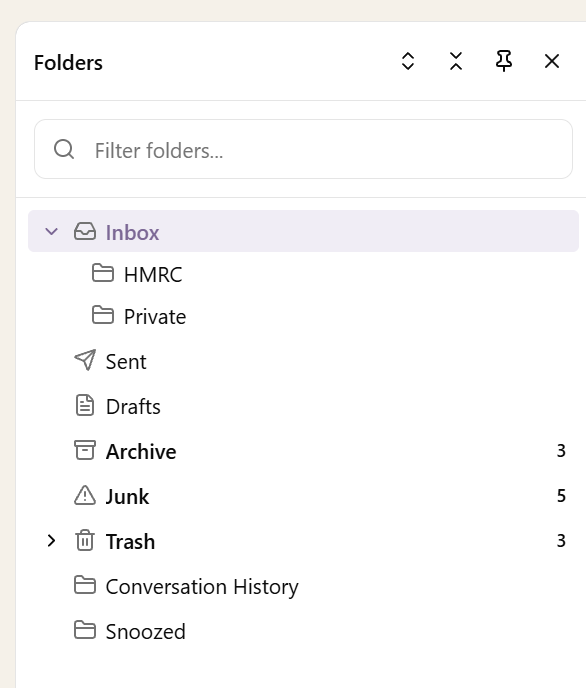
The mailbox folder tree in Sodium: Inbox with HMRC and Private subfolders, Sent, Drafts, Archive, Junk, Trash and other Outlook folders, each with its unread count

Once a mailbox is connected for receiving, Microsoft or Google tells Sodium the moment something changes, so a new email is usually there within seconds rather than on the next sync. The whole mailbox comes across, not just the inbox: every Outlook subfolder, every Gmail label, sent items, drafts, even junk and deleted items. Search across all of it.

Read a message in Sodium and it's read in Outlook or Gmail too. Mark it unread and that goes back as well. The unread count in Sodium's top bar covers every mailbox you can open and updates live as mail arrives and as your colleagues read it, so you don't have to keep opening the mailbox to know whether anything has landed.

One Inbox for the Whole Practice

Connect as many mailboxes as the practice uses: every team member's own, the shared info@, a dedicated tax@ or payroll@. Each is connected independently and everything on this page works across all of them. Switch between those you have access to, or read them together as a single combined inbox with one set of folders.

Share Exactly as Much as You Choose

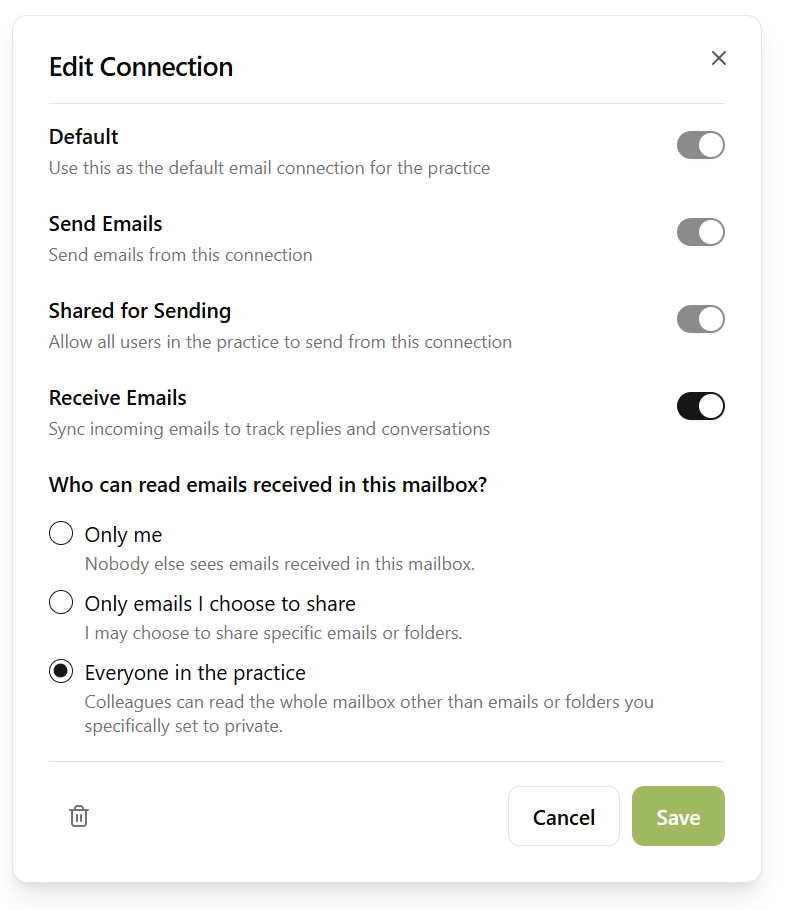
The Edit Connection dialog: Default, Send Emails, Shared for Sending and Receive Emails toggles, then the choice of who can read emails received in this mailbox: only me, only emails I choose to share, or everyone in the practice

Sharing a mailbox with the team has always been all or nothing, which is why partners never do it. In Sodium it is the owner's choice, at three levels:

  • Only me. Nobody else sees what arrives. Colleagues and automated workflows may still be allowed to send from it.
  • Only emails I choose to share. The mailbox stays private, but the threads you share appear on the client's record and on linked tasks for everyone, marked as shared by you. Share a single conversation, or everything from an address, a domain or a folder, and new mail that matches is shared automatically and visible on the client record.
  • Everyone in the practice. The whole mailbox is open to the team, but you can still exclude specific emails, senders or folders that you want to keep private.
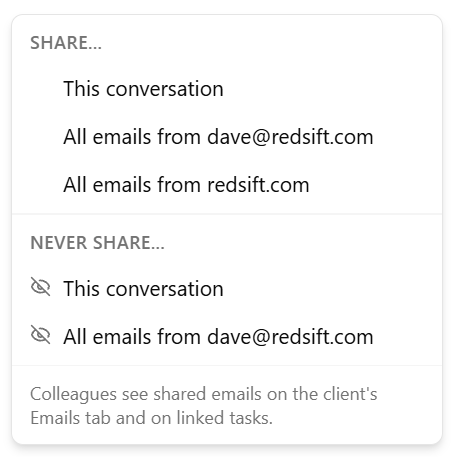
The Share menu on a conversation: share this conversation, all emails from the sender's address, or all emails from their domain; or never share this conversation or that address

Sharing happens where you read. From any conversation, one menu shares that thread, everything from that sender or everything from their domain, or marks any of them as never shared. Exceptions always win: a thread, sender or folder marked never shared stays yours whatever else is shared, including in a mailbox that is otherwise open to everyone. Hide a single message from an otherwise shared thread with one click. And only the person who connected the mailbox can change any of this. There is no admin override, so incoming email is never opened up by someone else.

The practical result: a partner keeps a private inbox, and the three threads about a client's year end still show up for the manager doing the work.


Filed Against the Client, Automatically

Sodium already knows your clients' email addresses and those of their contacts, so mail from them is matched to the client the moment it arrives. For anything it can't place, it suggests the likely client and you confirm with a click, choosing whether that one address or the whole domain should map to the client from now on. Rules can be added by hand too.

Every client record has an Email tab showing everything received from them, across every connected mailbox and whichever folder it was filed into. Search it, switch to a single mailbox, or start a new email to the client from there with the recipients already filled in. Emails a colleague has shared from their own mailbox sit in the same list.

From Email to Task

A client email is usually about a piece of work. Link the thread to the task it belongs to, or create the task from the email and link it in the same step. The conversation then appears on the task's own Email tab beside the notes, workflow steps and documents, so when you come back to it weeks later the correspondence is right there.

Attachments Where They Belong

When a client answers a document request by replying with the files attached, you don't download, rename and re-upload. Add one attachment, or all of them, to the open request in a click, and it is filed against the right client and the right request. Anything that isn't answering a request can be saved straight into the client's documents instead.

Clients who use the portal or magic link and clients who just reply by email end up in the same place.

Reply, Draft, Schedule

Reply or reply all from Sodium and it goes out through the same mailbox the message arrived in, with your signature and any files you attach, including documents from your practice library. Not ready to send? Save it as a draft. Drafts live in the real mailbox, so one started in Sodium can be finished in Outlook, and one started on your phone can be finished here.

Every reply and every new message can be scheduled instead of sent, so the Sunday-evening catch-up arrives at nine on Monday. And when one message needs to go to a few hundred clients, the mailbox is where a bulk email starts, with the replies landing back here and filed against each client.