
Setting Up Email
This guide takes you from nothing connected to a practice where every email goes out from the right mailbox, and, if you want it, incoming mail is filed against clients and shared with the team on your terms. The first connection takes about five minutes. The rest is a set of choices, and this guide explains each one.
1Before you start
A few things to know before you open Settings:
- This guide is for Outlook and Google. Microsoft 365 and Google Workspace connections send and receive, and everything below applies to them. Sending through your own SMTP server is also supported, but it is send only: no incoming email, no connected mailbox, and none of the sharing options.
- An admin sets up the first connection. The first mailbox connected becomes the practice default, and only an admin can create it. After that, anyone can connect their own.
- Sending works without any of this. Until you connect something, Sodium sends from its own address with your practice's reply-to details, so proposals and requests still go out. Connecting a mailbox is what puts your address on them.
2Connect the practice default
Signed in as an admin, go to Email Settings and click Add Connection on the Email Connections card. The wizard runs through four short steps.
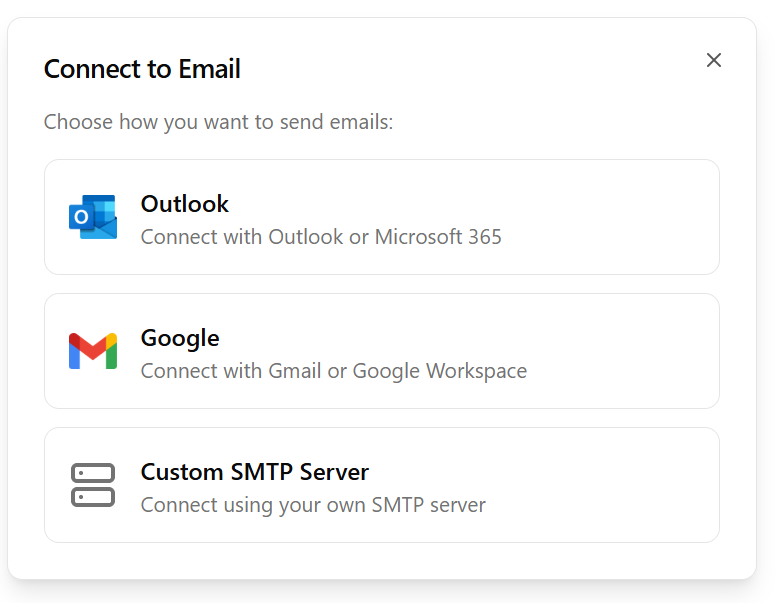
- Connect to Email. Choose Outlook for Outlook.com or Microsoft 365, or Google for Gmail or Google Workspace.
- Sender Details. Enter the From Name and From Email recipients will see. For a shared mailbox such as accounts@, put the shared address here even though you'll sign in with your own account in a moment.
- Connection Options. For the first connection Sodium tells you it will be the practice default and shared with everyone for sending. Both are fixed for the default. You'll also see Receive Emails and the read-sharing options; leave them for now if you're unsure, they're covered later.
- Sign in. You're sent to Microsoft or Google to sign in and approve access, then brought straight back to a Connection Successful screen. No password is stored in Sodium.
Finish with Send Test Email. It arrives at your own address within a minute and proves the connection end to end before anything real goes through it.
3Turn on receiving
Receiving is what turns a sending connection into a connected mailbox: incoming mail synced into Sodium, filed against clients, linked to tasks. It is per mailbox and off by default. Turn it on while connecting, or later by editing the connection and switching on Receive Emails.
Turning it on after the fact takes you back through the Microsoft or Google sign-in, because reading mail needs a permission that sending alone didn't ask for. Sodium warns you with an Enable Email Reading prompt first. Approve it and the first sync starts straight away, bringing in the last 90 days of mail across every folder. A busy mailbox can take a few minutes; the inbox shows Syncing your mailbox… and you can leave the page.
After the first sync, Microsoft or Google notify Sodium the moment anything changes, so new mail appears within seconds. The refresh button on the inbox is there for the rare occasion you want to force it.
Only the person who connected a mailbox can switch receiving on or off. An admin can't do it for them.
4Decide who can read the mailbox
With receiving on, the same screen asks Who can read emails received in this mailbox? This is separate from who can send from it, and it is the owner's decision alone.
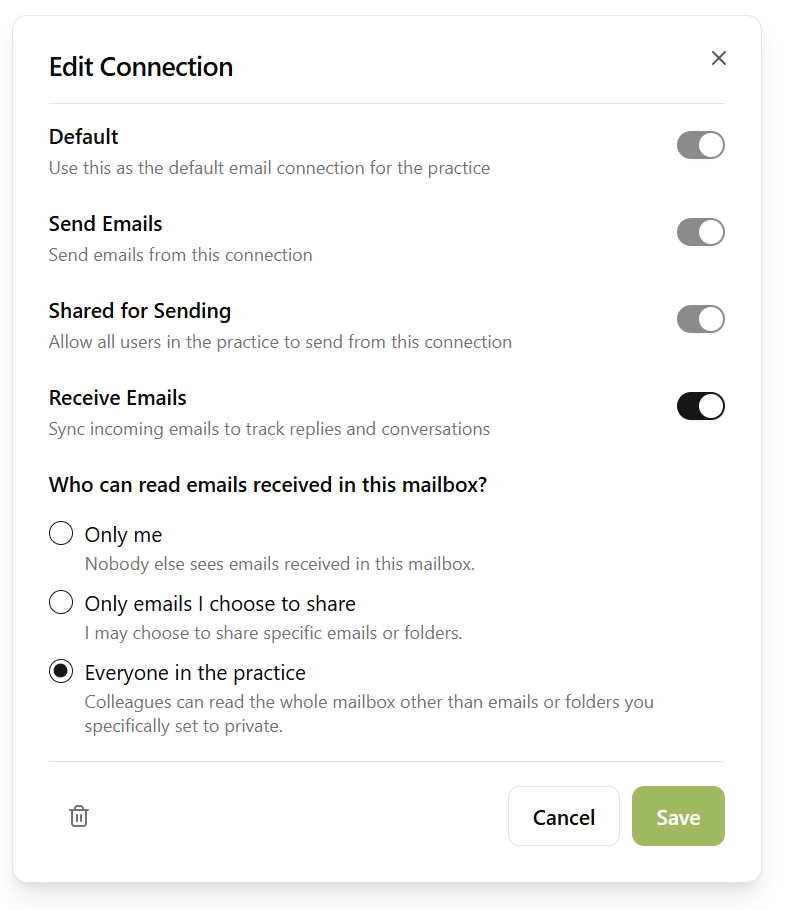
- Only me. Nobody else sees what arrives. Right for a personal inbox you want filed against clients for your own benefit. Nobody else in the practice will be able to see any emails received.
- Only emails I choose to share. The mailbox stays private, and you share individual threads, senders, domains or folders as you go. Shared emails appear for colleagues on the client's Email tab and on linked tasks, never as a mailbox they can open. Right for a partner or manager whose inbox mixes client work with everything else.
Switch on Also share every email with a client to share client correspondence without picking it out: any email to or from an address saved on a client or one of its contacts shows on that client's Email tab, along with threads you have linked to a client or task. It covers mail you already have, so an address added to a contact later brings its history with it. Bear in mind that anyone who can edit a contact's email address can change what that covers. - Everyone in the practice. The whole mailbox is open to the team, except anything you mark as never shared. Right for info@, support@ and other shared addresses.
Sharing rules can be set up front on the connection, or as you go from the mail itself:
- Edit Sharing on the connection opens the Shared Emails dialog. Add a rule with Share or Never share, choose Address, Domain or Folder, and enter the value. Rules apply to mail already synced and to everything that arrives later.
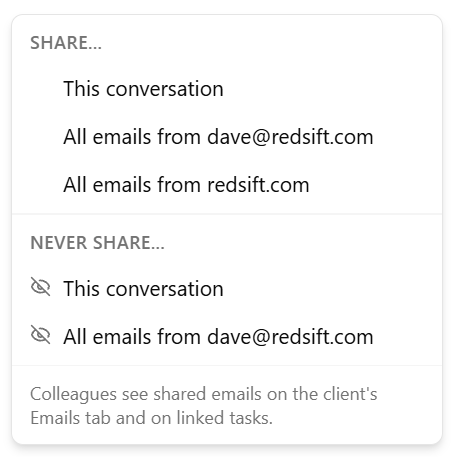
- In any conversation, the Share button offers the same choices for that thread, each address on it, and each business domain, plus Stop sharing. On a single message, the eye icon marks just that message as Never share this email.
- When you link an email to a client (see "Match incoming email to clients"), the Link email to client dialog lets you share the thread, the address or the domain in the same go.
5Let the team connect their own
Once the practice default is active, every user can add their own connection from the same Email Connections card, admin or not. The wizard is the same as for the practice default, with one extra choice on Connection Options:
- Shared for Sending lets colleagues pick this mailbox as the From address when they compose, and lets workflows send from it. Off means only you send from it, though client emails can still come from it when the practice sends them from the client's manager or the person sending, and that's you. Sharing for sending never lets anyone read the mailbox.
- Receive Emails and the read-sharing options work exactly as described above, and remain the owner's call.
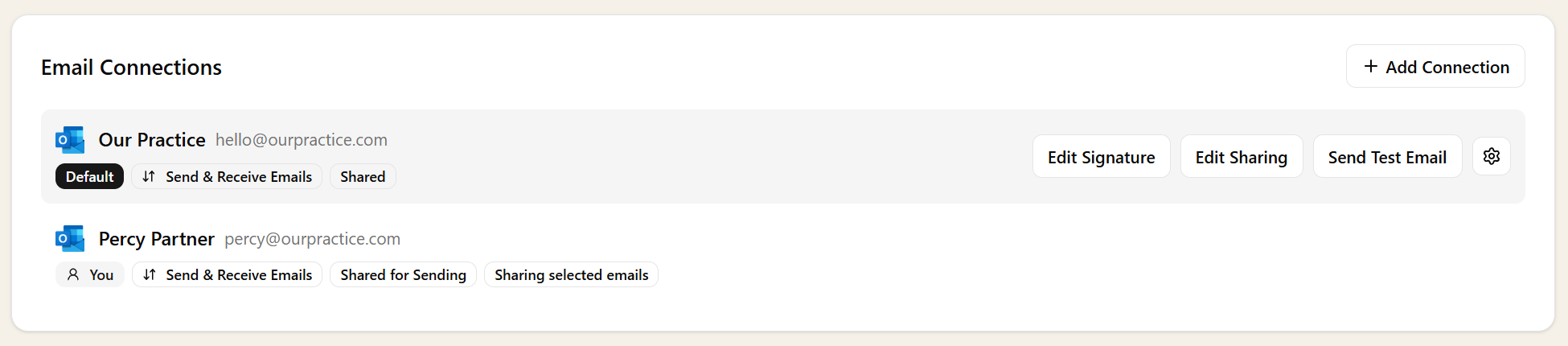
Each connection is listed with who set it up, whether it sends, receives or both, and how it is shared, so an admin can see the whole practice's email at a glance without being able to open anyone's inbox.
6Choose who client emails come from
With several mailboxes connected, Sodium needs to know which one to use for portal invitations, document requests, approvals, confirmations and the other emails it sends to clients. Replies go back to whichever mailbox sent them, so this decides who hears from the client. There are two controls.
Send client emails from, on the Email Settings page, is the practice-wide one:
- Practice default connection sends everything from the practice default.
- The client's manager sends from the client manager's mailbox, when they have a connected mailbox whose address matches their user account.
- The person sending it sends from the mailbox of whoever clicks send, so a payroll manager's document request comes from them, not from the client manager. Emails nobody sends by hand (automated workflow steps, chasers, emails the client sets off) use the practice default.
Whichever you choose, anyone without a connected mailbox is covered by the practice default. Choose a person-based option as soon as more than one person has connected.
Send from on a workflow step overrides that for one step. It's on Send Email, Document Request, Document Approval, Upload a Document and Client Confirmation steps, and a resend of the step's email comes from the same mailbox. Pick a person (Task Assignee, Step Assignee, or one of the client's roles) or Specific Mailbox. Use Specific Mailbox to pin the payroll workflow to payroll@, and Task Assignee for "we've started your accounts" so it comes from whoever is actually doing them. Practice Default leaves the step to the practice-wide setting.
If the chosen person has no connected mailbox, the step falls back to the client's manager and then to the practice default. Nothing is ever held up by a missing connection.
7Signatures, header and footer
Every mailbox has a signature of its own. Hover a connection and choose Edit Signature to write it in the rich-text editor: name, role, direct line, a link. It is added to every email sent from that mailbox, whether by you, a colleague, a workflow or a bulk email, and when someone changes the From address in a compose window the signature changes with it.
On a shared mailbox, each person who sends from it can also set their own. Edit Signature then has two tabs: Just me for your own signature, used on the emails you send from that mailbox, and Everyone for the mailbox's, used by anyone who hasn't set their own and on every email Sodium sends automatically. Leave yours empty to use the mailbox's. You see the Everyone tab if you own the mailbox or manage email connections.
The practice-wide branding lives further down the Email Settings page under Email Content & Design: a Design Theme, and an Email Header and Email Footer picked from your content blocks. Automated emails always get them. When you write an email by hand there is an Include header & footer toggle in the compose window, off by default, so a quick reply looks like a quick reply.
The Sender Details card, with its Reply To name and address, only matters before you have a connection. Microsoft 365 and Google send from the connected mailbox itself, so replies naturally go back there.
8Match incoming email to clients
Most of this happens on its own. Every email address on a client record or one of its contacts becomes an email rule automatically, so mail from those addresses is filed against the client as it arrives. Keep contact email addresses up to date and the mailbox largely files itself.
For a sender Sodium can't place, open the conversation. If a participant's address matches a client or contact, a suggestion chip appears and one click links it. Otherwise use Link to client, choose the client, and decide whether the rule should cover Only that address or All emails from its domain. The domain option is the one you usually want for a company client: everyone at acme.com maps to Acme.
To see or tidy a client's rules, open the client's Email tab and click the cog for Email Rules. You can add an address or a domain there directly and delete any rule you added by hand. Automatic rules from contact addresses look after themselves.
9Where to go next
- Email — what sending from your own mailbox gives you
- Connected Mailbox — what receiving adds: client email tabs, task links, attachments into requests
- Bulk Email — one personalised message to many clients from a connected mailbox
- Scheduled Send — write now, deliver in office hours
- Customising Documents and Emails — tokens, formatting and conditions in email templates