Custom Roles

Every practice divides work differently. Custom roles let you build your own access levels — choosing exactly what each role can see and do, area by area — instead of squeezing your team into somebody else's idea of who does what.

Granular Control, Designed by You

No two practices split the work the same way. The bookkeeper who touches every client but should never see billing. The office manager who runs onboarding and document requests but has no business changing your pricing. The outsourced preparer who needs tasks and documents and nothing else. The part-time administrator, the client manager, the compliance lead — every firm draws these lines somewhere slightly different.

So Sodium lets you draw them yourself. Design as many roles as your practice needs, name them after the jobs people actually do, and set precisely what each one can reach — area by area, capability by capability. Nobody gets access they shouldn't have simply because the nearest ready-made role was the closest fit.
A Grid You Can Actually Read

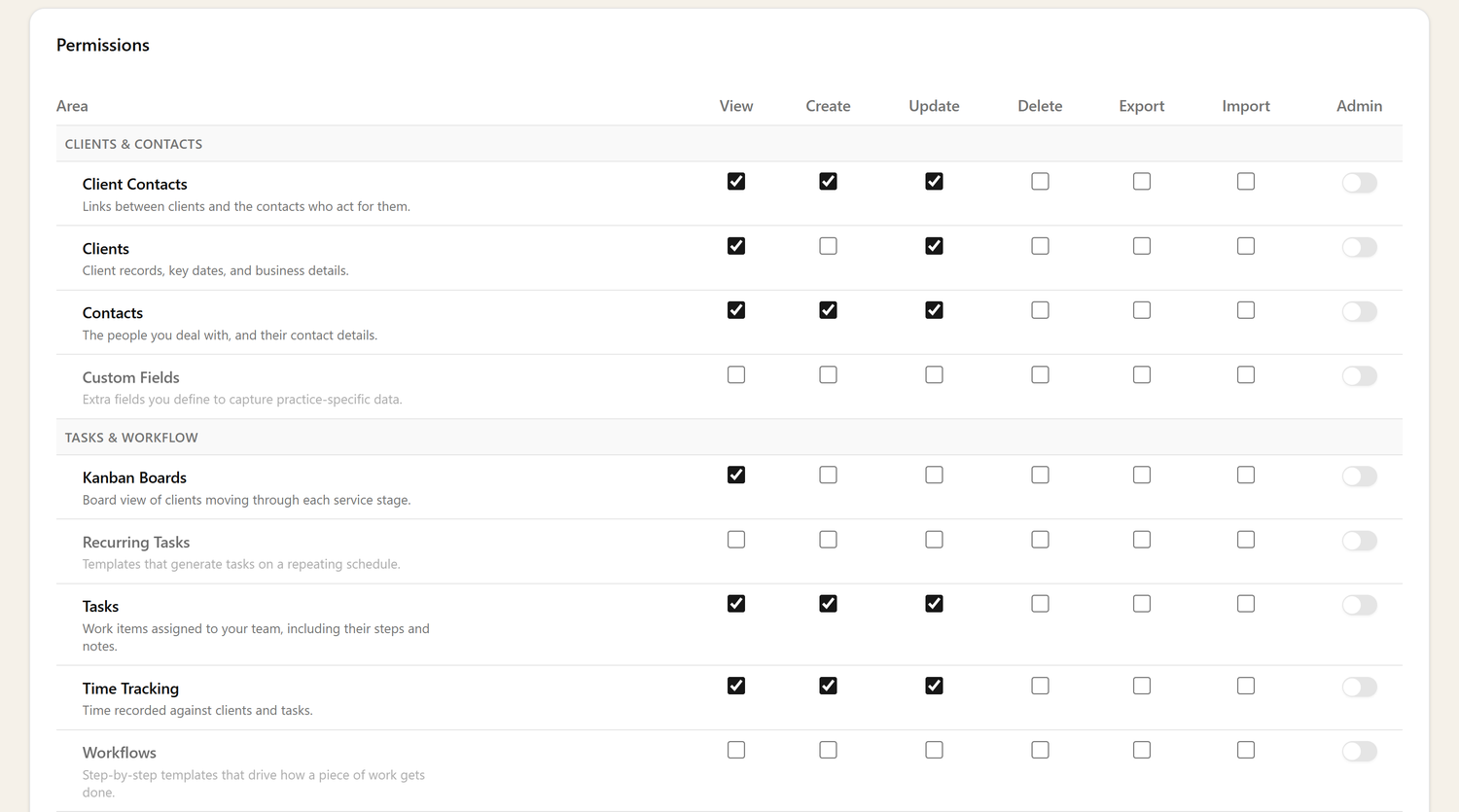
Give the role a name and a description, and you land straight in the permission builder: one row per area of the system, one column per capability. Tick the boxes, save, done.

The capabilities are the same six everywhere — View, Create, Update, Delete, Export and Import — plus an Admin switch on each row that grants the lot for that area.

Areas are grouped the way you think about them: Clients & Contacts, Tasks & Workflow, Sales & Proposals, Documents & Templates, Communication, Billing, Reporting, Users & Access, and Practice & Settings. Each row carries a plain-English description of what it covers, so you are never guessing what "Engagements" or "Content Blocks" means before you tick it.

Combinations that would leave a user stuck are rejected on save, with a plain list of what needs fixing rather than a cryptic error. If a role can work with client documents, it needs to be able to see clients — Sodium tells you that before the role ever reaches a real user.

Permission builder grid with areas grouped by section and View, Create, Update, Delete, Export, Import columns plus a per-area Admin switch

Test It Before You Trust It

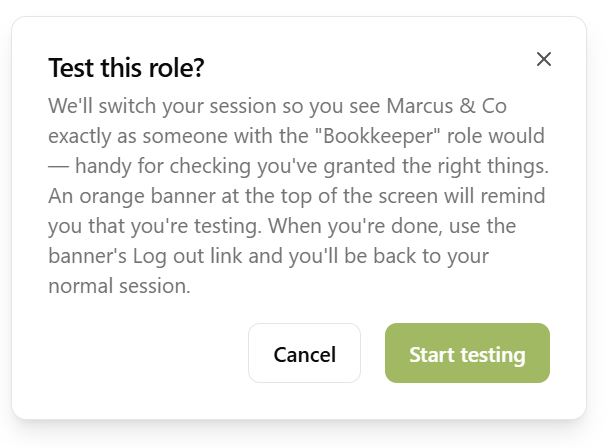
Test this role confirmation dialog explaining that your session will switch to show the practice as someone with that role would see it

You can't really check permissions from a settings screen. A tick box tells you what you meant to grant, not what it feels like to work under — and you usually find out the difference when someone hits a wall mid-job, or worse, sees something they shouldn't. So every custom role has a Test this role button.

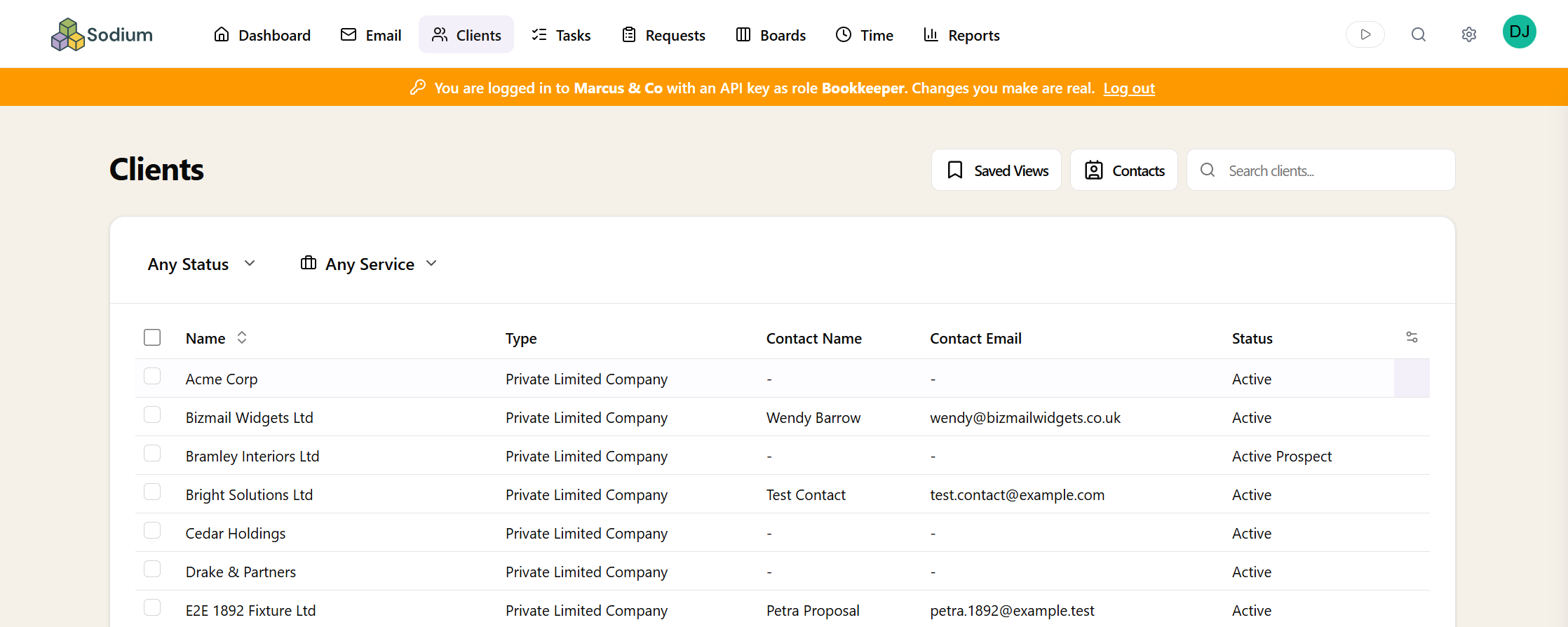
Click it and your session switches to show the practice exactly as someone with that role would see it: the same navigation, the same buttons, the same pages missing. An orange banner across the top reminds you that you're testing, and one click on it puts you back in your own session. No test users, no second login, no guesswork.

The app in a role test session — an orange banner reads 'You are logged in with an API key as role Bookkeeper' and the navigation shows only the sections that role can reach

Assigning and Managing Roles

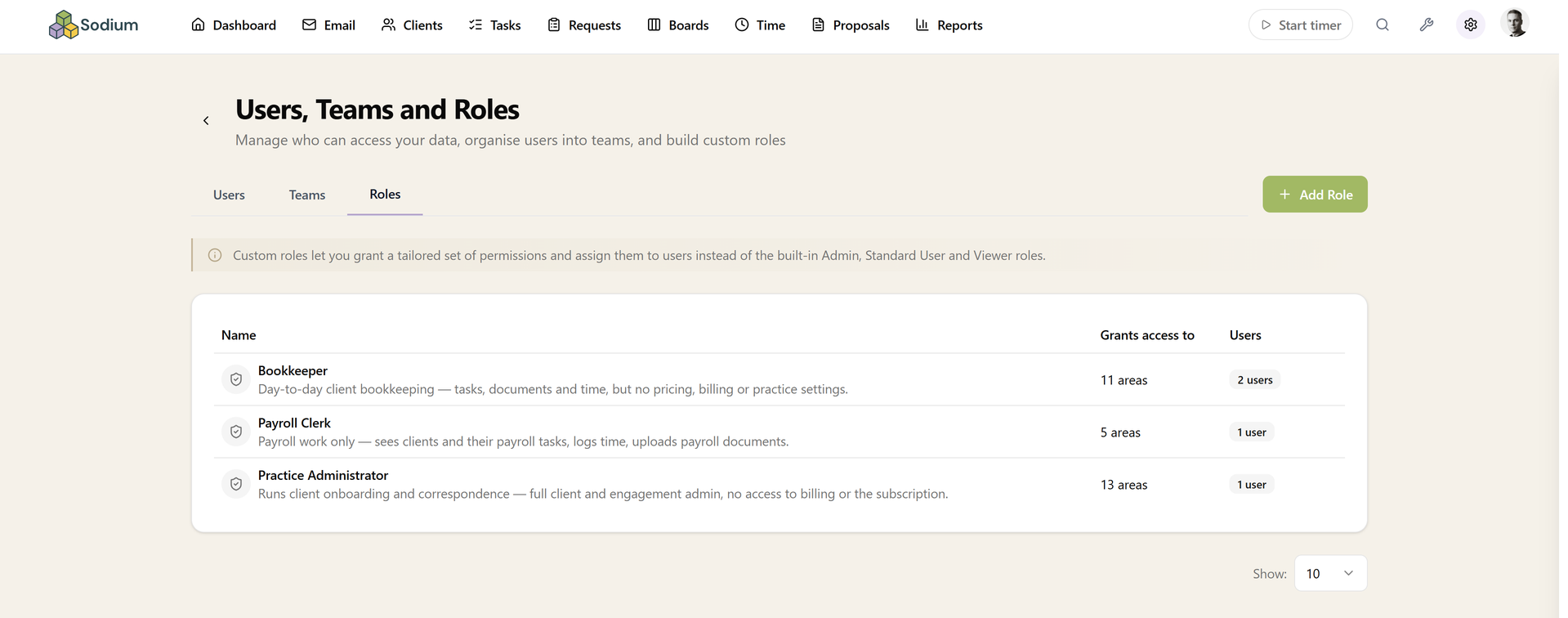
Custom roles sit alongside the built-in ones everywhere a role is chosen — when you invite someone, and when you edit an existing user. The Roles tab on your Users settings page lists every custom role with how many areas it grants and how many people are assigned to it.

Change a role and the change takes effect for everyone holding it — no need to touch each user. A role that still has users assigned can't be deleted by accident; move those people to another role first.

Roles tab listing custom roles with the number of areas each grants and how many users are assigned

Works With Your Other Restrictions

Roles decide what someone can do. They stack with the controls that decide whose data they can do it to. Restrict a user to the clients belonging to their teams, or to clients they're personally assigned to, and pair that with a role that grants only the areas they need.

The same goes for time. A role can say someone works with time tracking; switching that user to own time only then narrows it to their own hours — they log and edit their own entries, but never see a colleague's, and practice-wide time reporting stays out of reach.

Roles reach your integrations too: an API key can be scoped to a single practice and a single role, so a script or third-party tool runs with exactly the access you chose — never as an unrestricted administrator.

Want to learn about other capabilities?

Explore all features

Have questions or suggestions?

Get in touch