
Using Custom Fields
Add the client details your practice tracks but Sodium doesn't have a field for, then use them in documents, emails, workflows, forms and Saved Views.
What custom fields are for
Custom fields hold the client information that matters to your practice but has no standard field: bookkeeping software, who referred them, how they like their bookkeeping done. Once it's on the record, Sodium can use it. A workflow can skip steps that don't apply, an email can name the client's software, and a Saved View can list every client still on spreadsheets.
Groups
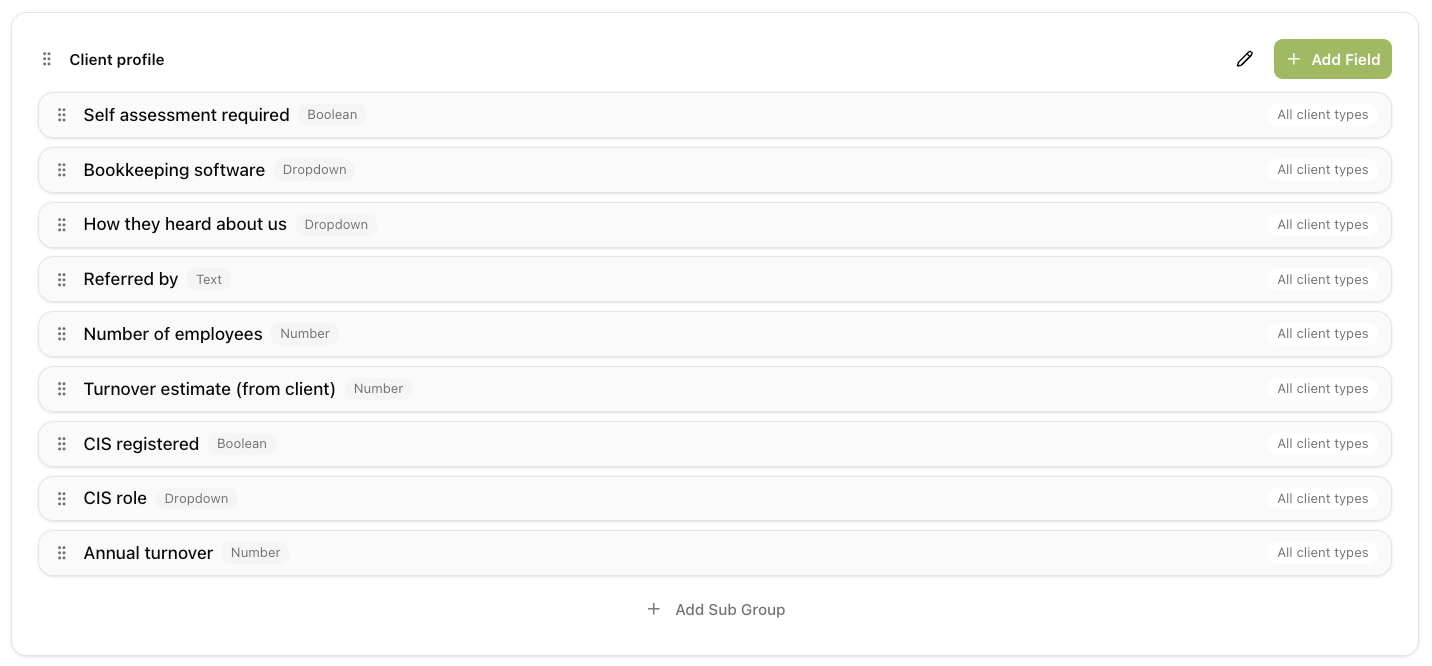
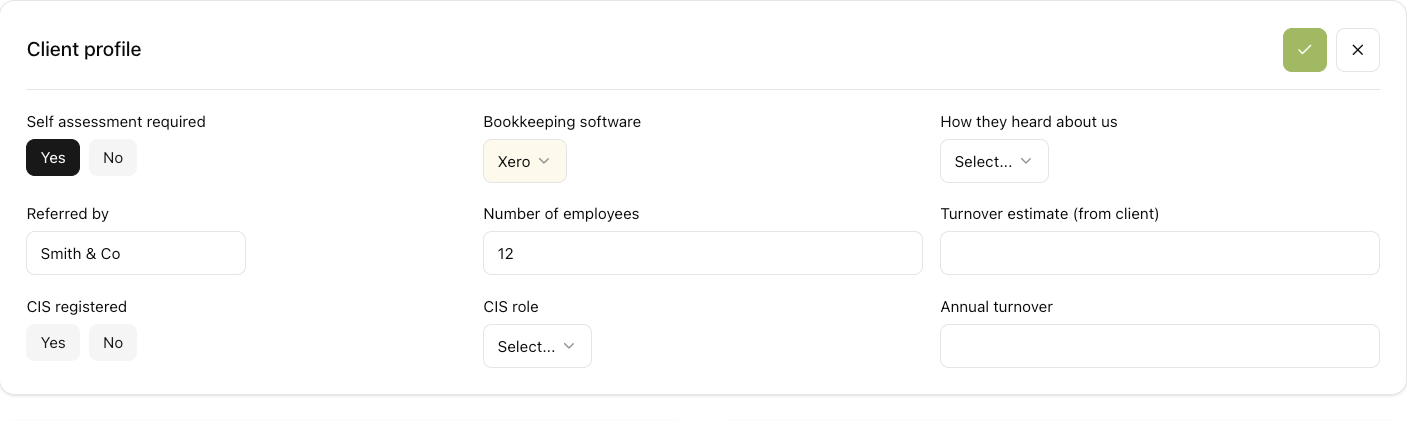
Every field sits in a group, such as "Client profile" or "How we work with this client". Each group appears as a card on the client record. Groups can have one level of sub groups, which show as headings inside the card. Drag groups, sub groups and fields to reorder them or move a field to another group.
Creating a field
Click Add Field on a group.
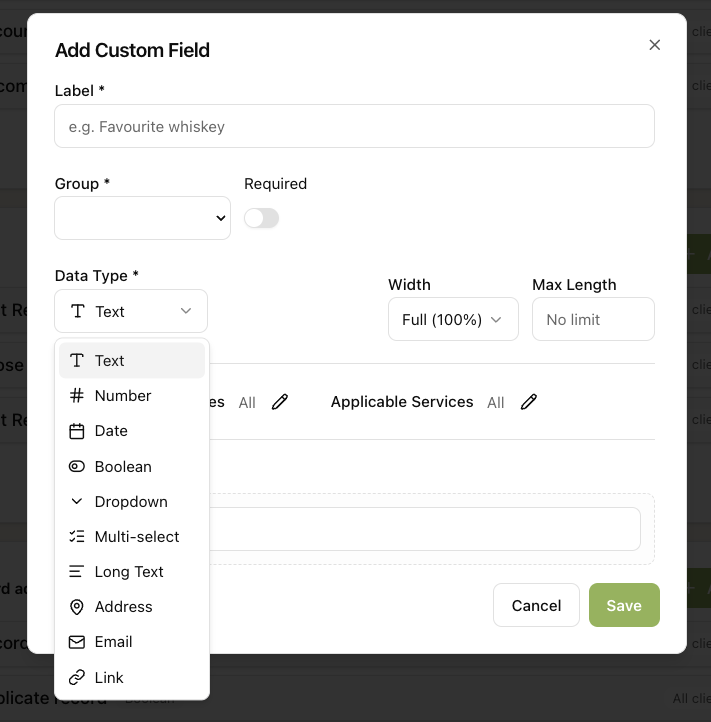
- Label: the name your team sees, e.g. "Bookkeeping software".
- Required: the field must be filled in (see Filling them in).
- Data Type: see The field types.
- Applicable Client Types: show the field only on, say, limited companies.
- Applicable Services: show the field only on clients with certain services, e.g. "Payroll software" for payroll clients.
The field types
Text Single line
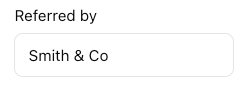
Number Digits only

Date Date picker
Can also set the dates on a recurring task (see Task descriptions and dates).

Boolean Yes / No
Show it as a toggle, a checkbox or Yes/No buttons. Can switch workflow steps and form questions on and off.

Dropdown Pick one
Can switch workflow steps and form questions on and off.
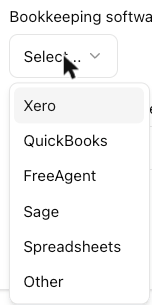
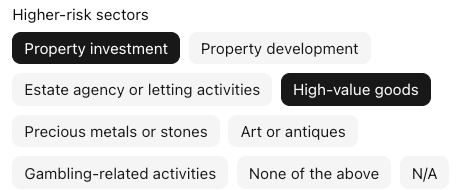
Multi-select Pick several
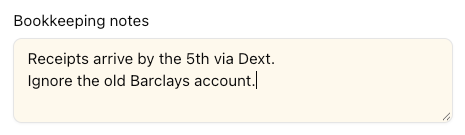
Long Text Several lines
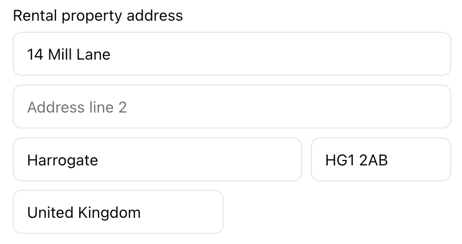
Address Structured
Email Checked
Note: Emails from this address aren't filed against the client. Only the client's business emails and its contacts' emails are. See Setting Up Email.

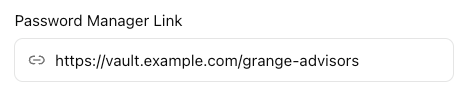
Link Web address
Filling them in
On the client's Overview tab, click the pencil on a group's card, fill in the fields and save.
Required fields show a red asterisk, and the card can't be saved until they're filled in. To find gaps across all clients, use the Missing data tab on the Custom Fields settings page. It appears once any field is Required.
Bringing data in
From a spreadsheet. The client CSV import can fill custom fields. Columns whose headings match a field's label are matched for you. Use Yes/No or True/False for Boolean fields, dd/mm/yyyy for dates, and commas between multi-select answers, e.g. Payroll,Pensions. Blank cells don't overwrite existing values.
From the client. A form can collect answers and save them to the client record. See Forms.
Finding clients with Saved Views
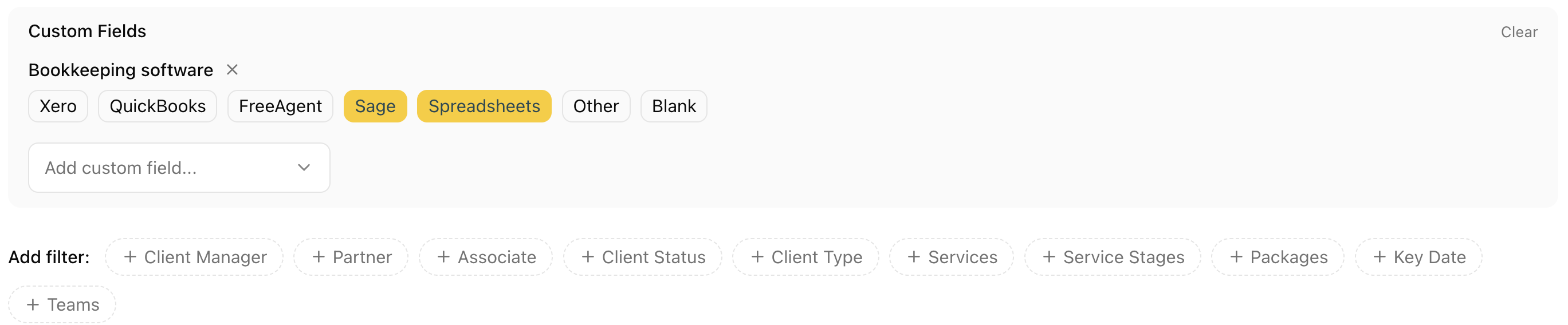
Saved Views can filter on custom fields, including Blank for clients where a field is empty. Tick several values to match any of them, and combine filters to narrow the list, e.g. "Bookkeeping software is Sage or Spreadsheets" and "Self assessment required is Yes".
Documents and emails
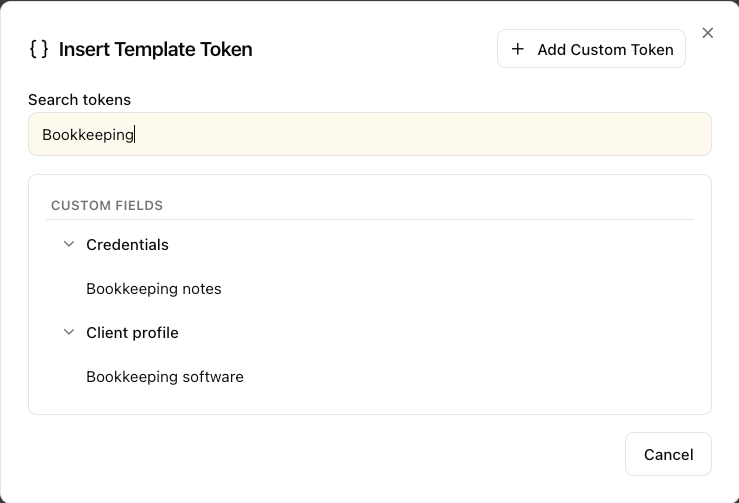
Any custom field can go into documents, proposals, engagement letters, emails, broadcasts, text messages, document requests and portal pages. In the editor, open Insert Template Token and pick the field under Custom Fields. It inserts a token like this:
If the field is empty, nothing prints. Make fields your documents rely on Required, or add a fallback (see Customising Documents and Emails).
Workflows
A workflow step or group can run only when a Dropdown or Boolean field has a certain value. For example, "Export bank feed" runs only when Bookkeeping software is Xero. Tokens also work in step names and descriptions, so a step can read "Log in to Xero". See Customising Workflow on a Per-Client Basis.
Task descriptions and dates
Recurring task descriptions can include custom field tokens, so a monthly bookkeeping task can carry the client's own notes:
A Date field can also set a recurring task's start, due or statutory date: choose Custom Field as the date source. Useful for dates Sodium doesn't track as standard, such as a corporation tax payment date.
Forms
- Update the client record. Set a question's type to Custom Field and pick the field. The client sees the current value and can confirm or change it. Accepted answers are saved to the client, or straight away if you tick Auto-accept submitted data.
- Show or hide questions. A section or question can appear only when a custom field has a certain value, e.g. a "Self assessment" section for clients marked Yes.
- Personalise wording. Tokens work in the introduction, section titles and questions.

With the AI connector
Sodium's AI connector lets Claude, ChatGPT or another assistant read and update custom fields, e.g. "Set Bookkeeping software on Grange Advisors to Xero." New fields and groups are still set up in Settings.
Changing or retiring a field
You can edit a field at any time. Changing the data type after clients have values can make those values display wrongly, and removing a Dropdown or Multi-select option removes it from every client.
A field can only be deleted if no client has a value in it. Otherwise archive it, which hides it but keeps the data. A group can only be deleted once it's empty.