
Customising Workflow on a Per-Client Basis
One workflow, many clients — but no two clients are quite the same. This guide covers the handful of ways to bend a shared workflow to fit the client in front of you: pulling their own details into steps with tokens, showing software-specific sections, and turning whole steps on or off — all driven by custom fields.
Why customise per client
A workflow is a template. You build it once — the steps for a VAT return, a set of accounts, a payroll run — and every client who has that piece of work runs through the same steps. That consistency is the whole point.
But there's always a client who needs a note the others don't: "log in to their bespoke portal first", "the director signs, not the company secretary", "skip the CIS step, they're not in the scheme". You don't want a separate workflow for every one of these — you'd lose the consistency you built the workflow for.
There's no single trick for this — you'll usually mix a few. The building blocks you'll reach for most:
- Pull the client's own details into a step. Drop a token into a step's name or description and Sodium swaps it for that client's data — a step named "Log in to {{ Accounting System }}" reads "Log in to Xero" for one client and "Log in to QuickBooks" for the next.
- Show or hide whole paragraphs of a step. Give detailed, software-specific instructions where a Xero client's task shows the Xero lines and a QuickBooks client's shows theirs — all from one step's description.
- Turn an entire step — or group of steps — on or off. Make it conditional so it only appears for the clients it applies to, and is hidden for everyone else.
All three lean on custom fields, so that's where we start. Combine them however suits your team.
New to workflows? Read Understanding Tasks, Recurring Tasks and Workflows first — this guide builds on the concepts it introduces.
Store the details in custom fields
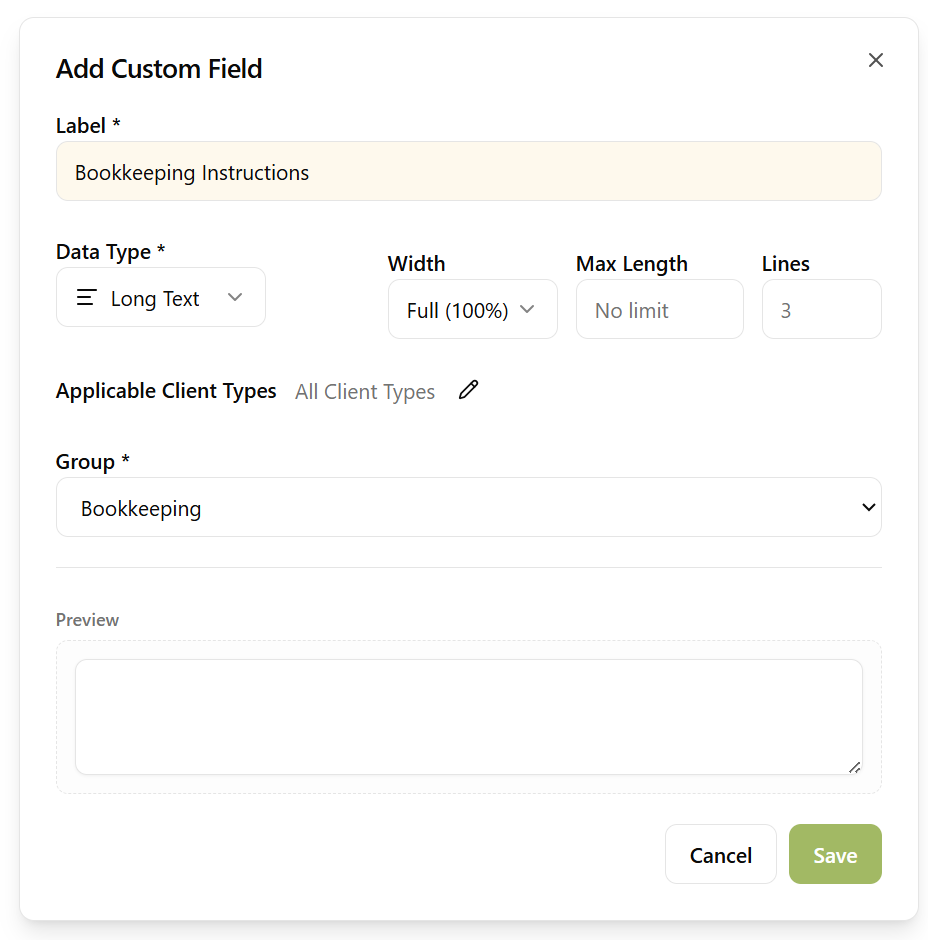
Everything here starts with a custom field on the client record — your own field, holding a piece of information Sodium doesn't have a built-in box for. Two field types cover most workflow customisation:
- Dropdown — for a fixed set of choices. An Accounting System field with options like Xero, QuickBooks, Sage and FreeAgent.
- Long Text — for free-form notes. A Bookkeeping Instructions field for anything specific to that client. It's multi-line, so it holds a paragraph or two.
Give each field a name you're happy to see referenced later, and drop it in whichever group makes sense — here they sit in a "Bookkeeping" group. If a field only applies to some client types, restrict it there; leave the client types blank and it applies to everyone.
These fields become usable in the token picker, which is how you'll reference them in a moment.
Fill them in per client
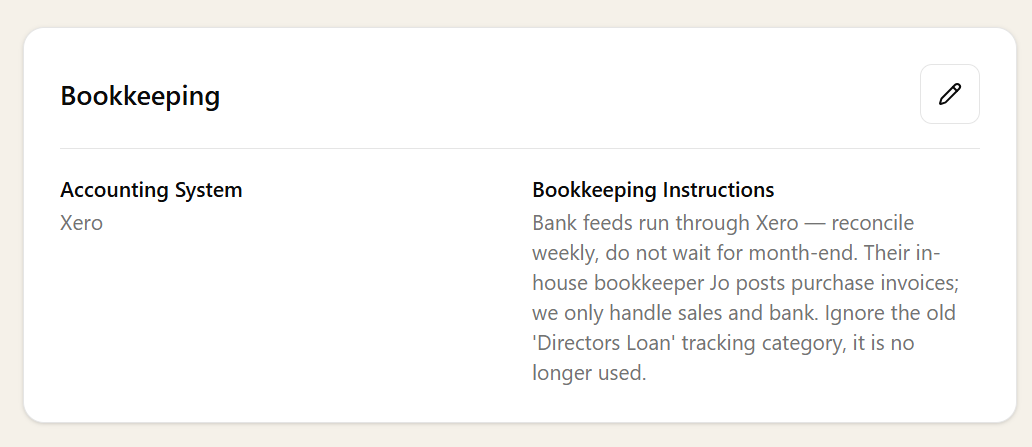
Once a field exists it appears on every relevant client, inside its group card. Open a client, choose the dropdown value, and type the notes that apply to them. Leave blank anything that doesn't need filling in.
That's the per-client part done. Each client now carries its own details on its record — the rest of the guide is about surfacing them in the workflow at the right moment.
Pull them into a step name or description
Workflow step names and descriptions understand tokens — placeholders Sodium swaps for the client's real data when the workflow lands on their task. It's the same token system as your document templates and emails.
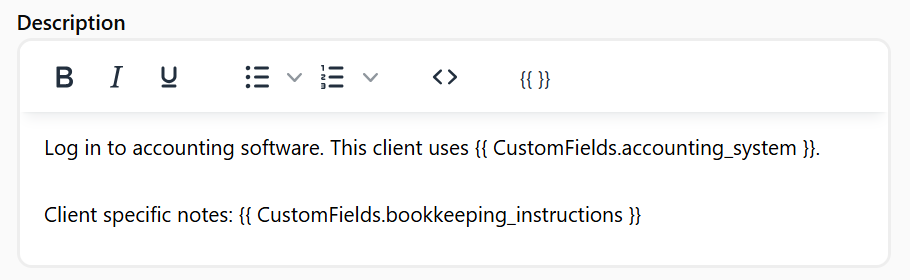
At its simplest, drop a field straight into a step. Name a step "Log in to {{ Accounting System }}" and it reads "Log in to Xero" for a Xero client and "Log in to QuickBooks" for the next — same step, right instruction.
Descriptions work the same way, and one can reference several fields at once. This step's description pulls in both the client's accounting system and their bookkeeping notes, so whoever picks up the task sees the details for that specific client:
An empty field just renders as nothing — add a default fallback if you'd rather show a tidy placeholder.
Show whole paragraphs based on a field
Pulling a value in covers a lot, but you can go further: show or hide whole paragraphs of a step's description based on a field. This is where detailed, software-specific instructions come into their own — the person doing the work only sees the lines for the system that client actually uses.
Wrap each block in a condition on your Accounting System field:
{% if CustomFields.accounting_system == "Xero" %}
1. Open Xero → Accounting → Bank accounts.
2. Reconcile every feed up to the period end.
{% endif %}
{% if CustomFields.accounting_system == "QuickBooks" %}
1. Open QuickBooks → Transactions → Bank.
2. Match and categorise, then run the reconciliation.
{% endif %}
On a Xero client's task the description shows only the Xero lines; on a QuickBooks client's, only theirs — from one step in one workflow. The same trick works with a Yes/No tick box, a date, or any other field. For a line or two this is ideal; for whole sequences of steps, use conditional groups (next).
Turn whole steps and groups on and off
Everything so far tailors what's inside a step. Sometimes you want to change which steps a client gets at all — make an entire step, or a whole group of steps, appear only when it's relevant.
When you edit a workflow, every step and every group has a small Runs for … when … strip. Click Add condition and a wizard lets you base the rule on client data — a client field or one of your custom fields.

That's how you give a client a whole software-specific sequence. Build a "QuickBooks bookkeeping" group conditioned on Accounting System is QuickBooks, and a "Xero bookkeeping" group conditioned on Accounting System is Xero. Run the workflow for a Xero client and only the Xero group appears; the QuickBooks group drops out entirely.
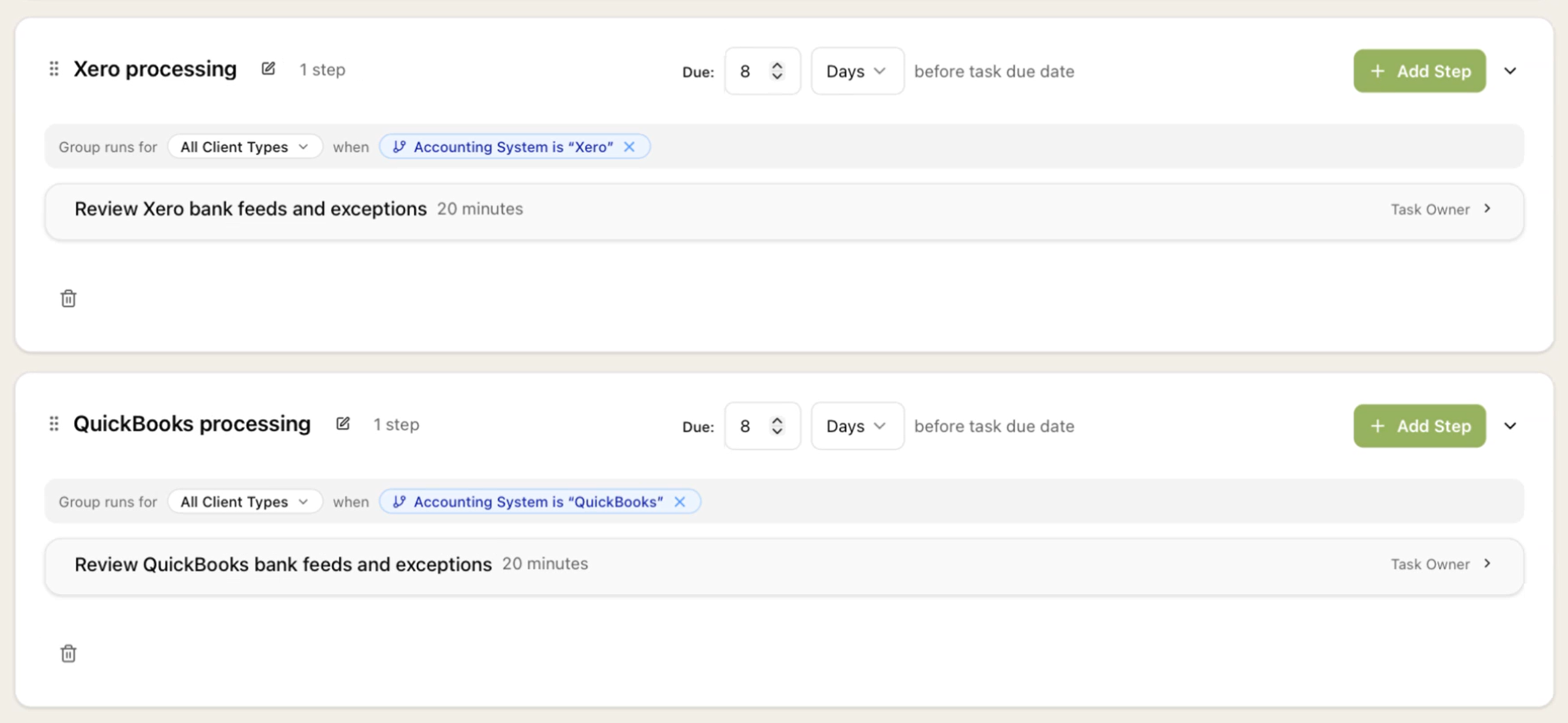
When the workflow is applied to a task, Sodium checks each condition against that client. Steps and groups whose condition passes run as normal; those whose condition fails are omitted, with a short line explaining why. A step inside a conditional group inherits the group's condition too, so you can switch a whole phase on or off in one place.
It keeps a single workflow tidy: instead of a separate workflow per accounting system — or steps everyone ignores — only the steps that apply to a client ever appear on their task.
Mix and match
These aren't separate techniques you pick between — they layer. Use whatever combination fits how your team works. For example, a single "reconcile the bank" step might have all three:
- A name of "Log in to {{ Accounting System }}", so it always points at the right software.
- Software-specific instructions in its description, shown with
{% if %}blocks, plus the client's free-text Bookkeeping Instructions at the top. - A condition so the step only appears for the clients whose bookkeeping you actually do.
Start with the simplest thing that removes a bit of guesswork, and add more as you find the rough edges. You keep one workflow to build and maintain, and every client's version already fits them.