
Migrating from Pixie
Moving from Pixie to Sodium is one export and two imports. Pixie emails you a zip containing a clients file and a contacts file; you upload each one to Sodium in turn. Sodium maps the columns for you, so there's nothing to line up by hand. Once they're in, you set up your services and assign them across your book.
1Export your clients and contacts from Pixie
In Pixie, click Clients in the top navigation. On the right-hand side of the client list, above the table, click the three dots menu and choose Export clients to CSV file.
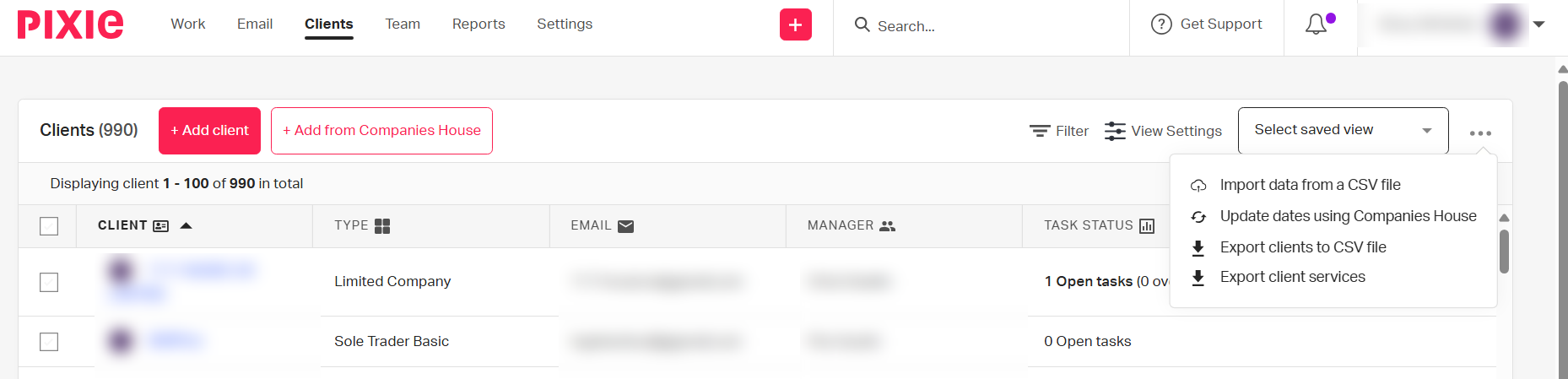
Pixie doesn't download anything straight away. It emails you a zip folder, which usually arrives within a few minutes. Inside are two files: clients.csv and contacts.csv. Unzip it somewhere you can find both.
2Import your clients
Start with clients.csv. This creates each client record along with its main contact — Pixie puts those details in columns prefixed Contact -, which Sodium recognises.
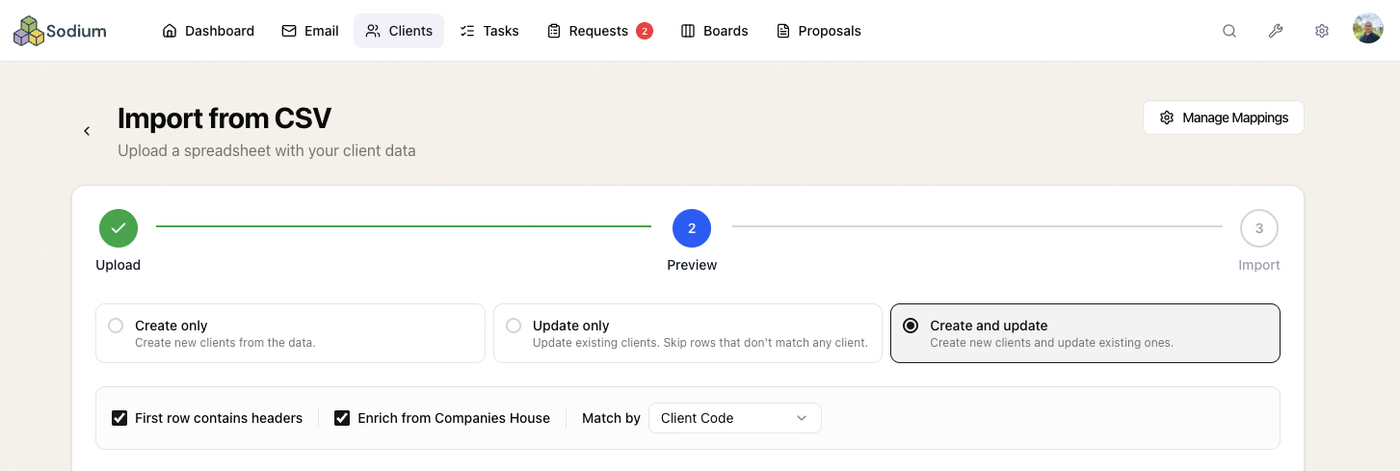
- In Sodium, go to Clients → Import and select CSV File.
- Upload
clients.csvfrom the zip. - Sodium recognises Pixie's columns and maps them for you — client details, addresses, tax references, VAT scheme and stagger, HMRC authorisations and notes all land in the right fields with nothing to set up. The preview shows what it matched, and anything Sodium has no home for is left unmapped and skipped, so there's nothing you have to do by hand.
- Tick Enrich from Companies House so Sodium pulls the latest registered details — registered address, company number, SIC codes and more — for your limited-company clients as they import.
- Review the preview, then click Start Import. You'll get a summary of how many clients and contacts were created.
3Import your contacts
Now upload contacts.csv. Plenty of clients have more than one person attached — two directors, a co-shareholder, a spouse on a joint return — and this is the file that brings them all across with the role each one holds.
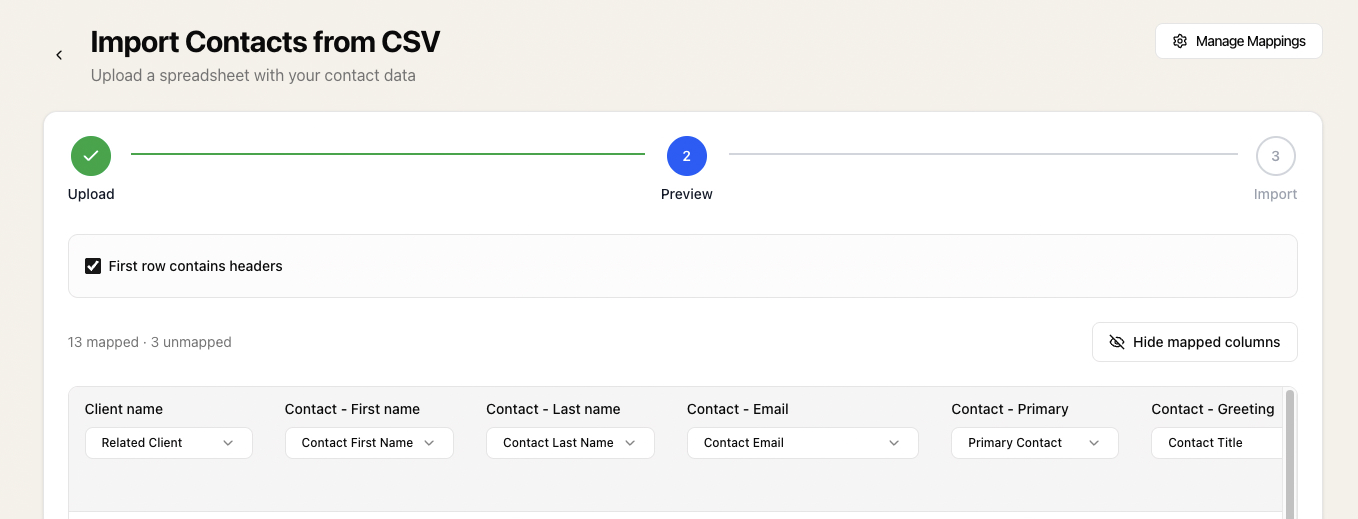
- Go back to Clients → Import and choose Import Client Contacts.
- Upload
contacts.csvfrom the same zip. - As with the clients file, the columns are mapped for you, including each contact's own Xama link, personal UTR and National Insurance number.
- Review and start the import. Each contact is matched to their client by name, the main contact is flagged as primary, and job titles and roles are kept as they were.
4Set up your services and assign them
Your clients are in, but not yet the services they're on. Services matter more in Sodium than they may have in Pixie: they drive your fees, and they're what recurring work attaches to, so a client on the payroll service picks up the payroll task automatically.
Start with the built-in service library. Go to Settings → Services, Packages & Pricing and click Import in the top right. It covers the common accountancy offerings — annual accounts, tax returns, bookkeeping, payroll and more. Add the ones that match what you sell and set your own pricing.
With the services in place, assign them across your book in one go rather than client by client. Sodium's bulk service import gives you a spreadsheet already listing your clients, so you add a row per client and service, upload it, and check the preview before anything is written. The guide to updating services in bulk via CSV walks through it, and the same screen handles price and frequency changes later on.
What's next?
With your clients, contacts and services in place, the next thing most practices set up is the work that runs off them:
- Recurring tasks generate your compliance work automatically for every client on a service, so payroll, VAT and year-end stop being something anyone has to remember.
- Client schedules let one recurring task run on different dates for different clients, so you don't need a separate service per payroll date the way you may have in Pixie.
- Workflows break each job into steps that send emails, request documents and collect approvals as the work moves.
- Client billing turns those same services into invoices, and a catch-up fee covers the months before a client came on board, for the ones arriving with a backlog behind them.
- Understanding tasks, recurring tasks and workflows is the guide to read before you build any of it.
Need help with your migration? Get in touch and we'll be happy to walk you through it.
Still weighing up your options? See how Sodium compares to Pixie.