
Setting Up SMS and WhatsApp
This guide takes you from no number to a practice whose request and chase texts reach each client on WhatsApp or by SMS, whichever they use. It covers getting a number, connecting WhatsApp, choosing how request and chase texts go, editing templates, stopping texts to a number, and checking what a task sent.
1Before you start
- Messaging must be switched on for your practice. If SMS & WhatsApp in Settings says messaging isn't enabled, contact Sodium support to have it switched on.
- A practice admin does the setup. Applying for a number, connecting WhatsApp, choosing how request and chase texts go and editing templates all need an admin.
- Set up a Direct Debit first. The number and the credits you buy are added to your monthly invoice, so Sodium asks for a Direct Debit before you apply. Prices are on the SMS & WhatsApp page.
2Get your number
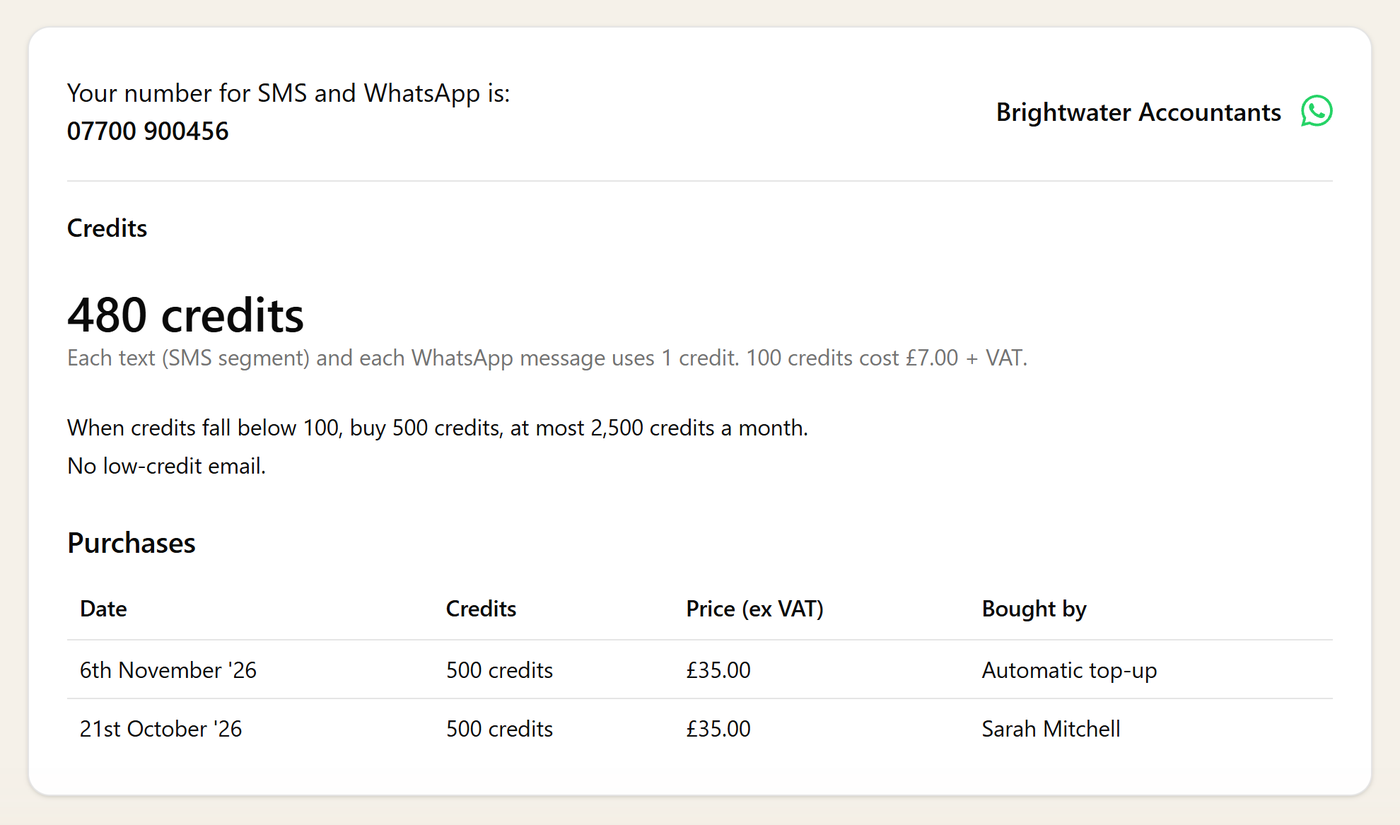
Your practice texts from a UK mobile number of its own, never a personal phone. Click Apply for a number and fill in the application. Sodium handles the regulatory checks, and the tab shows how the application is going. Once the number is active it sends and receives SMS straight away.
Messages you send are paid from credits. Buy credits on the same tab, and turn on automatic top-up with a monthly cap so request and chase texts never stop because the balance ran out.
3Connect WhatsApp
On the Number & credits tab, click Connect WhatsApp to put your Sodium number on WhatsApp too. If the practice already has a WhatsApp Business number, use Already using WhatsApp? Connect it here instead.
Meta's sign-up opens in a window. Sign in, choose or create the business account the number belongs to, and set the display name clients will see above every message. Connecting usually takes a few minutes. If Meta sends a code to check the number, it arrives in Messages.
As soon as WhatsApp is connected, Sodium creates six WhatsApp templates for you, one for each kind of request text and one for chases, and sends them to Meta for review. Until Meta approves one, the texts it would carry go by SMS, so nothing waits on the review.
4Choose how request and chase texts go
A request text is the short text that goes with the email when a workflow step sends a client aninformation request, a document approval, a client confirmation, a form or a CIS payments request. Turn it on in the step with Also send a text with the link. A chase text goes with the chase emails; turn it on with Also text the chase in Request Chasing & Email Templates.
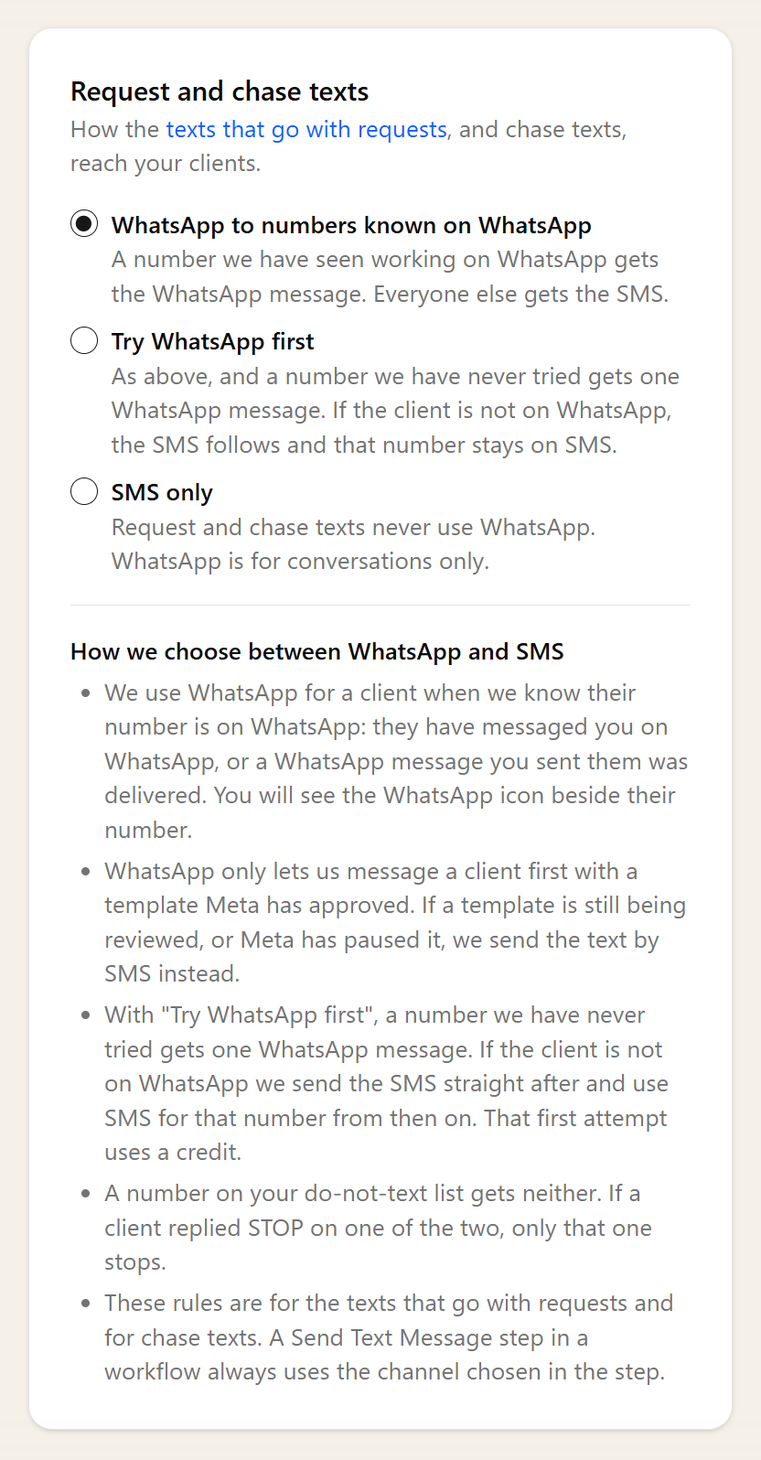
Once WhatsApp is connected, the Request and chase texts card decides, for each client, whether these go by WhatsApp or SMS:
- WhatsApp to numbers known on WhatsApp (the default). A client who has messaged you on WhatsApp, or whose WhatsApp from you was delivered, gets WhatsApp. Everyone else gets the SMS.
- Try WhatsApp first. As above, and a number you have never tried gets one WhatsApp message. If the client turns out not to be on WhatsApp, the SMS goes straight after and that number stays on SMS. Each failed attempt uses a credit.
- SMS only. Request and chase texts never use WhatsApp, which stays for conversations.
Whichever you choose:
- If WhatsApp can't be used for a text (its template is still in review or has been paused by Meta), that text goes by SMS.
- If a WhatsApp message can't reach the client, the SMS goes instead, once.
- A practice with WhatsApp but no SMS number gets a warning: clients not sent a WhatsApp get no text.
- A Send Text Message step is not affected: it always uses the channel chosen in the step.
Quiet hours. So clients aren't texted at unsocial hours, texts Sodium sends on its own wait until quiet hours end: workflow texts, the texts that go with request emails, and chase texts. They are on from the start, 8pm to 8am UK time, and you can change the times or turn them off on the same tab, in the Quiet hours card. A step you send by hand goes straight away. Changing them needs an admin.
5The request and chase templates
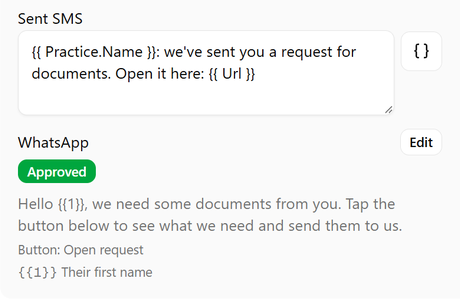
Each kind of request text has an SMS wording and, once WhatsApp is connected, a WhatsApp template beside it, under Email & Text Templates. The WhatsApp side shows the text being sent, its button, what fills each placeholder and its status. Click Edit to change it.
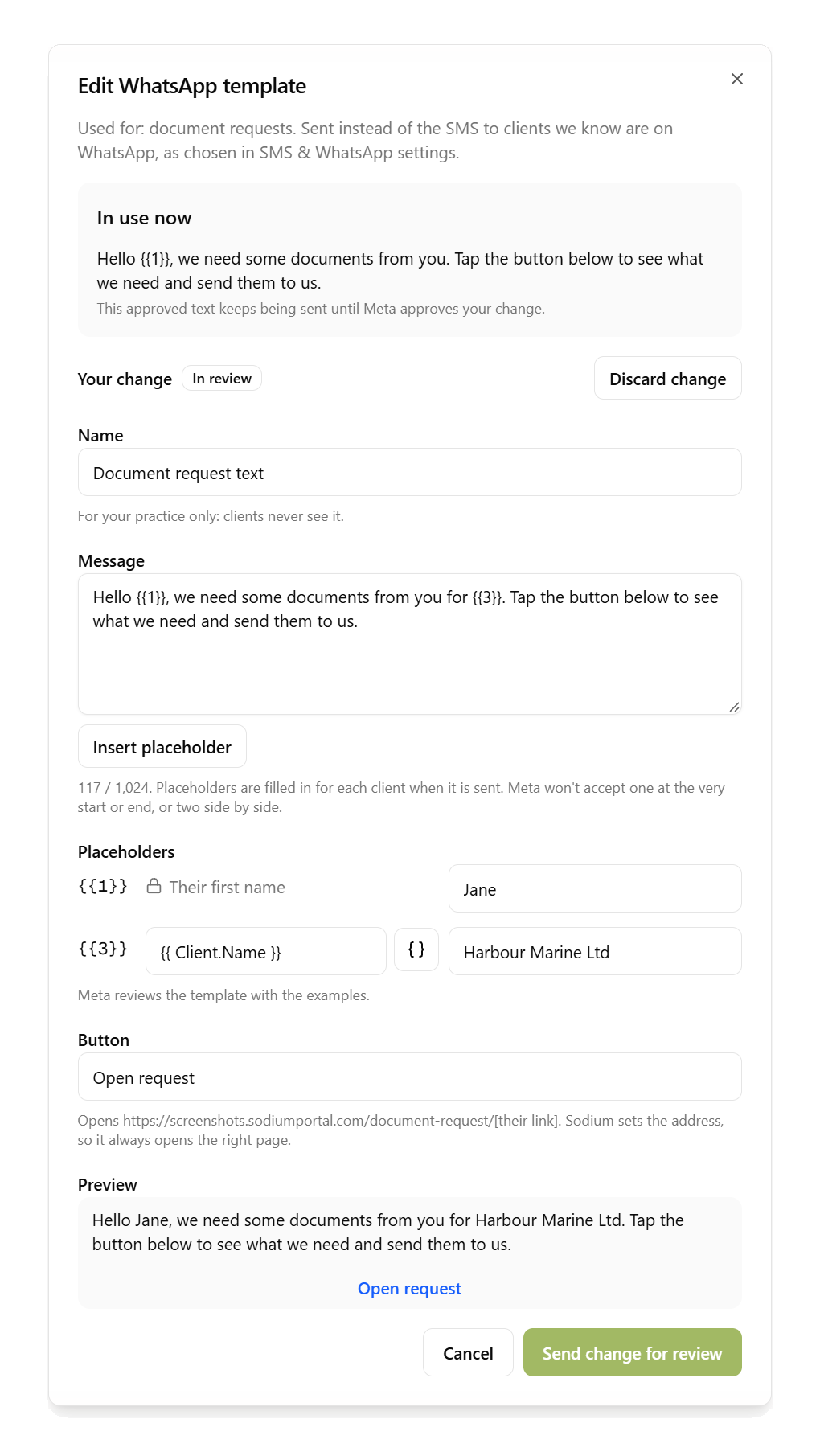
In the template dialog you can:
- Reword the message and the button's title.
- Add your own placeholders with Insert placeholder, then choose what fills each one (the client, the contact or the task) and give an example for Meta's review.
Sodium's own placeholders are locked: {{1}} is the recipient's first name, the chase's {{2}} is what they have outstanding, and the button always opens the request (for a chase, the client's portal). Save with Send change for review.
- These six templates can't be deleted, since request and chase texts depend on them.
- If a placeholder you added has nothing to fill it for a particular client, that client's text goes by SMS.
- If one is missing (WhatsApp was connected before these templates existed, or Meta disabled one), click Set up WhatsApp templates at the top of Email & Text Templates to create it again.
6WhatsApp templates for workflows and Messages
WhatsApp only lets a business start a conversation, or message a client who hasn't written in the last 24 hours, with a template Meta has approved. Write your own on the WhatsApp templates tab with Add template: a name only your practice sees, a category, the message with any placeholders, and an example for each placeholder. Save with Send for review.
Once approved, a template can be used in two places:
- A Send Text Message workflow step set to WhatsApp, where you pick the template and choose what fills each placeholder.
- The Messages composer, to start or pick up a WhatsApp conversation with a client.
Editing works as it does for the request templates: the approved text keeps being sent until Meta approves the change. The dialog's Used by panel lists the workflows that use the template. While any do:
- You can reword it, but not add or remove placeholders, because each step fills them. To change them, create a new template and move the steps to it once Meta approves it.
- It can't be deleted.
You are notified when Meta approves a template or a change, rejects one (with Meta's reason), pauses or disables one, or moves it to the Marketing category. A paused template can't be sent until Meta lifts the pause; if it is one of the request templates, its texts go by SMS meanwhile.
7Do not text, STOP and START
On a contact's record, beside their mobile, tick Do not send text messages or WhatsApps to this number. Nothing is then sent to that number from workflows, requests, chases or the Messages page, by SMS or WhatsApp. It saves the moment you click it, separately from the rest of the contact.
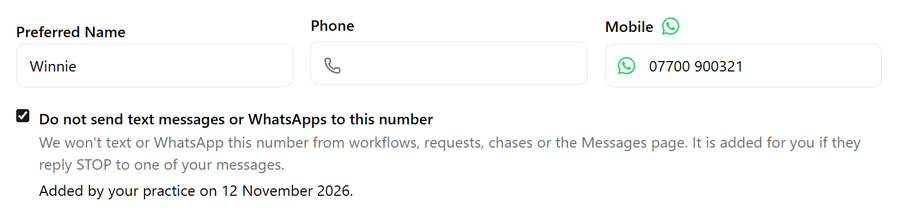
- A client's STOP adds their number for you, but only for the channel they replied on. The box shows part-ticked with, for example, "Text messages stopped: they replied STOP", and WhatsApp messages still go. Tick the box to stop both.
- A client's START takes the number off for the channel they sent it on.
- Unticking a STOP asks first. Mobile networks keep blocking your texts to that number until the client texts START, so removing it only lets WhatsApp messages through.
- It applies to the number, so another contact with the same mobile is covered too, and the record says so.
- Changing a listed contact's mobile asks whether to add the new number too. The old one stays on the list.
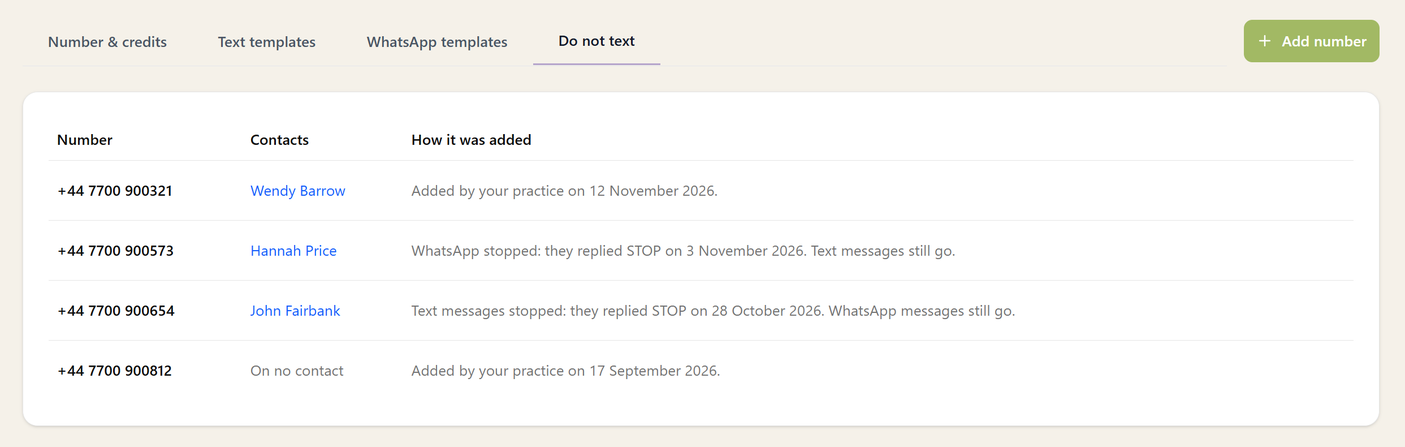
The whole list is on the Do not text tab: every number, the contacts who hold it, and how and when it was added. Use Add number for a number that isn't on any contact, and Remove to take one off.
8The WhatsApp icon
Where Sodium shows a contact's mobile (their record, the contacts list, a client's contacts and the recipient lists when you send), a WhatsApp icon in place of the phone icon means the number is known on WhatsApp: the client has messaged you on WhatsApp, or a WhatsApp message you sent them was delivered. Hover over it to see "On WhatsApp".
It is what the default choice in step 4 goes by. If a WhatsApp message to the number later fails because the client isn't on WhatsApp, the icon goes back to a phone and their texts go by SMS. The icon is your practice's own: it reflects only messages between your practice and that number.
9Read a task's texts
Open the task and select the step that sent the request. Under Texts with the email, each person texted is listed with their number and what happened:
- Sent by WhatsApp or Sent by SMS, with the delivery status. An SMS that might have gone by WhatsApp says why it didn't, for example that the number isn't known on WhatsApp.
- Waiting for quiet hours to end, with the time it will go.
- On the do-not-text list: skipped on purpose, with no failure email to the assignee.
Click a person's name to open their contact record, for example to correct a mobile number. A text that failed is listed under Text not sent (the email went).

10Where to go next
- SMS & WhatsApp: the conversations inbox, turning messages into tasks, and pricing
- Information Requests: what a request text points the client to
- Workflow Steps: the steps that send requests and texts
- Setting Up Email: the emails that request texts go alongside