
Migrating from Bright Manager
Moving from Bright Manager to Sodium is straightforward. You'll export your clients and services from Bright Manager as CSV files, then use Sodium's import tools to bring in your clients (with their contacts) and their service assignments. The whole process typically takes just a few minutes. You can bring your tasks across too if you want to.
1Export your clients from Bright Manager
In Bright Manager, open the Clients menu in the top navigation and choose Client List.

On the Client List, click Export in the top right and export your clients with all their details. Save the CSV file to your computer.

2Import your clients and contacts
Sodium's client CSV import will automatically create all your clients and their associated contacts from the Bright Manager export file.
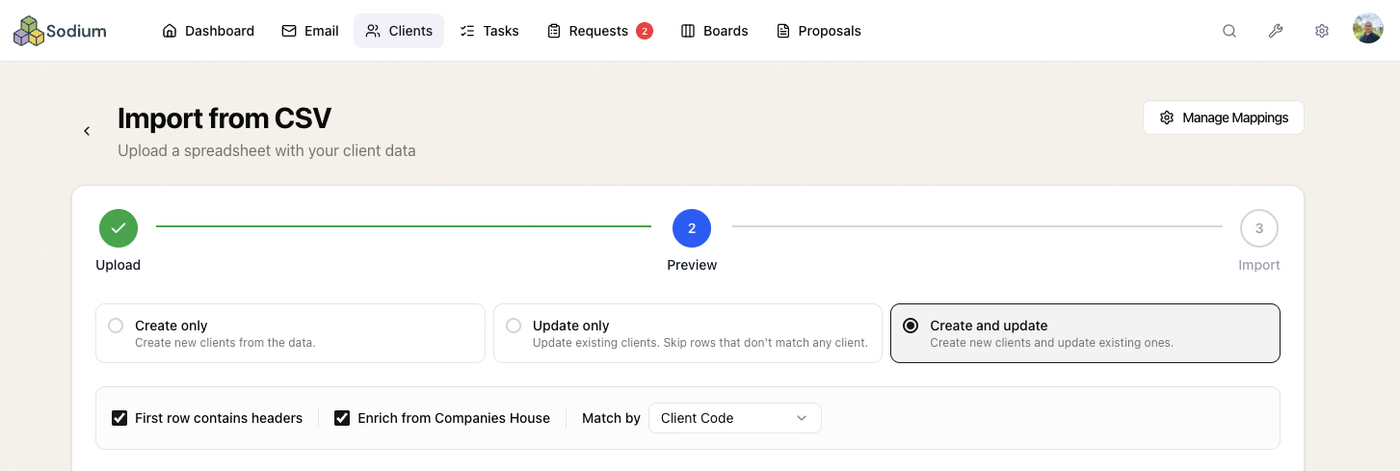
- In Sodium, go to Clients → Import and select CSV File.
- Upload the CSV file you exported from Bright Manager.
- Sodium will detect the file format and automatically map the columns to the appropriate fields. Most columns are matched for you, but it's worth a quick review to make sure everything lines up, and any custom fields in your file will need pointing at the matching Sodium field yourself. You can adjust any mapping right there on the screen.
- Tick Enrich from Companies House so Sodium pulls in the latest registered details — registered address, company number, SIC codes, and more — for your limited-company clients as they import.
- Review the preview to check everything looks correct, then click Start Import.
- Once complete, you'll see a summary of how many clients and contacts were created.
3Set up matching services in Sodium
Before you can import your service assignments, you'll need to set up the corresponding services in Sodium. Each service in Bright Manager (e.g. Accounts, VAT Returns, Bookkeeping) needs a matching service in Sodium so the import knows where to map it.
The quickest way to get started is Sodium's built-in service library. Go to Settings → Services, Packages & Pricing and click Import in the top right. The library covers common accountancy offerings (annual accounts, tax returns, bookkeeping, payroll, and more). Browse it, add the services that match what you offer, and customise the pricing to suit your practice.
4Export your services from Bright Manager
Service assignments come across in a second export. Back in Bright Manager, go to the Client List again and click Columns in the top right to choose which columns to include.
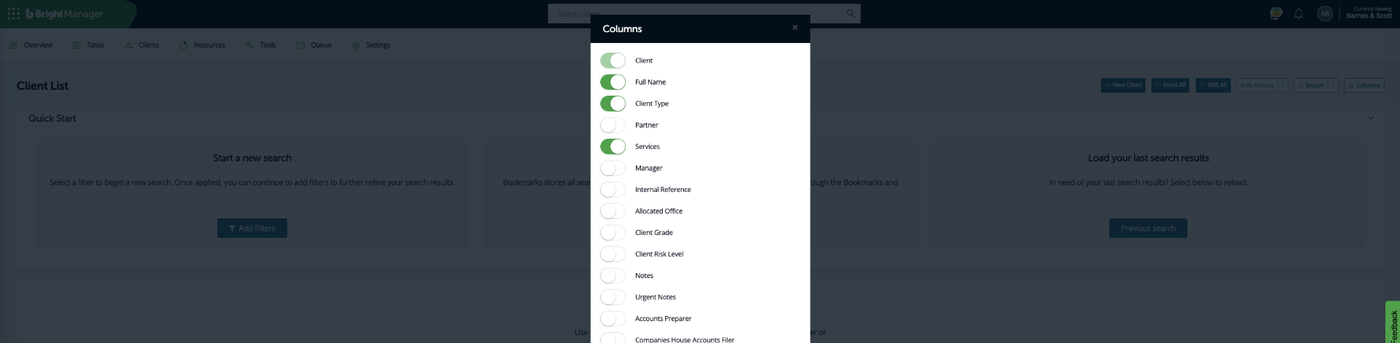
Turn on Client, Full Name and Client Type so Sodium can match each service back to the right client, and turn on Services to include each client's services and their frequencies. Close the panel, then click Export to download the CSV.
5Import your service assignments
Now that your clients and services are in Sodium, the final step is to bring in which services each client has and at what price. Sodium will automatically detect that your file came from Bright Manager and help you convert it.
- Go to Clients → Import and select Import Client Services.
- Upload the services CSV you exported from Bright Manager in Step 4. Sodium will detect the format automatically.
- You'll be shown the services found in the file (e.g. "VAT Return", "Management Accounts"). Map each one to the matching Sodium service you set up in Step 3, and leave anything you don't want to bring across set to Skip.
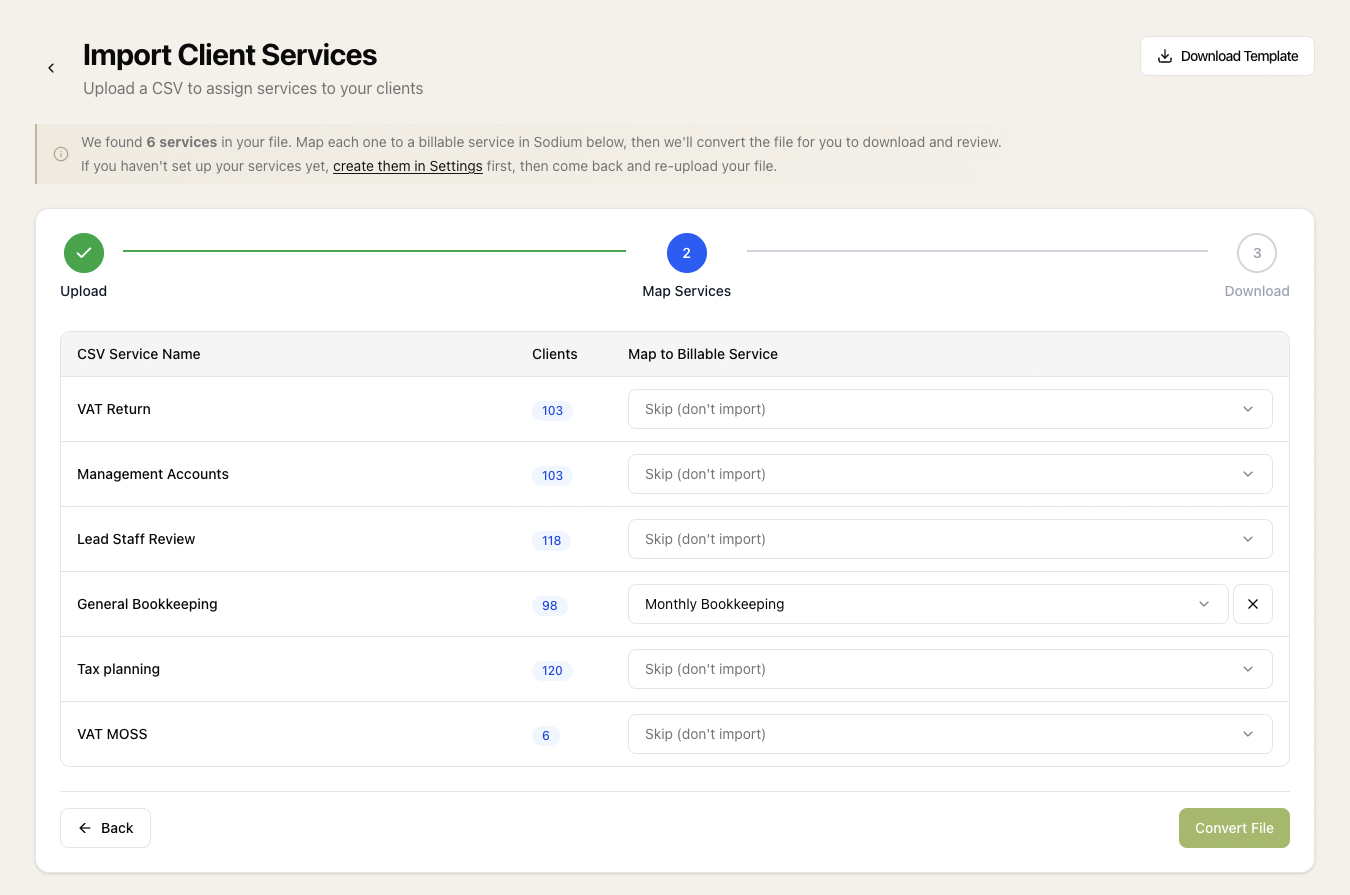
- Click Convert File. Sodium will create an import file in the format it understands — download it and review the file in Excel.
- Go back to Clients → Import → Import Client Services and upload the converted file you just reviewed.
- On the upload screen, leave Match clients by set to Client Name (or Client Code) so Sodium can line each row up with the right client. You'll also see a Create onboarding tasks for new services option here.
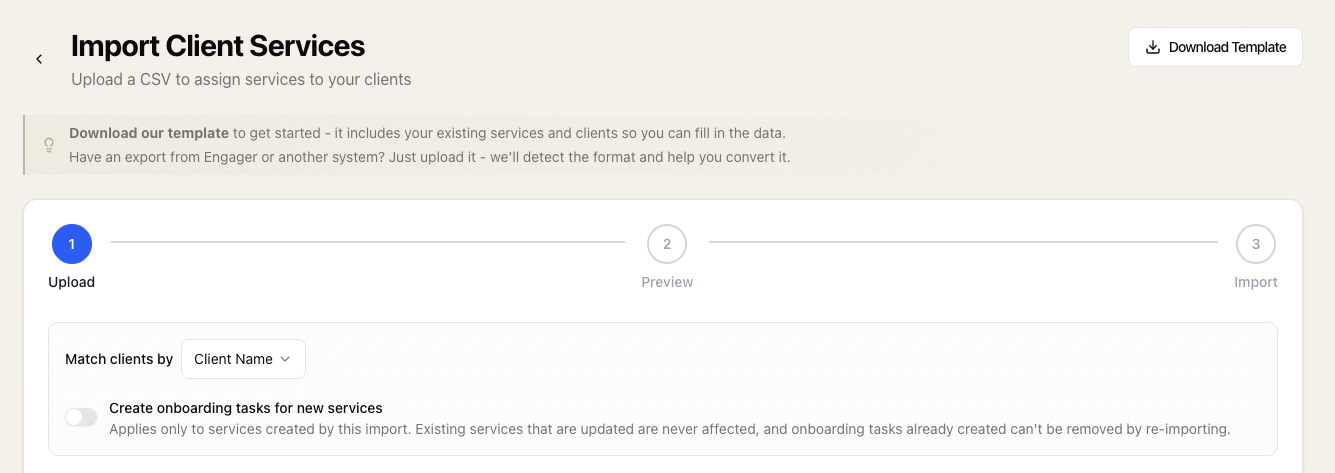
You'll then see a preview showing which services will be created for each client, and any that already exist and will be updated. Click Confirm Import to apply the changes.
Your clients, contacts, and their services are now set up in Sodium and ready to use. If you'd also like to bring your tasks across, Step 6 covers that.
6Import your tasks (optional)
This step is optional. If you'd rather start clean, skip it and let Sodium's recurring tasks generate your work from here on. If you'd like your existing tasks in Sodium, you can bring them across too.
In Bright Manager, export your tasks as a CSV file. Sodium recognises a Bright Manager task export from its columns, so make sure the export includes Task ID, Task Name, Task Progress, Assignee Name and Client Name. Include Task Description, Target Date, Deadline, Priority, Client Reference, Latest Action Date, Progress Notes and Estimate (hours) as well, and Sodium will carry those across too.
- In Sodium, go to Tasks → Import and upload the CSV you exported from Bright Manager. Sodium will spot the format and switch into conversion mode.
- You'll be shown every assignee found in the file. Map each one to the matching person in your practice, or leave them unassigned.
- Below that you'll see every Bright Manager progress value in the file (e.g. "Records Received", "No Progress"). Map each one to the Sodium status it should become — Not Started, In Progress, Completed, and so on.
- Click Convert File. Sodium creates a tasks file in the format it understands — download it and review it in Excel. This is a good moment to delete any rows you don't want to bring across, such as work that's already finished and filed.
- Go back to Tasks → Import and upload the converted file.
- You'll get a row-by-row review of every task. Tick the ones you want, adjust any status, start date, due date or assignee right there on the screen, then click Import.
What's next?
With your clients and services imported, you're ready to start using Sodium. Here are some things you might want to do next:
- Set up recurring tasks for your regular compliance work
- Connect your accounting software (Xero, QuickBooks, FreeAgent)
- Create proposals for new and existing clients, adding a catch-up fee where a client joined part-way through their year
- Send engagement letters to formalise your client relationships
- Bring across anything else with CSV import and export — clients, contacts, services, and tasks
- Read Understanding Tasks, Recurring Tasks and Workflows — how Sodium automates your regular work
Need help with your migration? Get in touch and we'll be happy to walk you through it.
Still weighing up your options? See how Sodium compares to BrightManager.