
Sending an Information Request
Send a client one link with every query and missing document on it. They answer each item in their own time, you review the answers as they arrive, and Sodium chases only what's left. This guide covers sending one by hand; to send one automatically as part of the work, see Information Requests in Workflows.
One request, every question
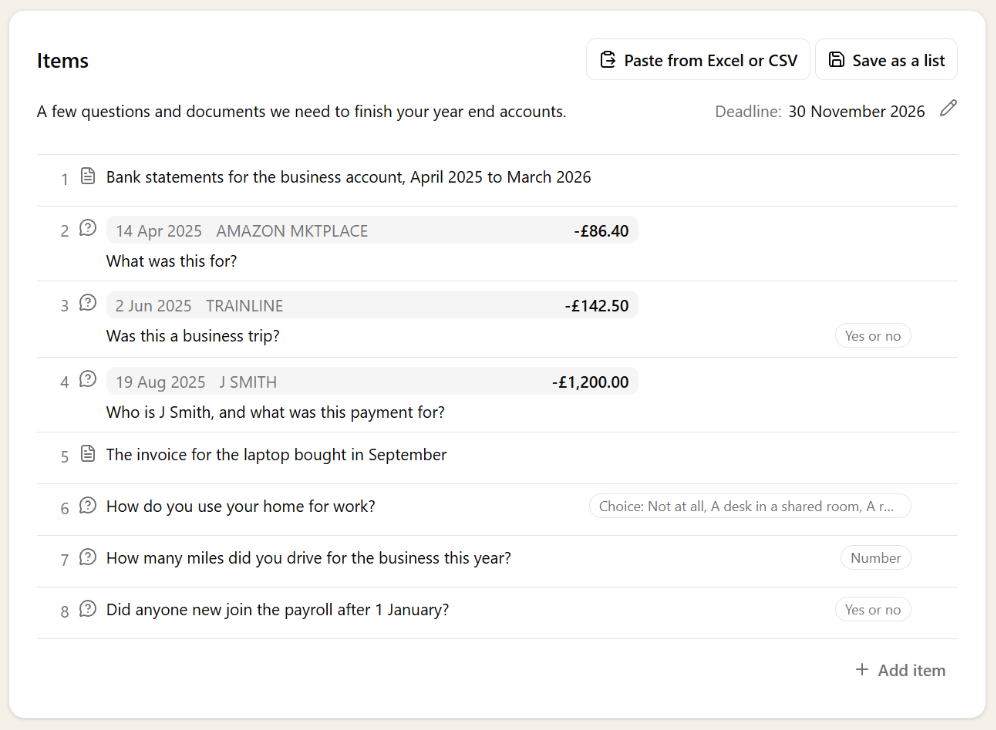
An information request holds a numbered list of items. Each item is either a query for the client to answer (what was this payment for?) or a document for them to provide (the bank statements, the P60). Instead of emailing a spreadsheet and keeping track of which rows came back, you send one request and the client works through it item by item.
The client doesn't have to answer everything at once. They can send three answers today and the rest next week, and each batch reaches you as soon as they send it. Chasing carries on until nothing is left with the client, and lists only the items still outstanding.
You can ask for just a single document with no items if needed: one title, one set of files, accepted or rejected as a whole.
Creating a request
Open the client and go to Documents → Requests, then press New Request. Or start from the Info Requests tab on the main Requests page: press New Request there and pick the client first. From then on it's the same.
Give the request a title the client will recognise, such as “Year end queries: March 2026”, an optional description and a deadline.
Choose Add documents or queries and press Create & Add Items. Sodium saves the request as a draft and opens it, ready for the first item. Nothing goes to the client until you send it.
Adding items
Press Add Item and type the question or the document you need. Pick Query or Document at the start of the row, then press Enter (or the tick) to add it and start the next.
A query can ask for a particular kind of answer. Answer, under the question, offers Text, Date, Number, Yes or no and Choice, where you list the options the client picks from. A query about a bank line can carry the transaction too: Add transaction info adds its date, reference and amount, and the client sees them above the question.
While the request is a draft, drag items into order with the handle beside the number, click an item to change it, and use its menu to duplicate or remove it, or to attach a file for the client to fill in. Everything saves as you go, and anything typed but not yet added is added when you send.
Grouping items into sections
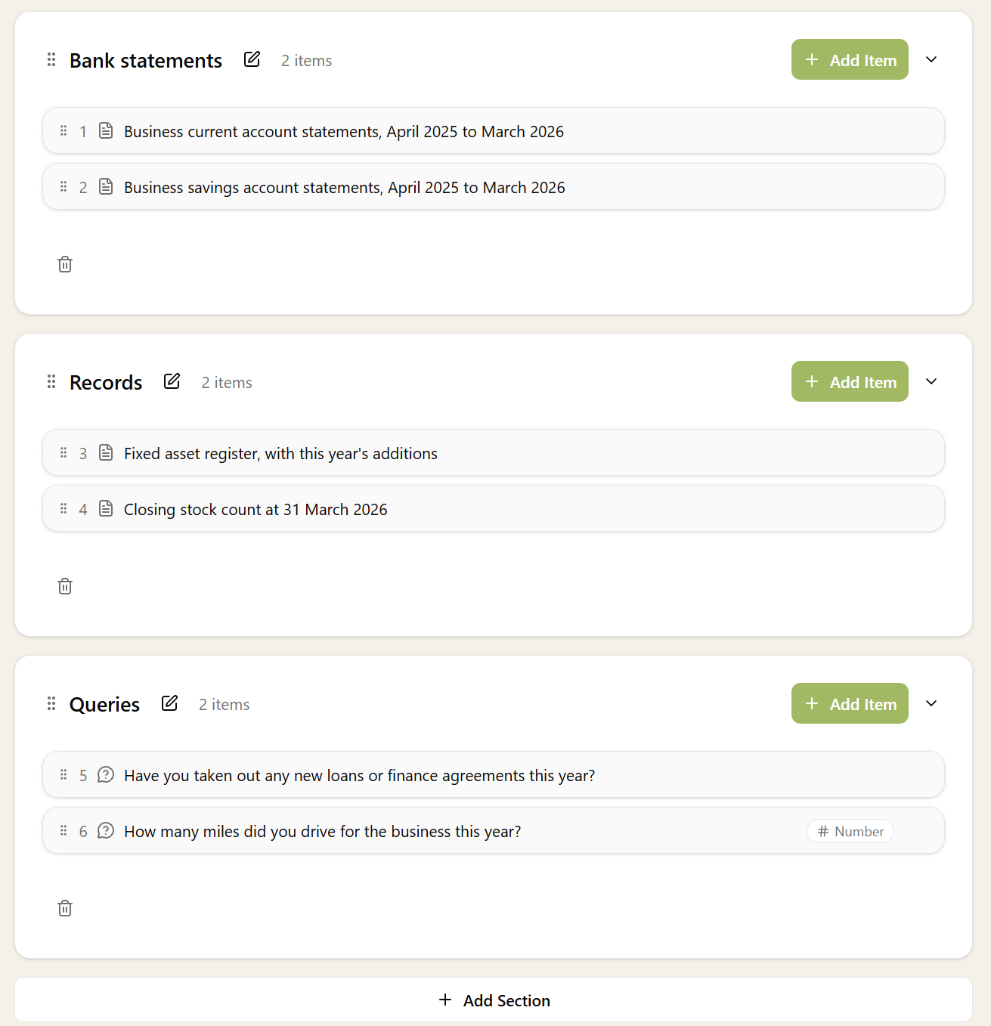
A long request is easier for the client to work through in topics: bank statements, records, queries. Sections are optional. A request without them stays one list, and only gets headings once you add one.
Press Add Section under the items, type its name and press Enter, then add its items with the section's own Add Item. Once a request has a section, every item belongs to one: any items already there go into a first section called General, which you can rename with the pencil beside its name.
Drag an item by its handle into another section, or drag a section by the handle beside its name to move it with all its items. Click a section's heading to fold it away while you work on the others. The bin at the bottom of a section deletes it with its items.
Pasting from Excel? Head a column Section and each row goes into the section named on it. A row with only a section name is that section's heading, and the rows under it go into it. Saved lists and workflow steps keep their sections, so a year end checklist arrives already grouped.
After the request is sent, Add item puts a new item in the last section. Use Section, next to Answer, to pick another one or start a new one.
Bank lines from Excel or the books
Most year end queries are bank transactions nobody can explain. You don't need to type them out.
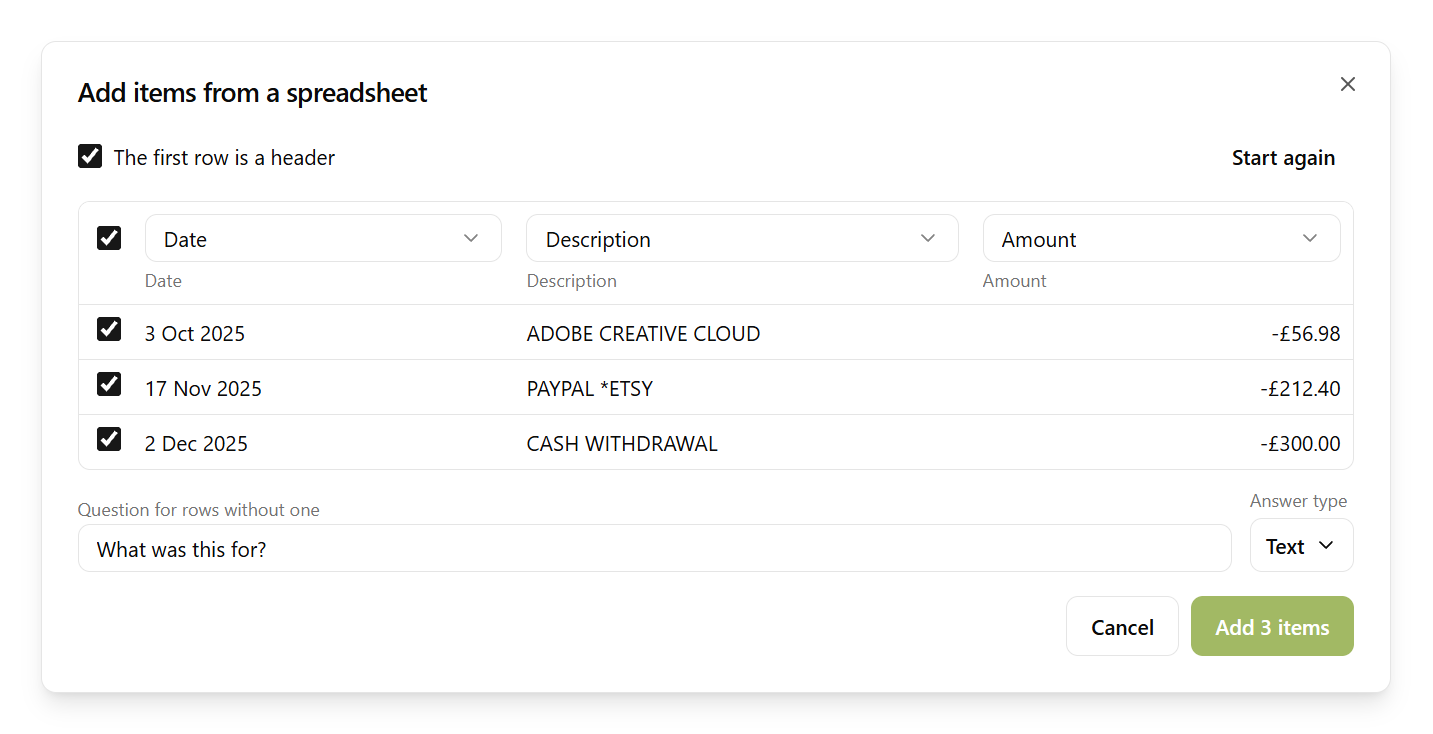
From a spreadsheet: copy the rows in Excel and press Paste from Excel or CSV, or drop a CSV file in the same dialog. Sodium shows the rows with a choice above each column (date, description, amount, the question, and so on), guessing from the headings. Untick any rows you don't want, set the question for rows that don't have one (“What was this for?” to start with) and its answer type, then press Add items.
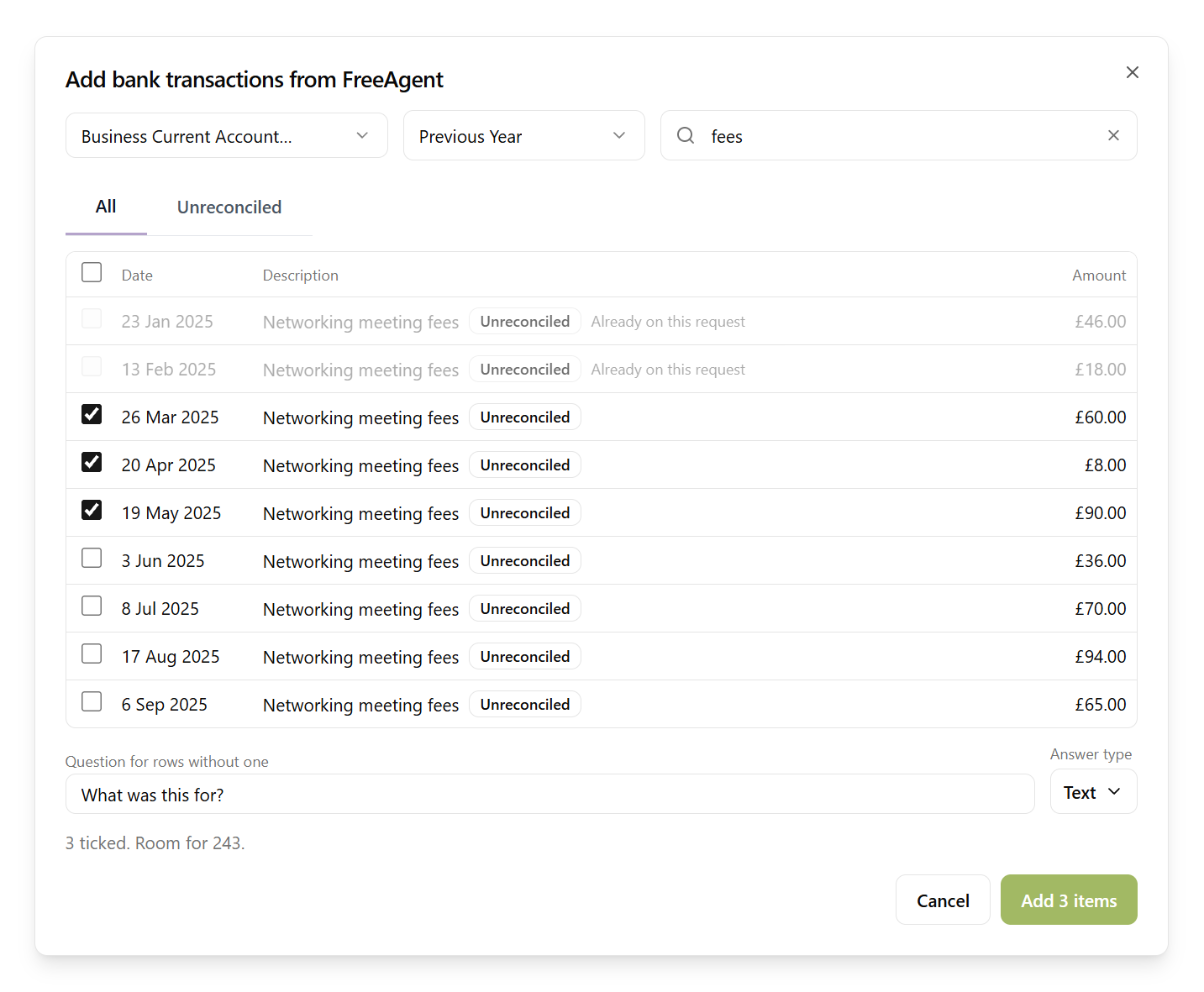
From the client's books: when the client is linked to FreeAgent, QuickBooks or Zoho Books, press the platform's Transactions button. Choose the bank account and the period, search if you need to, and switch to Unreconciled to see only the lines still to explain. Tick the ones to ask about. A line already on this request can't be ticked again.
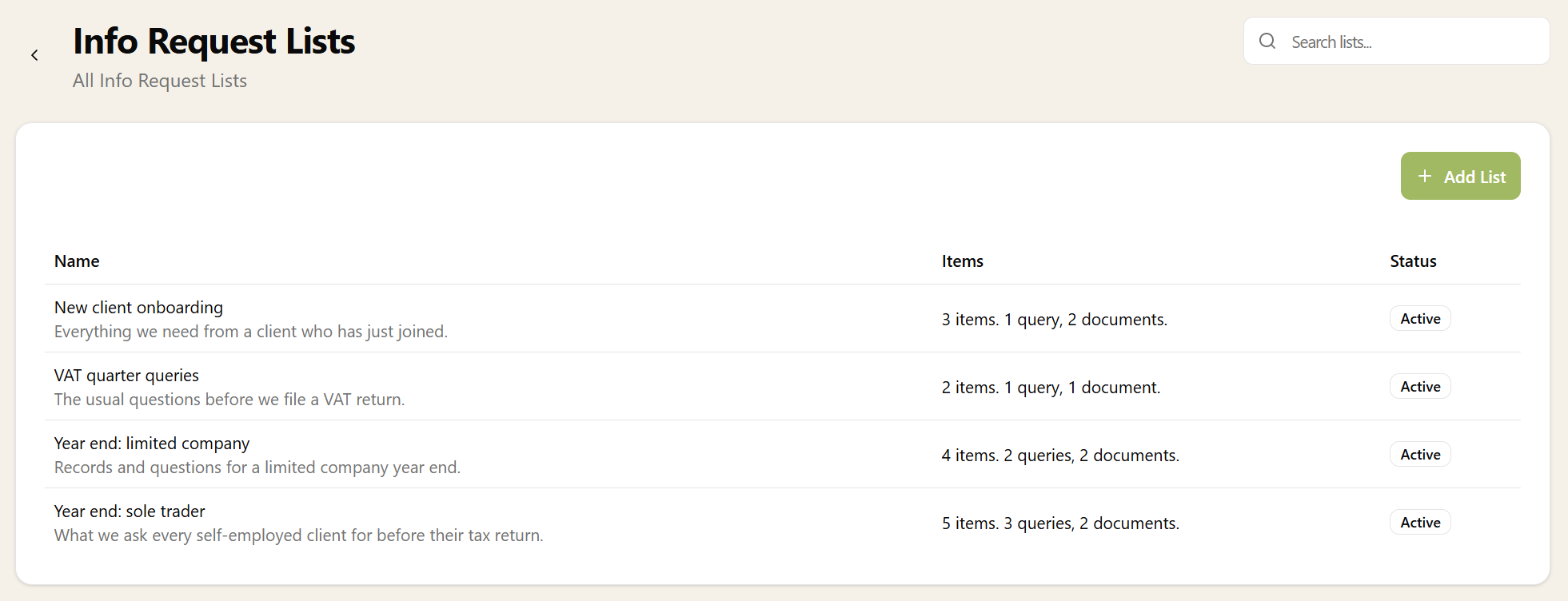
Info Request Lists
A year end checklist, the records for a VAT return, the documents for a new client: if you ask for the same things every time, keep them as an Info Request List.
On a draft, Save as a list turns the items you've built into a new list, and Use a saved list adds a list's items to the request, where you can change them for this client. Using a list copies its items, so editing a list later never changes a request you've already sent.
Sending it
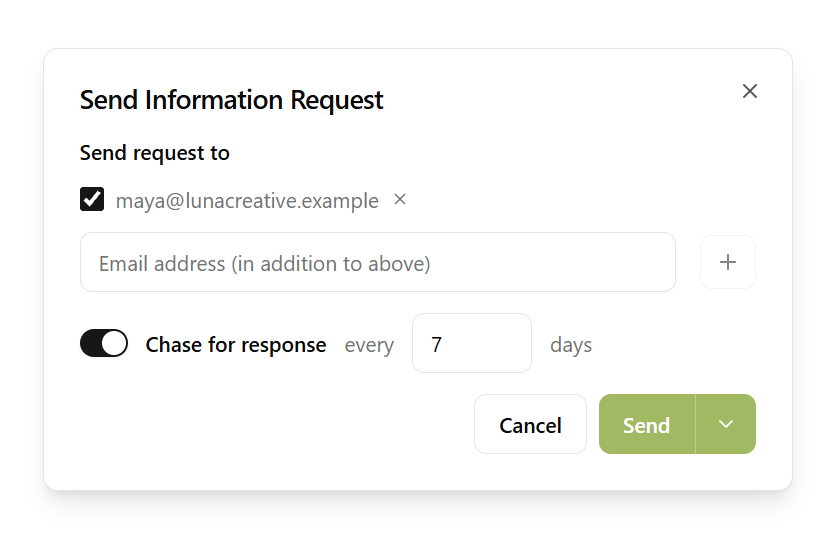
When the list is ready, press Send Request to Client. Pick who it goes to (type an address and press Enter to add it), and turn on Chase for response to remind them every few days until they've answered everything.
Press Send, or use the arrow beside it to schedule the email for later.
What the client sees
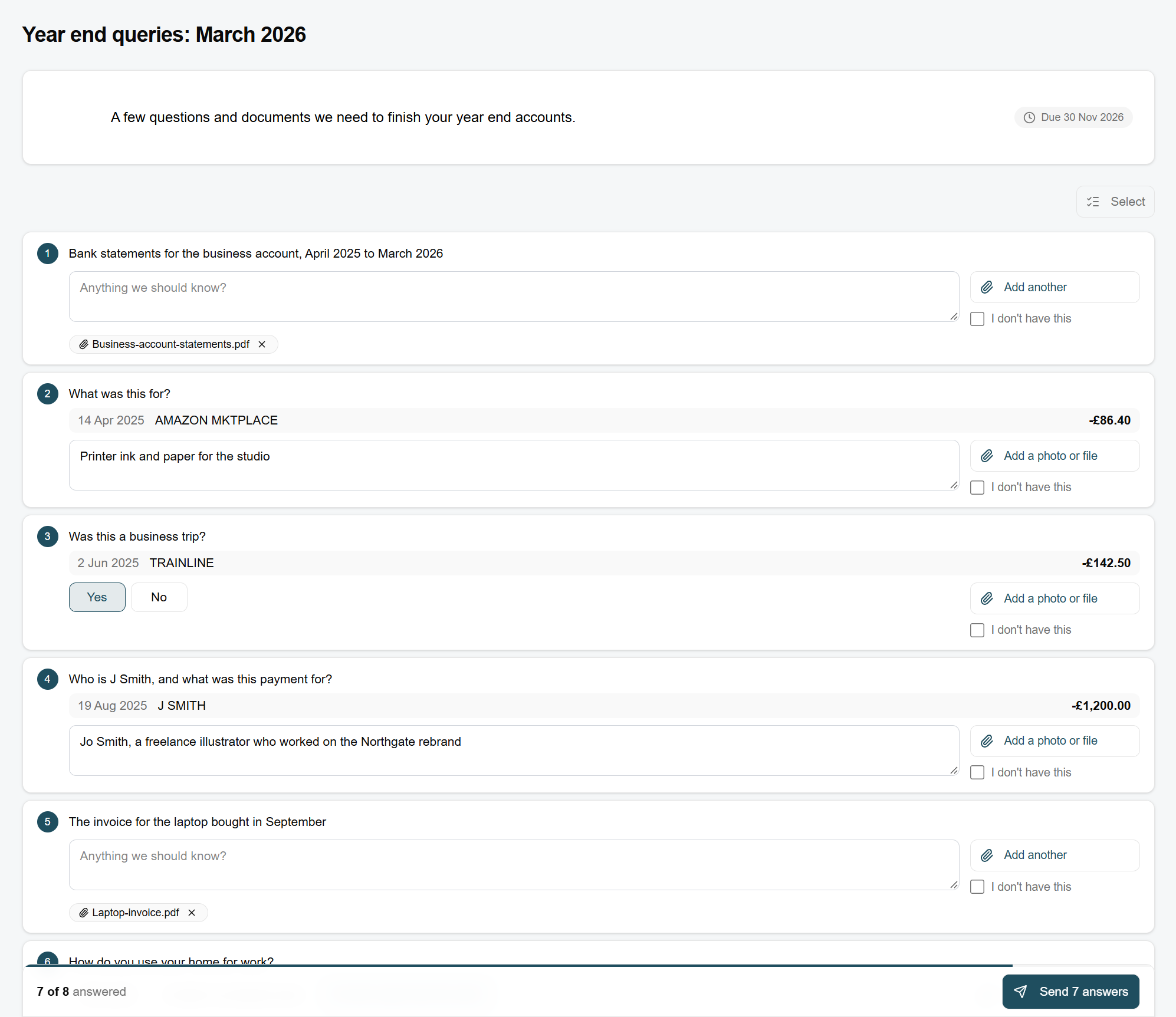
The client opens the link in the email, or the request in their client portal. There's no account or password to set up. Each item has its own answer box and an Add a photo or file button, and a bar at the foot of the page counts what they've answered.
- Answers save as they type. If they close the page, they come back to the same link and carry on.
- They send in batches. The button at the bottom reads “Send 7 answers”. You're told once per batch, not once per item.
- “I don't have this” is an answer. A missing receipt comes back to you to decide on, rather than being chased for ever.
- Several items, one answer. Select lets them tick, say, four coffee shop payments and explain them together.
Reviewing the answers
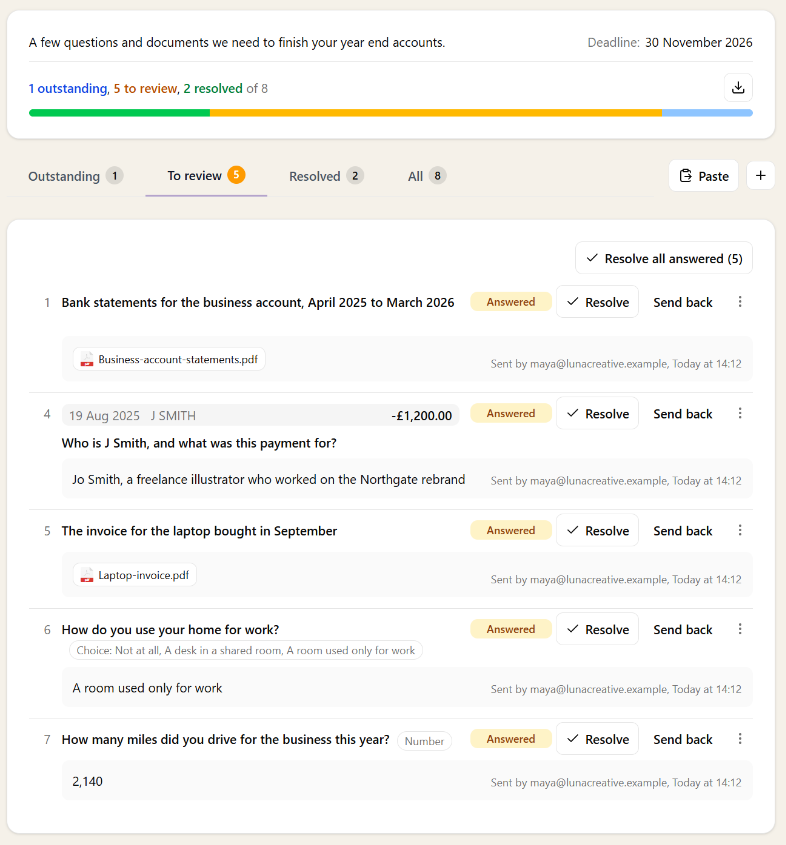
Once it's sent, the request shows how many items are outstanding, waiting for your review and resolved, with a tab for each. Answers land in To review, showing the client's text or files and who sent them. Click a file to preview it without leaving the page.
- Resolve accepts an answer. When two or more are waiting, Resolve all answered does them all at once.
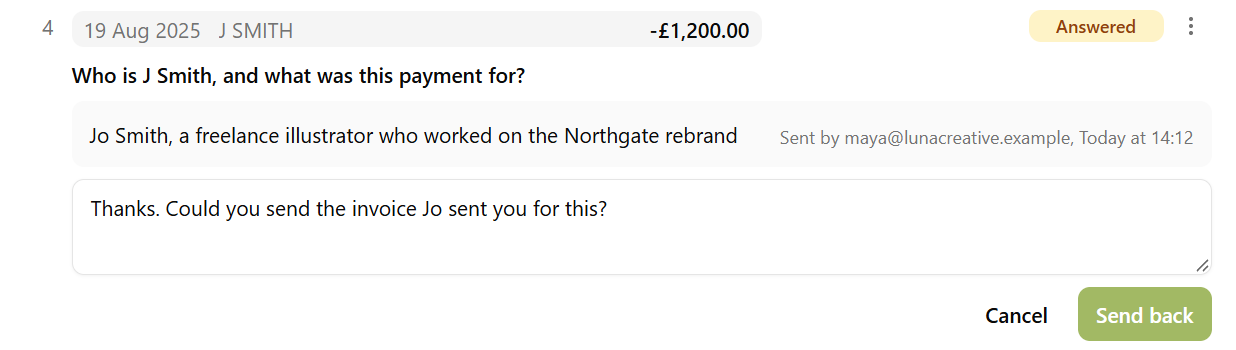
- Send back asks for a note saying what's still needed. Send-backs wait at the foot of the list until you press Send back to client, so the client gets one email listing them all with your notes.
- Each item's menu also has Answer for the client, for an answer that came by phone or email, Resolve without an answer, and History, which shows everything that has happened to that item.
- The download button at the top exports every item and its answer to a CSV file, ready to work from beside the ledger.
Resolving the last item completes the request. Sodium asks you to confirm first.
Asking for more after it's sent
Spotted something else? Press + beside the tabs to add an item, or use Paste or Transactions, while the client is still answering. New items join the same link. They go out with the next chase, or straight away with Email client now, which opens the email so you can change the wording before it goes.
A request sent as a single document request can take items too. When you add the first one, Sodium asks what the original ask should be called: it becomes item 1, keeping any files the client has already uploaded.
Tips
- Write items the way the client talks. “Your P60 for 2025/26” lands better than “P60 required”.
- Pick the answer type. A yes or no, a number or a choice is quicker for the client than a blank box, and easier for you to review.
- Review as answers arrive. Resolving as they come in keeps the To review count small, and the client sees their progress.
- Send the same thing every year? Save it as a list, or put the request in a workflow so it goes out on its own: see Information Requests in Workflows.