
Connecting Sodium to Xero
Everything you need to set up, use, and manage the Xero integration in Sodium.
1. Overview
Sodium integrates with Xero to bring your accounting data into your practice management workflow. With the integration you can:
- Import your existing Xero clients into Sodium
- View invoices, outstanding balances, and overdue amounts for each client
- Create new clients in Sodium that automatically sync to Xero
- Click through from Sodium directly into Xero invoices
The connection uses secure OAuth 2.0 — you sign in to Xero, authorise Sodium, and you're done. No API keys to manage.
Xero is one of four accounting platforms Sodium connects to — see accounting software for the full picture, or browse everything Sodium plugs into on the integrations page. Once connected, the same link powers client billing, pushing your fee invoices into Xero automatically, with Direct Debit collecting payment — the billing setup guide walks through it step by step.
2. Getting Started
Sodium is available on the Xero App Store. If you're new to Sodium, the quickest way to get started is directly from the App Store listing:
- Find Sodium on the Xero App Store and click Get this app
- Sign in with your Xero credentials and authorise Sodium
- Create your practice in Sodium
- Your Xero organisation is connected automatically — no extra steps needed
Tip: If you have multiple Xero organisations, you'll be asked to select which one to connect during setup.
3. Xero Accounting Connection
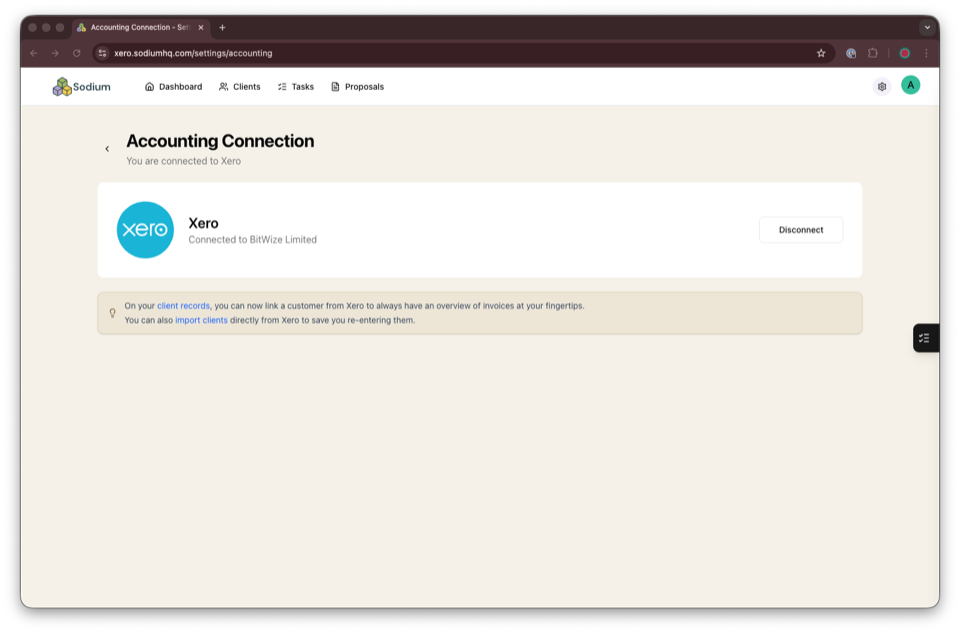
If you signed up or logged in to Sodium using your Xero account, the Xero accounting connection is already set up — there's nothing more to do.
Other users can connect Xero manually from the settings page:
- Go to Settings > Accounting Connection
- Select Xero
- Sign in to Xero and authorise Sodium
- If you have multiple Xero organisations, select which one to connect
Once connected, your organisation name is displayed on the settings page.
4. Viewing Invoices and Balances
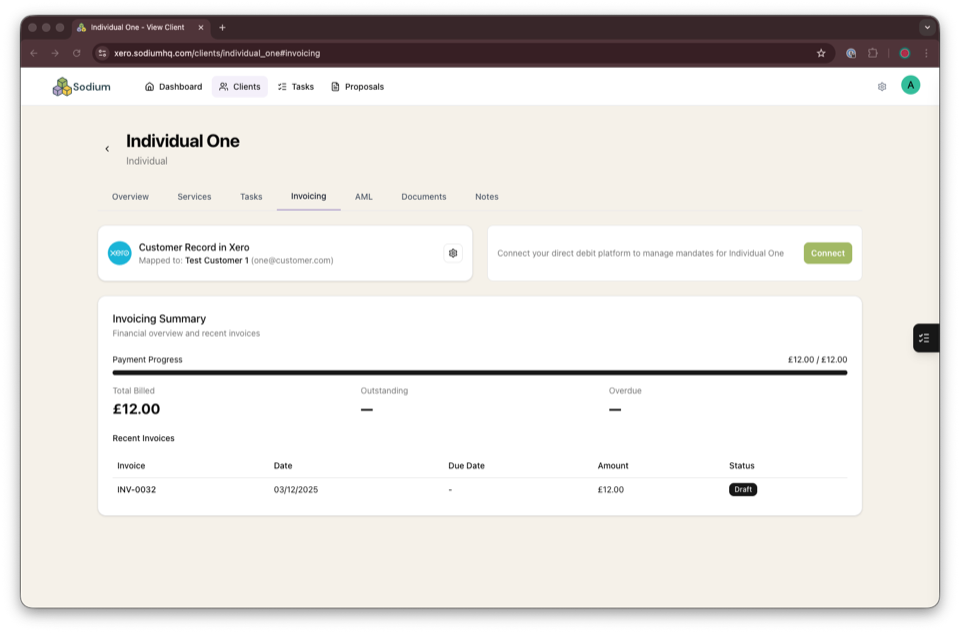
Open a client record and go to the Invoicing tab. If the client is linked to a Xero customer, you'll see:
- Payment progress bar — total paid vs total billed
- Summary boxes — Total Billed, Outstanding, and Overdue
- Invoice table — invoice number, date, due date, amount, and status
Click any invoice row to open it directly in Xero.
5. Linking a Client to a Xero Customer
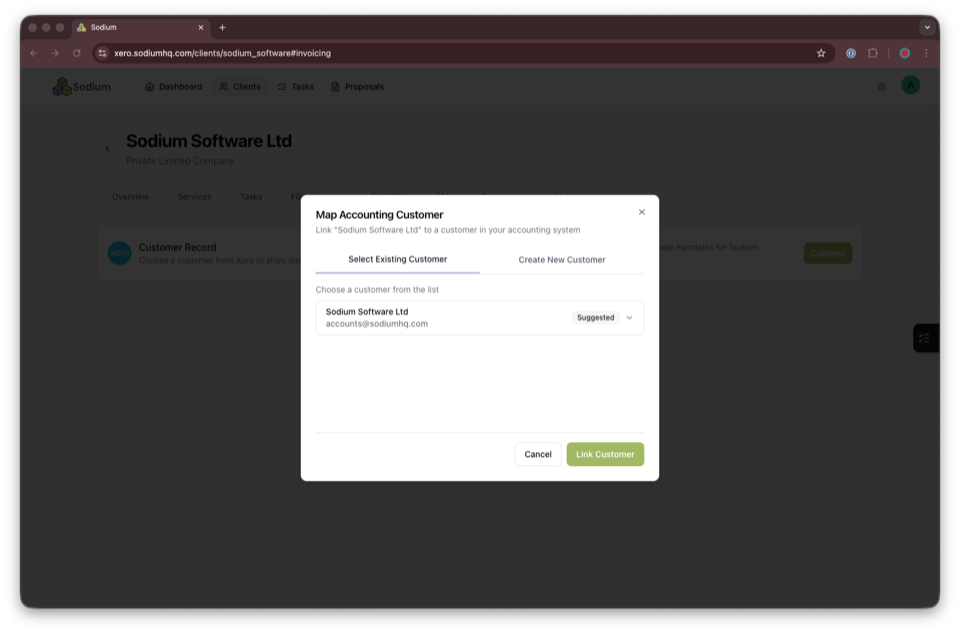
If a client wasn't imported from Xero, you can link them manually. Open the client record, go to the Invoicing tab, and click Choose Customer.
Option 1: Select Existing Customer
Search your Xero contacts and click Link Customer.
Option 2: Create New Customer
Fill in the customer details and click Create & Link. If a contact with the same email already exists in Xero, the existing one is linked automatically — no duplicate is created.
6. Importing Clients from Xero
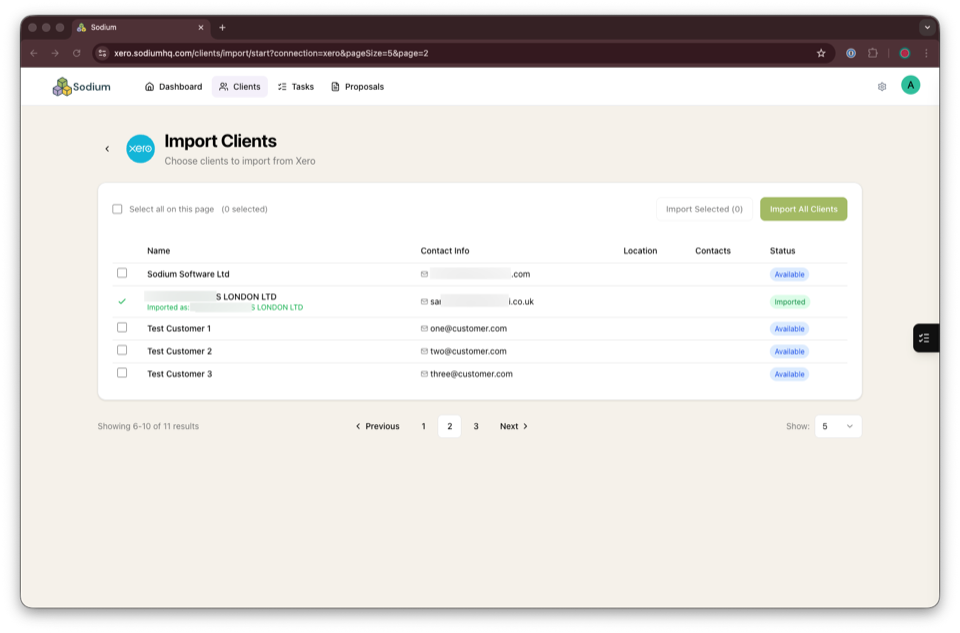
- Go to Clients > Import
- Click Import Clients next to your Xero connection
- Browse your available Xero contacts — select individual clients or import all
Contacts that have already been imported are marked as "Imported" and cannot be duplicated.
What gets imported
Imported data includes name, email, phone, company number, addresses, website, and additional contacts. Imported clients are automatically linked to their Xero customer record, so invoices and balances are available immediately.
7. Disconnecting from Xero
- Go to Settings > Accounting Connection and click Disconnect
- Confirm in the dialog
Your OAuth token is revoked on Xero's side immediately. Client records and mappings are preserved — you won't lose any data. Invoice and balance data will be unavailable until you reconnect.
8. What Data Does Sodium Access?
Transparency matters. Here's exactly what Sodium reads and writes in your Xero organisation.
| Action | Details |
|---|---|
| We read | Contacts (customers only), Invoices (Accounts Receivable only), Organisation name |
| We write | New contacts only (with duplicate prevention by email) |
| We never modify or delete | Existing contacts or invoices in Xero |
Scopes requested: Contacts (read/write), Invoices (read), Accounting Settings (read)
Need help?
If you have any questions about the Xero integration, we're here to help.
hello@sodiumhq.comorGet in touch