
In PCL Settings, the first option is a simple toggle. If your firm doesn't use Professional Clearance Letters, just turn them off. Once disabled, all PCL-related elements disappear from the rest of the interface so nothing clutters your workflow.
Professional Clearance Letters (PCLs)
When a new client moves from one accountant to another, it's standard practice to request a Professional Clearance Letter from the previous firm. This ensures a smooth handover, confirms there are no professional or ethical concerns, and helps the new accountant gather any information needed to begin acting.
Sodium includes built-in tools to make this process simple, consistent, and fully trackable.
At a glance
- Global items appear on every letter; others are picked per service
- Email body comes from a content block in your library
- Automatic CC and BCC addresses on every PCL sent
- Client record prompts you to send if it hasn't been done
- Composer opens with recipients, content and items pre-filled
- Sent through your connected email, with a copy in your sent items
- Mark as Sent when clearance was handled outside Sodium
- One toggle hides PCLs everywhere if your firm doesn't use them
Enable or Disable PCLs
Shared and Service-Specific Items
Within the settings page you can manage the list of items that appear in your PCLs.
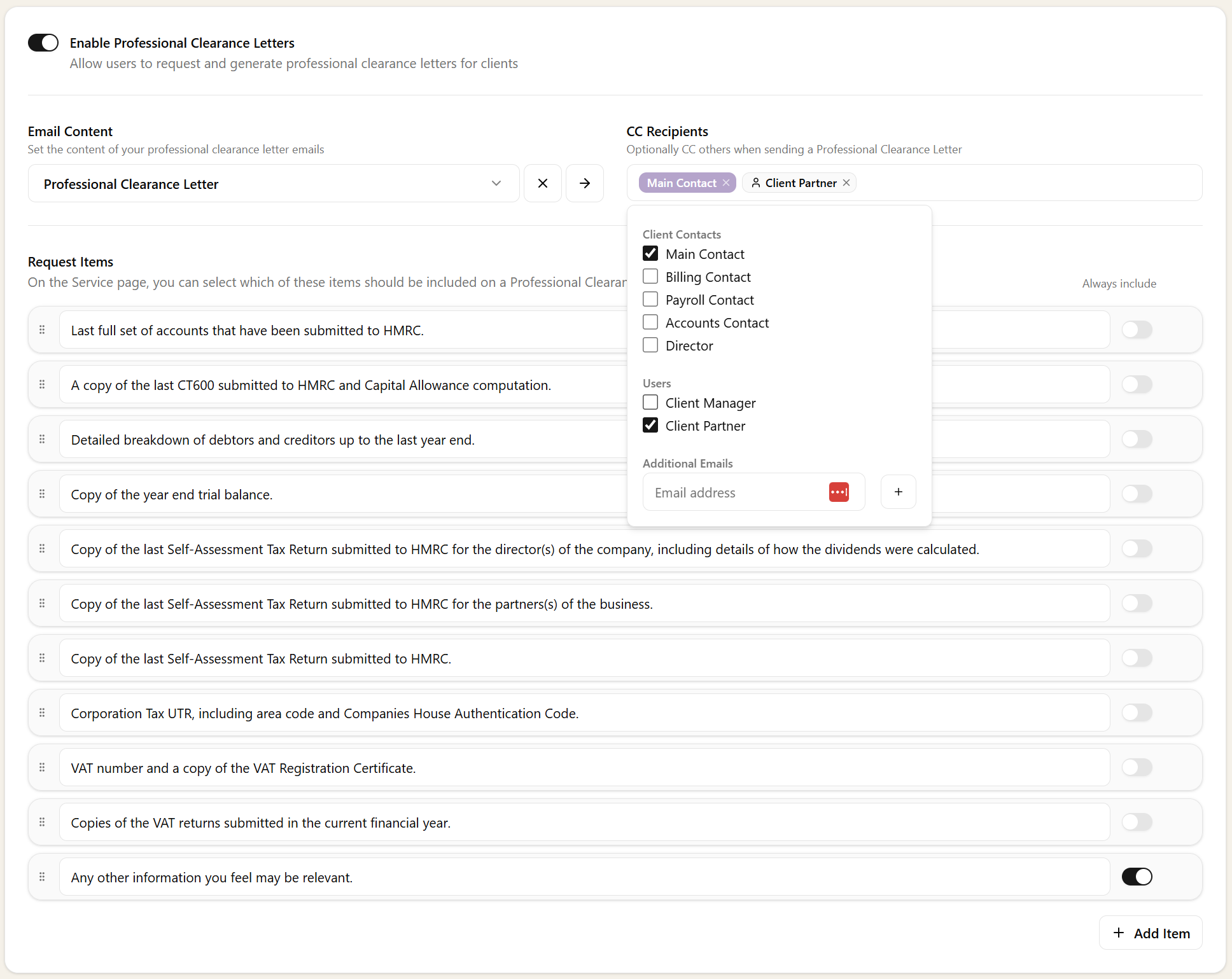
- Global items - Mark an item as global to include it on every Professional Clearance Letter, no matter which services the client has taken up.
- Service-specific items - Leave an item unmarked, and you'll be able to select it individually on each service. This lets you tailor PCLs based on exactly what you provide to that client.
Email Content & Recipients
On the same settings page you can choose a content block from the library to use as the body of your PCL emails. This keeps every letter consistent with your firm's preferred wording and tone.
You can also specify email addresses to automatically CC and BCC on every PCL that's sent, so the right people in your firm are always kept in the loop.
Sending a PCL from a Client Record
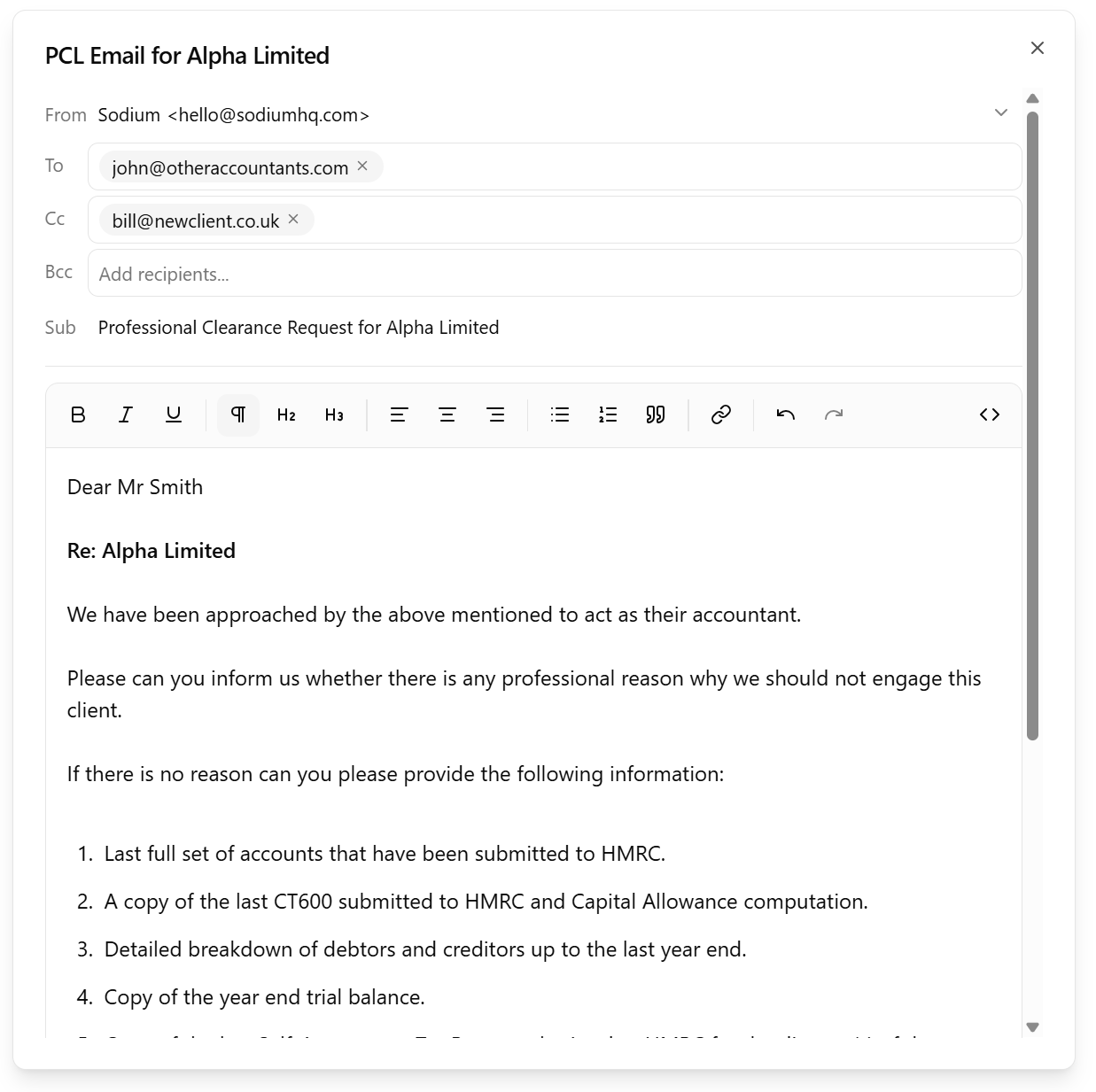
When you open a client record, Sodium will prompt you to send the Professional Clearance Letter if it hasn't already been done. Just click Send PCL and an email composer opens with the recipient addresses, content block, and PCL items all pre-filled. You can review and edit the email as needed, then click Send. The system will automatically update the client record to confirm the PCL has been sent.
Like everything else Sodium sends, the letter goes out through your connected email - from your practice address, with your branding, and a copy in your sent items.
Marking a PCL as Already Sent
If you've handled the clearance outside the system, you can simply click Mark as Sent instead of sending an email. This keeps your client record accurate without duplicating work.